> ## Documentation Index
> Fetch the complete documentation index at: https://docs.lettr.com/llms.txt
> Use this file to discover all available pages before exploring further.
# Vercel DNS Setup
> Configure Vercel DNS for Lettr: add CNAME, DKIM, DMARC, and MX records to set up sending, inbound, tracking, and storage domains.
This guide walks you through adding the required DNS records for Lettr using Vercel's DNS management. Vercel is a cloud platform for frontend frameworks and static sites that also provides DNS hosting for domains connected to your [Vercel projects](https://vercel.com/login).
You will configure a **sending domain** (CNAME, DKIM TXT, and DMARC TXT records) and, optionally, an **inbound domain** (MX records), **tracking domain** (two CNAME records), and **storage domain** (CNAME and two TXT records).
***
## Sending Domain Setup
A sending domain authenticates your outgoing emails with DKIM and DMARC, ensuring they are delivered reliably and not marked as spam. This requires a CNAME record for domain verification, a TXT record for DKIM signing, and a TXT record for DMARC policy.
To create a sending domain in Lettr:
1. Select **Domains** in the navigation panel
2. Select **Sending Domains**
3. Click **Create Sending Domain**
4. Enter your desired sending subdomain (e.g. `mailing.company.com`)
5. Click **Create Domain**
Use a subdomain (e.g. `mailing.company.com`) instead of the root domain (`company.com`). A subdomain provides proper
reputation segmentation and is required if you also plan to receive emails with Lettr.
Click your new domain in the Sending Domains list.
This will display a list of DNS records that need to be configured. Keep this page open — you will need these values soon.
### Configure Vercel DNS
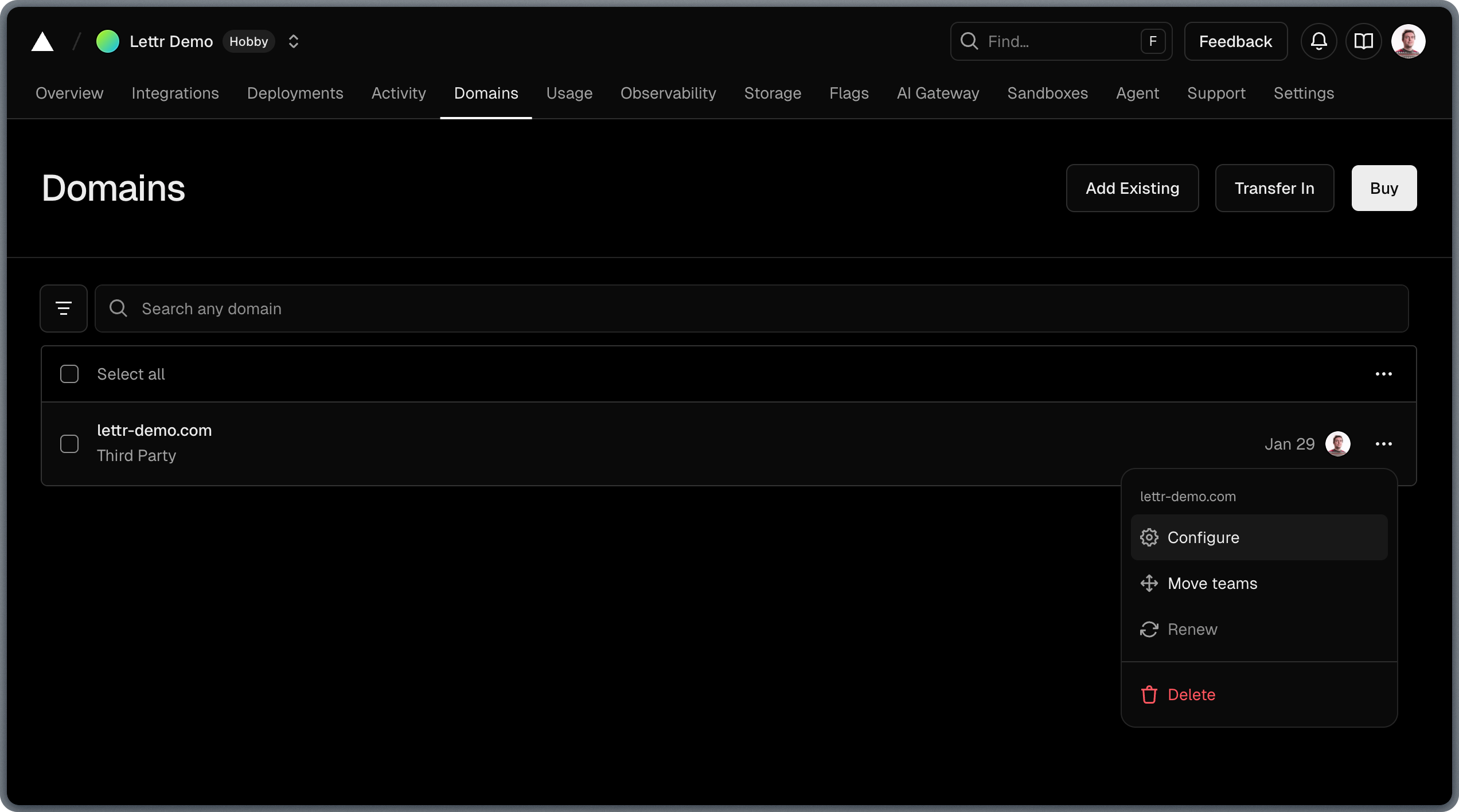
Log in to your [Vercel account](https://vercel.com/login) and select the **Domains** tab in your project dashboard. Find the domain you want to configure, then click the three vertical dots and select **Configure**.
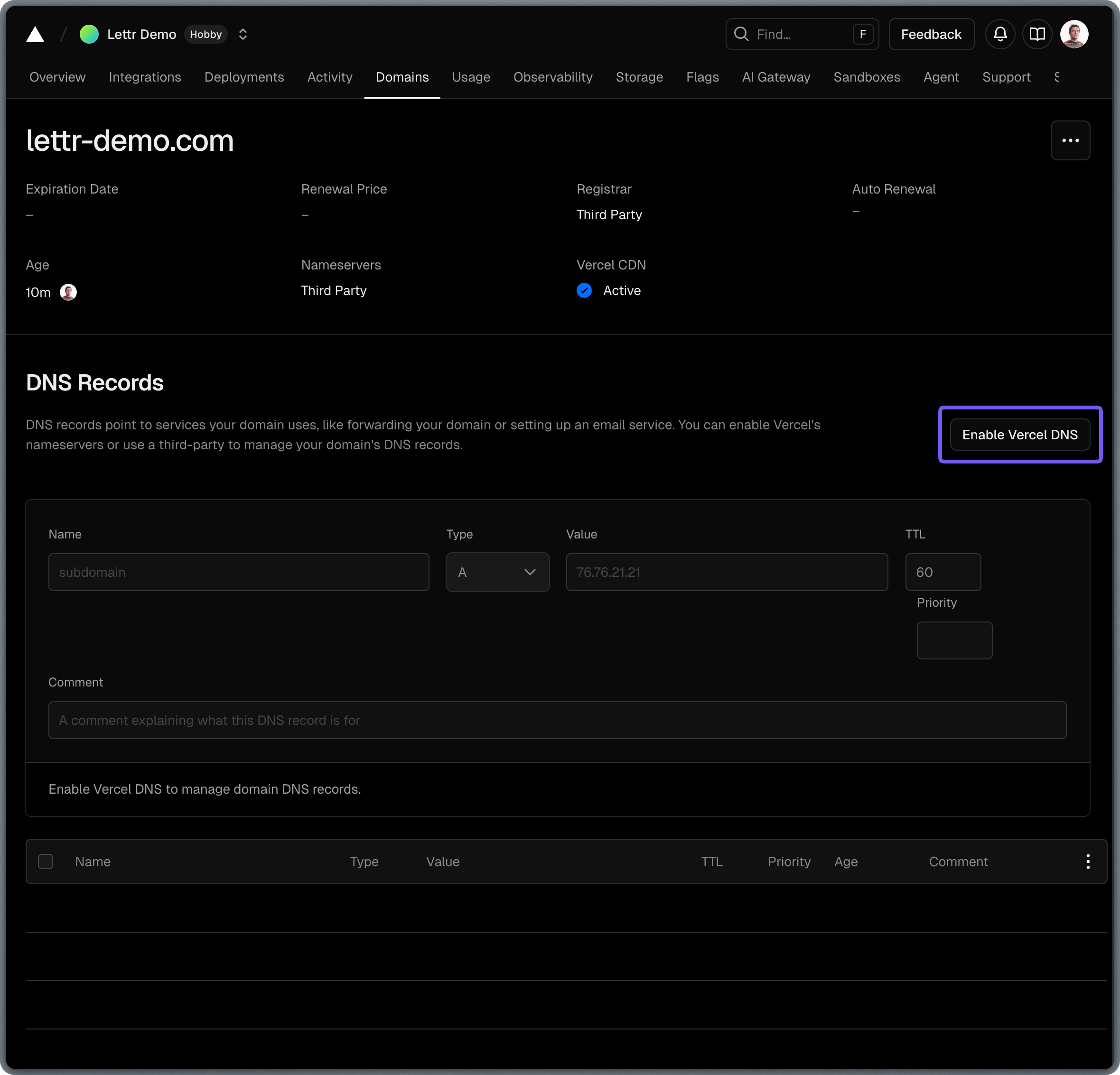
 In the Domain configuration, click **Enable Vercel DNS**. This allows you to manage your domain's DNS records directly in Vercel.
 If your domain was purchased through Vercel or your nameservers already point to Vercel, skip nameserver configuration
entirely. Your domain is already using Vercel's nameservers by default — proceed directly to adding the DNS records
below.
If you registered your domain elsewhere but want to manage DNS on Vercel, you must first **update the nameservers**
at your registrar to Vercel's nameservers shown in the domain configuration.
If your domain was purchased through Vercel or your nameservers already point to Vercel, skip nameserver configuration
entirely. Your domain is already using Vercel's nameservers by default — proceed directly to adding the DNS records
below.
If you registered your domain elsewhere but want to manage DNS on Vercel, you must first **update the nameservers**
at your registrar to Vercel's nameservers shown in the domain configuration.
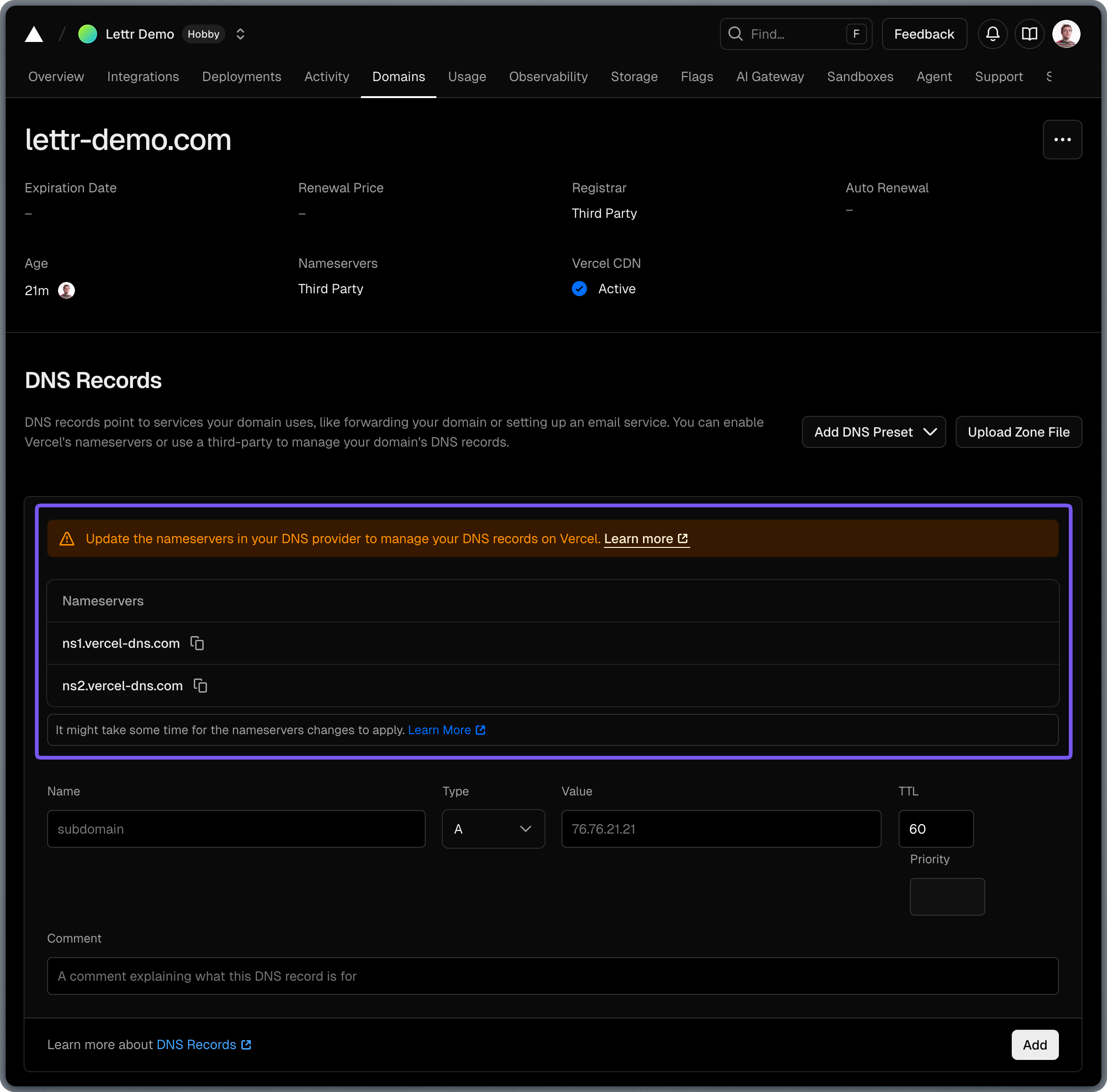 Until the nameservers are updated, any records you add in Vercel will not resolve.
### Add CNAME Record
The CNAME record verifies domain ownership with Lettr's email infrastructure.
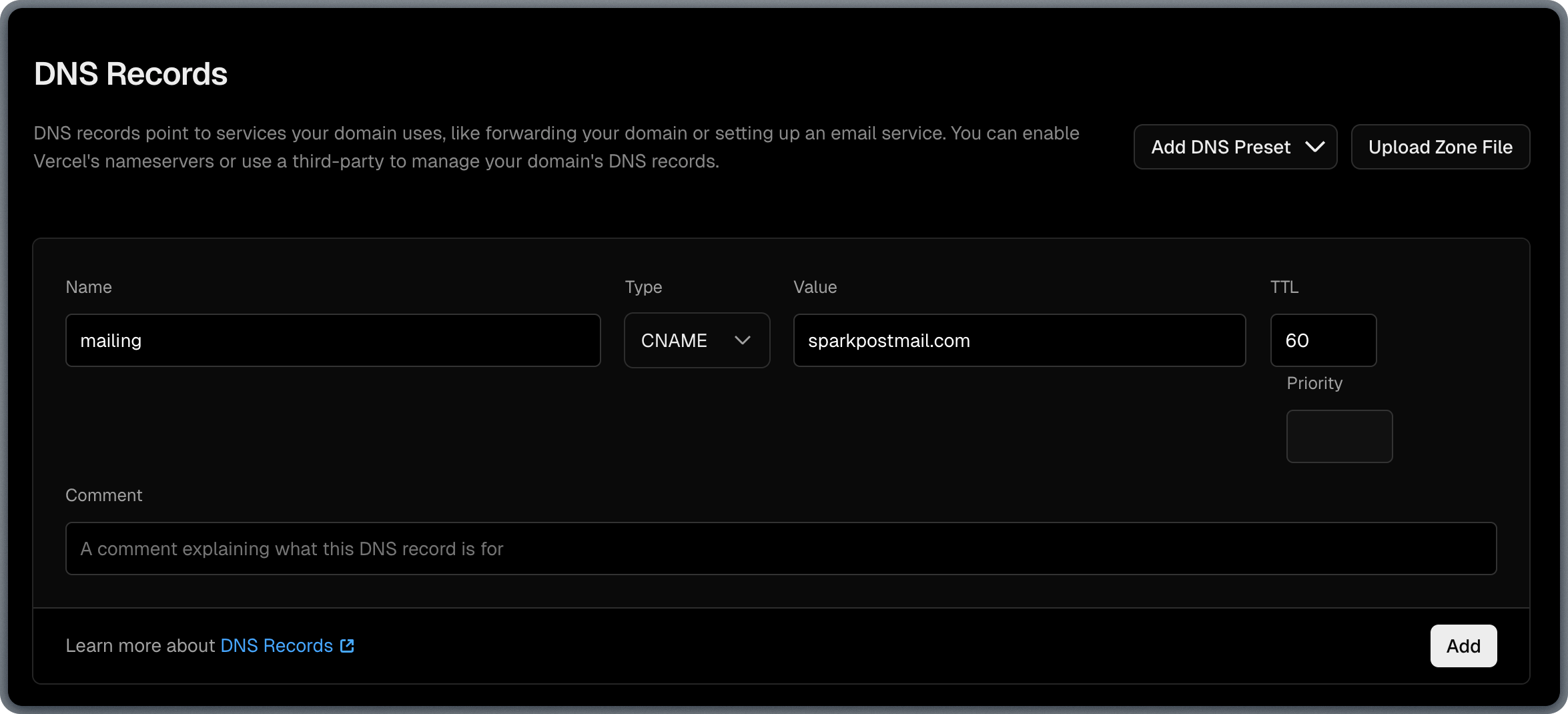
Copy the CNAME values from Lettr to Vercel:
1. Copy the **Hostname** from Lettr and paste it into the **Name** field in Vercel.
2. Expand the **Type** dropdown in Vercel and select **CNAME**.
3. Copy the **Value** from Lettr and paste it into the **Value** field in Vercel.
4. Leave **TTL** set to 60 (Vercel default).
5. Click **Add**.
Omit your domain suffix from the Hostname when pasting into Vercel. For example, instead of `mailing.lettr-demo.com`,
paste only `mailing`.
Until the nameservers are updated, any records you add in Vercel will not resolve.
### Add CNAME Record
The CNAME record verifies domain ownership with Lettr's email infrastructure.
Copy the CNAME values from Lettr to Vercel:
1. Copy the **Hostname** from Lettr and paste it into the **Name** field in Vercel.
2. Expand the **Type** dropdown in Vercel and select **CNAME**.
3. Copy the **Value** from Lettr and paste it into the **Value** field in Vercel.
4. Leave **TTL** set to 60 (Vercel default).
5. Click **Add**.
Omit your domain suffix from the Hostname when pasting into Vercel. For example, instead of `mailing.lettr-demo.com`,
paste only `mailing`.
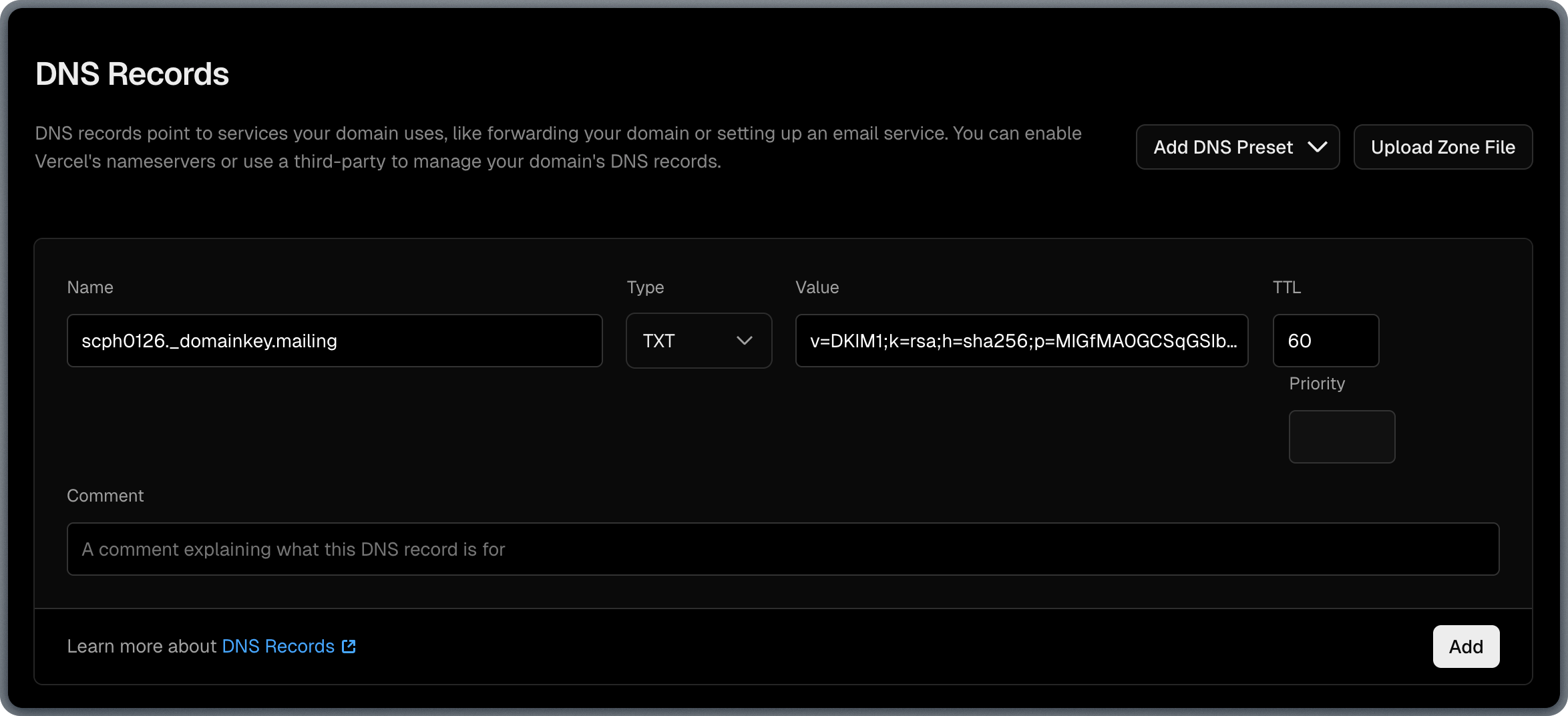
 ### Add TXT Record (DKIM)
The DKIM record adds a cryptographic signature to your outgoing emails, allowing recipients to verify they were sent by an authorized sender.
Copy the TXT values from Lettr to Vercel:
1. Copy the **Hostname** from Lettr and paste it into the **Name** field in Vercel.
2. Expand the **Type** dropdown in Vercel and select **TXT**.
3. Copy the **Value** from Lettr and paste it into the **Value** field in Vercel.
4. Leave **TTL** set to 60 (Vercel default).
5. Click **Add**.
Omit your domain suffix from the Hostname when pasting into Vercel. For example, instead of
`scph0126._domainkey.mailing.lettr-demo.com`, paste only `scph0126._domainkey.mailing`.
### Add TXT Record (DKIM)
The DKIM record adds a cryptographic signature to your outgoing emails, allowing recipients to verify they were sent by an authorized sender.
Copy the TXT values from Lettr to Vercel:
1. Copy the **Hostname** from Lettr and paste it into the **Name** field in Vercel.
2. Expand the **Type** dropdown in Vercel and select **TXT**.
3. Copy the **Value** from Lettr and paste it into the **Value** field in Vercel.
4. Leave **TTL** set to 60 (Vercel default).
5. Click **Add**.
Omit your domain suffix from the Hostname when pasting into Vercel. For example, instead of
`scph0126._domainkey.mailing.lettr-demo.com`, paste only `scph0126._domainkey.mailing`.
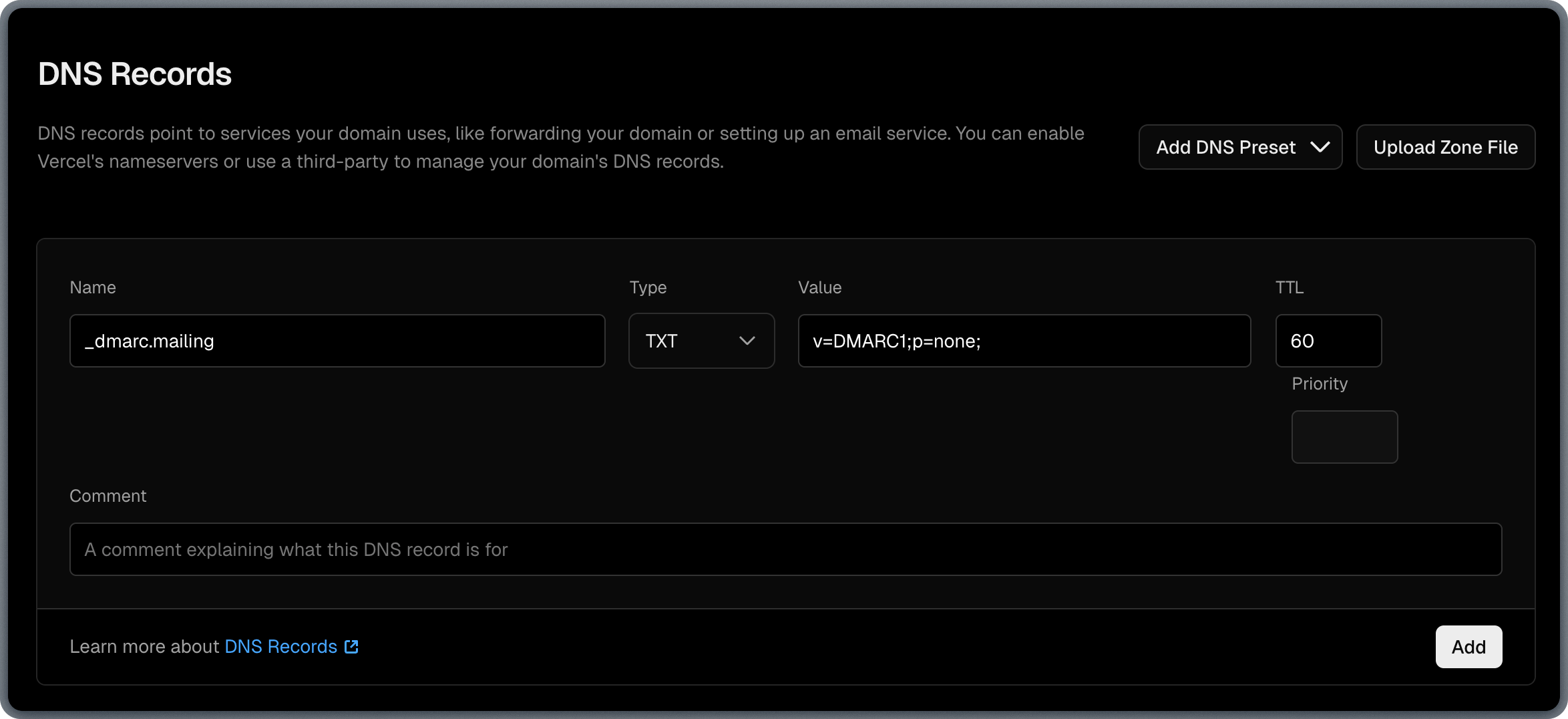
 ### Add TXT Record (DMARC)
The DMARC record tells receiving mail servers how to handle emails that fail authentication checks, protecting your domain from spoofing.
Copy the TXT values from Lettr to Vercel:
1. Copy the **Hostname** from Lettr and paste it into the **Name** field in Vercel.
2. Expand the **Type** dropdown in Vercel and select **TXT**.
3. Copy the **Value** from Lettr and paste it into the **Value** field in Vercel.
4. Leave **TTL** set to 60 (Vercel default).
5. Click **Add**.
Omit your domain suffix from the Hostname when pasting into Vercel. For example, instead of
`_dmarc.mailing.lettr-demo.com`, paste only `_dmarc.mailing`.
### Add TXT Record (DMARC)
The DMARC record tells receiving mail servers how to handle emails that fail authentication checks, protecting your domain from spoofing.
Copy the TXT values from Lettr to Vercel:
1. Copy the **Hostname** from Lettr and paste it into the **Name** field in Vercel.
2. Expand the **Type** dropdown in Vercel and select **TXT**.
3. Copy the **Value** from Lettr and paste it into the **Value** field in Vercel.
4. Leave **TTL** set to 60 (Vercel default).
5. Click **Add**.
Omit your domain suffix from the Hostname when pasting into Vercel. For example, instead of
`_dmarc.mailing.lettr-demo.com`, paste only `_dmarc.mailing`.
 ### Verify Your Sending Domain
After adding all three DNS records, go back to Lettr and click **Verify DNS Records**. DNS propagation can take up to 24–48 hours, though it typically completes within a few minutes.
***
## Inbound Domain Setup
An inbound domain allows Lettr to receive emails on your behalf. This requires three MX records that direct incoming mail to Lettr's mail servers.
### Add Inbound Domain to Lettr
To create an Inbound domain in Lettr:
1. Select **Domains** in the navigation panel
2. Select **Inbound Domains**
3. Click **Create Inbound Domain**
4. Enter your desired inbound subdomain (e.g. `inbound.company.com`)
5. Click **Create Domain**.
Click on your new domain in the Inbound Domains list.
This will display the MX records that need to be configured.
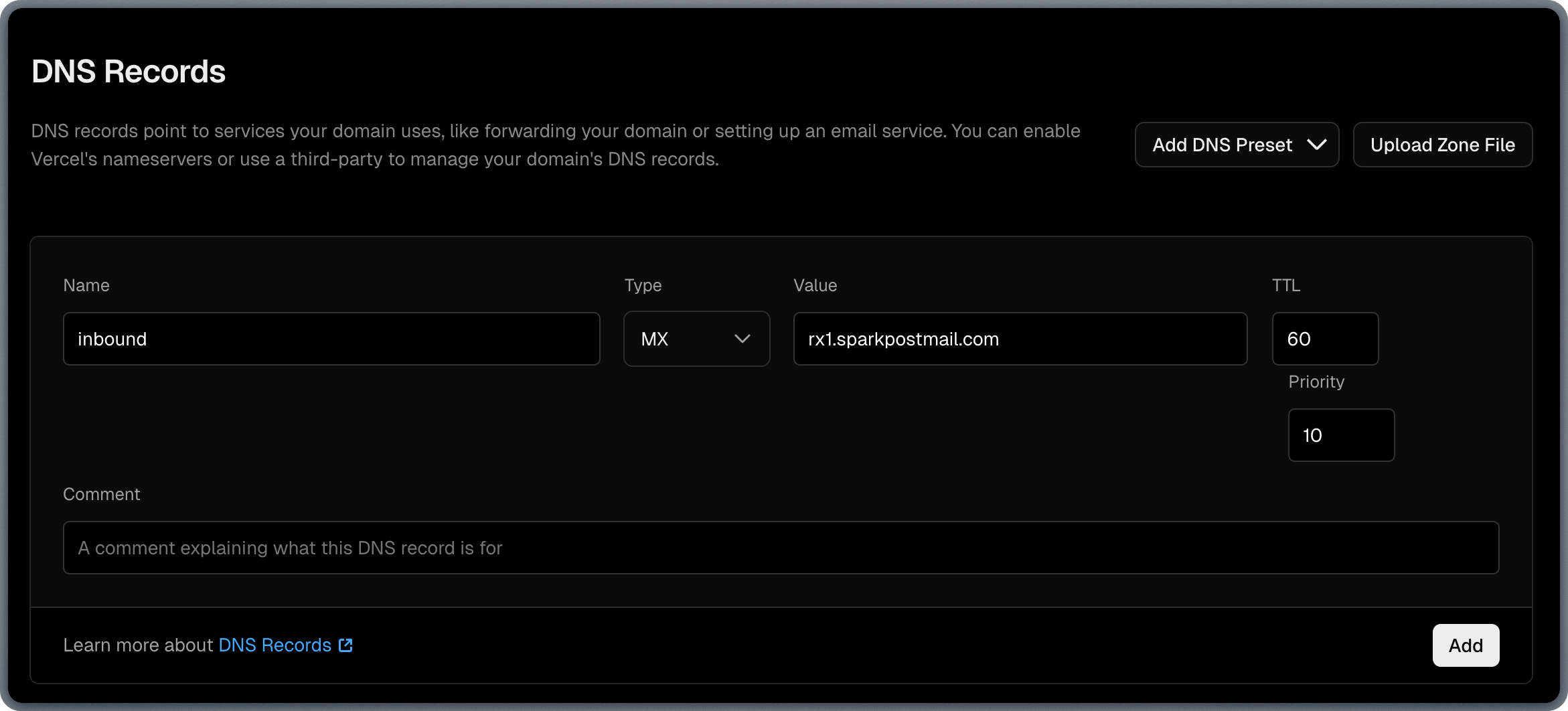
### Add MX Records
MX records tell other mail servers where to deliver emails addressed to your domain.
Copy the MX values from Lettr to Vercel:
1. Copy the **Hostname** from Lettr and paste it into the **Name** field in Vercel.
2. Expand the **Type** dropdown in Vercel and select **MX**.
3. Copy the **Required MX Record** value (without the priority number) from Lettr and paste it into the **Value** field in Vercel.
4. Copy the **Priority** number (e.g. `10`) from Lettr and paste it into the **Priority** field in Vercel.
5. Leave **TTL** set to 60 (Vercel default).
6. Click **Add**.
7. Repeat this process for the second (rx2.sparkpostmail.com) and third (rx3.sparkpostmail.com) MX records.
Omit your domain suffix from the Hostname when pasting into Vercel. For example, instead of `inbound.lettr-demo.com`,
paste only `inbound`.
### Verify Your Sending Domain
After adding all three DNS records, go back to Lettr and click **Verify DNS Records**. DNS propagation can take up to 24–48 hours, though it typically completes within a few minutes.
***
## Inbound Domain Setup
An inbound domain allows Lettr to receive emails on your behalf. This requires three MX records that direct incoming mail to Lettr's mail servers.
### Add Inbound Domain to Lettr
To create an Inbound domain in Lettr:
1. Select **Domains** in the navigation panel
2. Select **Inbound Domains**
3. Click **Create Inbound Domain**
4. Enter your desired inbound subdomain (e.g. `inbound.company.com`)
5. Click **Create Domain**.
Click on your new domain in the Inbound Domains list.
This will display the MX records that need to be configured.
### Add MX Records
MX records tell other mail servers where to deliver emails addressed to your domain.
Copy the MX values from Lettr to Vercel:
1. Copy the **Hostname** from Lettr and paste it into the **Name** field in Vercel.
2. Expand the **Type** dropdown in Vercel and select **MX**.
3. Copy the **Required MX Record** value (without the priority number) from Lettr and paste it into the **Value** field in Vercel.
4. Copy the **Priority** number (e.g. `10`) from Lettr and paste it into the **Priority** field in Vercel.
5. Leave **TTL** set to 60 (Vercel default).
6. Click **Add**.
7. Repeat this process for the second (rx2.sparkpostmail.com) and third (rx3.sparkpostmail.com) MX records.
Omit your domain suffix from the Hostname when pasting into Vercel. For example, instead of `inbound.lettr-demo.com`,
paste only `inbound`.
 ### Verify Your Inbound Domain
After adding all three MX records, go back to Lettr and click **Verify DNS Records**. DNS propagation can take up to 24–48 hours, though it typically completes within a few minutes.
***
## Tracking Domain Setup
A tracking domain allows Lettr to track email opens and link clicks using your own custom domain instead of the default Lettr tracking domain. This requires two CNAME records: one for the SSL certificate and one for routing tracking traffic to Lettr's infrastructure.
### Add Tracking Domain to Lettr
To create a Tracking domain in Lettr:
1. Select **Domains** in the navigation panel
2. Select **Tracking Domains**
3. Click **Create Tracking Domain**
4. Enter your desired tracking subdomain (e.g. `tracking.company.com`)
5. Click **Create Domain**
Click on your new domain in the Tracking Domains list.
This will display the CNAME records that need to be configured.
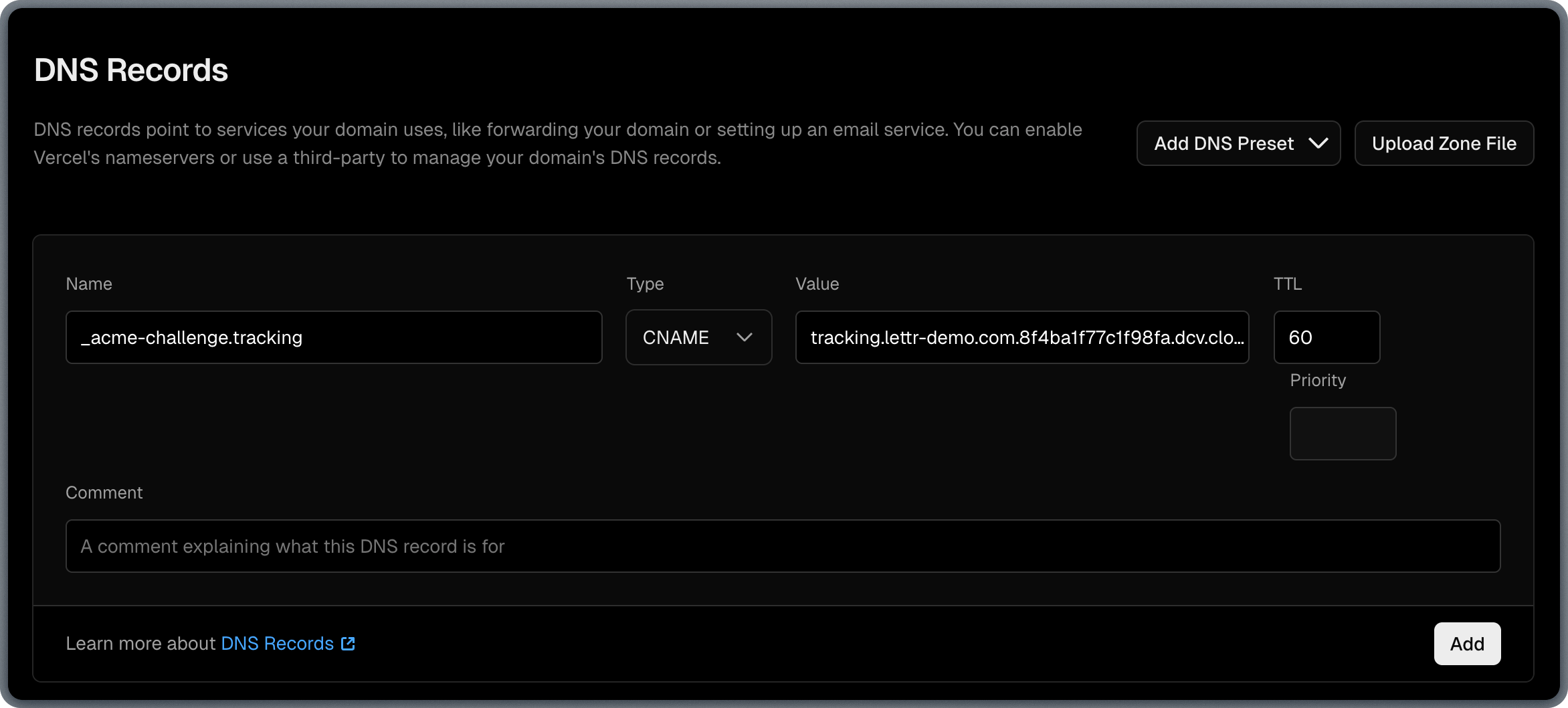
### Add SSL Certificate CNAME Record
The SSL Certificate CNAME record provisions an SSL certificate for your custom tracking domain, enabling secure HTTPS connections for tracked links.
Add the record in Vercel:
1. Copy the **Hostname** from Lettr and paste it into the **Name** field in Vercel.
2. Expand the **Type** dropdown in Vercel and select **CNAME**.
3. Copy the **Value** from Lettr and paste it into the **Value** field in Vercel.
4. Leave **TTL** set to 60 (Vercel default).
5. Click **Add**.
Omit your domain suffix from the Hostname when pasting into Vercel. For example, instead of `track.lettr-demo.com`,
paste only `track`.
### Verify Your Inbound Domain
After adding all three MX records, go back to Lettr and click **Verify DNS Records**. DNS propagation can take up to 24–48 hours, though it typically completes within a few minutes.
***
## Tracking Domain Setup
A tracking domain allows Lettr to track email opens and link clicks using your own custom domain instead of the default Lettr tracking domain. This requires two CNAME records: one for the SSL certificate and one for routing tracking traffic to Lettr's infrastructure.
### Add Tracking Domain to Lettr
To create a Tracking domain in Lettr:
1. Select **Domains** in the navigation panel
2. Select **Tracking Domains**
3. Click **Create Tracking Domain**
4. Enter your desired tracking subdomain (e.g. `tracking.company.com`)
5. Click **Create Domain**
Click on your new domain in the Tracking Domains list.
This will display the CNAME records that need to be configured.
### Add SSL Certificate CNAME Record
The SSL Certificate CNAME record provisions an SSL certificate for your custom tracking domain, enabling secure HTTPS connections for tracked links.
Add the record in Vercel:
1. Copy the **Hostname** from Lettr and paste it into the **Name** field in Vercel.
2. Expand the **Type** dropdown in Vercel and select **CNAME**.
3. Copy the **Value** from Lettr and paste it into the **Value** field in Vercel.
4. Leave **TTL** set to 60 (Vercel default).
5. Click **Add**.
Omit your domain suffix from the Hostname when pasting into Vercel. For example, instead of `track.lettr-demo.com`,
paste only `track`.
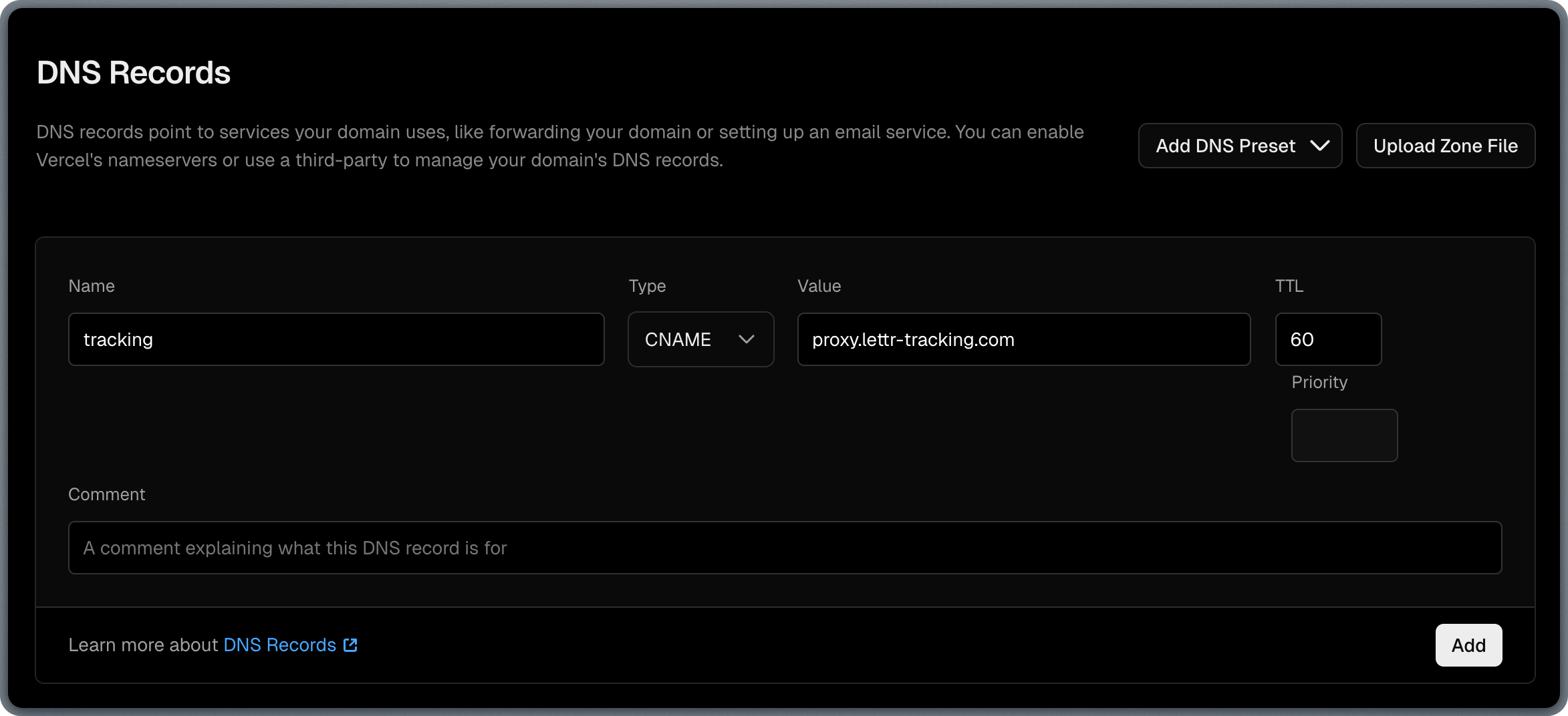
 ### Add Traffic CNAME Record
The Traffic CNAME record routes click and open tracking requests from your custom domain to Lettr's tracking servers.
Add the record in Vercel:
1. Copy the **Hostname** from Lettr and paste it into the **Name** field in Vercel.
2. Expand the **Type** dropdown in Vercel and select **CNAME**.
3. Copy the **Value** from Lettr and paste it into the **Value** field in Vercel.
4. Leave **TTL** set to 60 (Vercel default).
5. Click **Add**.
Omit your domain suffix from the Hostname when pasting into Vercel. For example, instead of `track.lettr-demo.com`,
paste only `track`.
### Add Traffic CNAME Record
The Traffic CNAME record routes click and open tracking requests from your custom domain to Lettr's tracking servers.
Add the record in Vercel:
1. Copy the **Hostname** from Lettr and paste it into the **Name** field in Vercel.
2. Expand the **Type** dropdown in Vercel and select **CNAME**.
3. Copy the **Value** from Lettr and paste it into the **Value** field in Vercel.
4. Leave **TTL** set to 60 (Vercel default).
5. Click **Add**.
Omit your domain suffix from the Hostname when pasting into Vercel. For example, instead of `track.lettr-demo.com`,
paste only `track`.
 ### Verify Your Tracking Domain
After adding both CNAME records, go back to Lettr and click **Verify DNS Records**.
***
## Storage Domain Setup
A storage domain lets you serve email assets (images, attachments) from your own custom domain instead of the default Lettr storage URL. This requires two TXT records for certificate validation and ownership verification, and a CNAME record for routing asset requests to Lettr's storage infrastructure.
### Add Storage Domain to Lettr
To create a Storage domain in Lettr:
1. Select **Domains** in the navigation panel
2. Select **Storage Domains**
3. Click **Create Storage Domain**
4. Enter your desired storage subdomain (e.g. `assets.company.com`)
5. Click **Create Domain**
Click on your new domain in the Storage Domains list.
This will display the TXT and CNAME records that need to be configured.
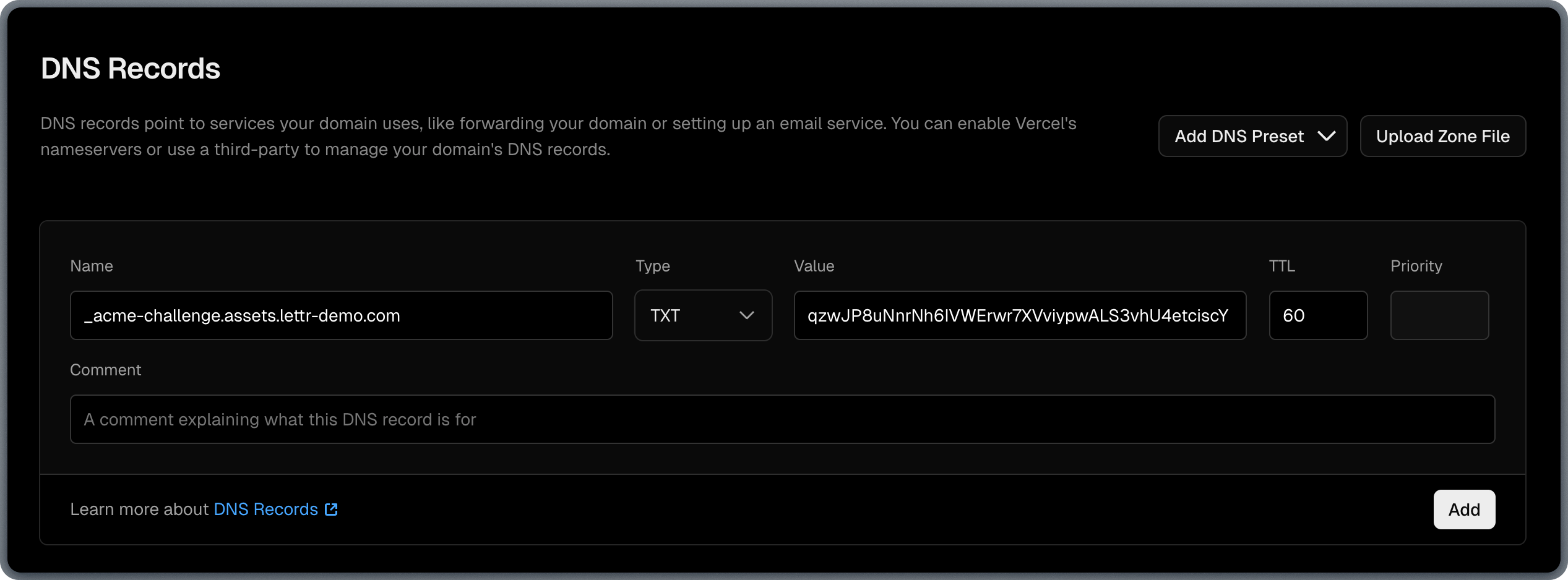
### Add TXT Record (Certificate Validation)
The Certificate Validation TXT record provisions an SSL certificate for your custom storage domain, enabling secure HTTPS delivery of email assets.
Add the record in Vercel:
1. Copy the **Hostname** from Lettr and paste it into the **Name** field in Vercel.
2. Expand the **Type** dropdown in Vercel and select **TXT**.
3. Copy the **Value** from Lettr and paste it into the **Value** field in Vercel.
4. Leave **TTL** set to 60 (Vercel default).
5. Click **Add**.
Omit your domain suffix from the Hostname when pasting into Vercel, just as with the CNAME record above.
### Verify Your Tracking Domain
After adding both CNAME records, go back to Lettr and click **Verify DNS Records**.
***
## Storage Domain Setup
A storage domain lets you serve email assets (images, attachments) from your own custom domain instead of the default Lettr storage URL. This requires two TXT records for certificate validation and ownership verification, and a CNAME record for routing asset requests to Lettr's storage infrastructure.
### Add Storage Domain to Lettr
To create a Storage domain in Lettr:
1. Select **Domains** in the navigation panel
2. Select **Storage Domains**
3. Click **Create Storage Domain**
4. Enter your desired storage subdomain (e.g. `assets.company.com`)
5. Click **Create Domain**
Click on your new domain in the Storage Domains list.
This will display the TXT and CNAME records that need to be configured.
### Add TXT Record (Certificate Validation)
The Certificate Validation TXT record provisions an SSL certificate for your custom storage domain, enabling secure HTTPS delivery of email assets.
Add the record in Vercel:
1. Copy the **Hostname** from Lettr and paste it into the **Name** field in Vercel.
2. Expand the **Type** dropdown in Vercel and select **TXT**.
3. Copy the **Value** from Lettr and paste it into the **Value** field in Vercel.
4. Leave **TTL** set to 60 (Vercel default).
5. Click **Add**.
Omit your domain suffix from the Hostname when pasting into Vercel, just as with the CNAME record above.
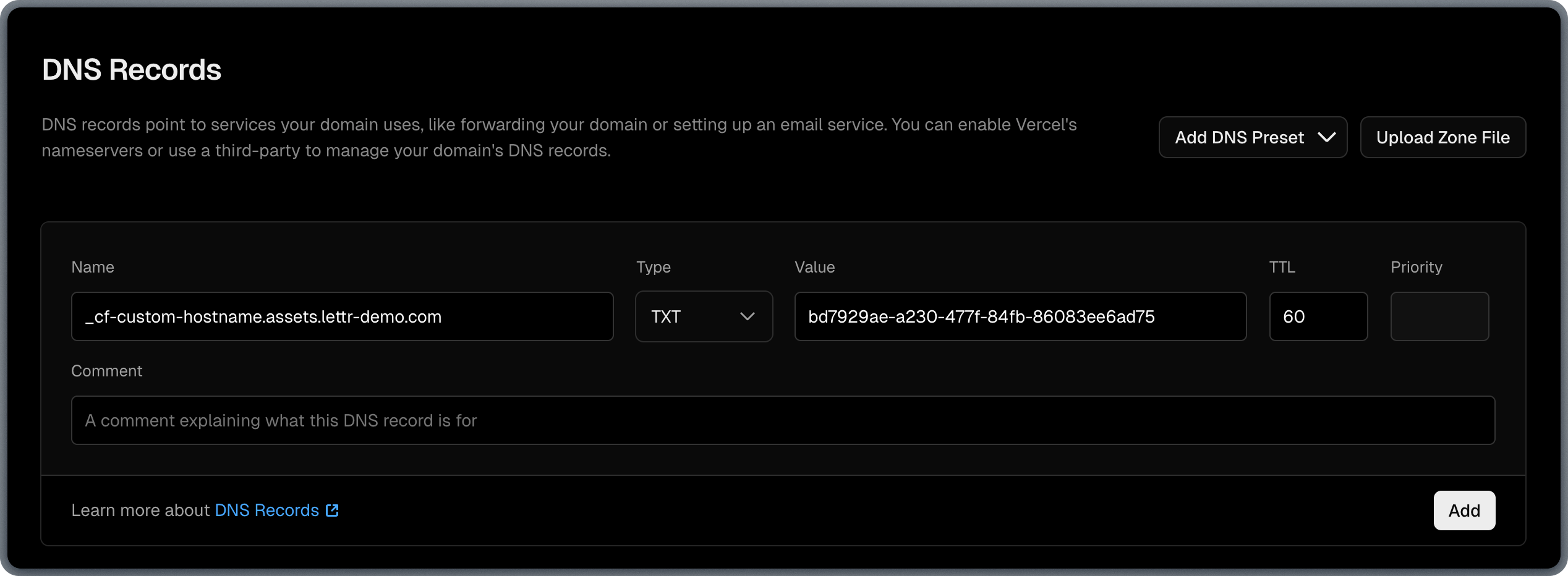
 ### Add TXT Record (Hostname Pre-validation)
The Hostname Pre-validation TXT record verifies ownership of the storage domain before Lettr provisions a custom hostname for it.
Add the record in Vercel:
1. Copy the **Hostname** from Lettr and paste it into the **Name** field in Vercel.
2. Expand the **Type** dropdown in Vercel and select **TXT**.
3. Copy the **Value** from Lettr and paste it into the **Value** field in Vercel.
4. Leave **TTL** set to 60 (Vercel default).
5. Click **Add**.
Omit your domain suffix from the Hostname when pasting into Vercel, just as with the CNAME record above.
### Add TXT Record (Hostname Pre-validation)
The Hostname Pre-validation TXT record verifies ownership of the storage domain before Lettr provisions a custom hostname for it.
Add the record in Vercel:
1. Copy the **Hostname** from Lettr and paste it into the **Name** field in Vercel.
2. Expand the **Type** dropdown in Vercel and select **TXT**.
3. Copy the **Value** from Lettr and paste it into the **Value** field in Vercel.
4. Leave **TTL** set to 60 (Vercel default).
5. Click **Add**.
Omit your domain suffix from the Hostname when pasting into Vercel, just as with the CNAME record above.
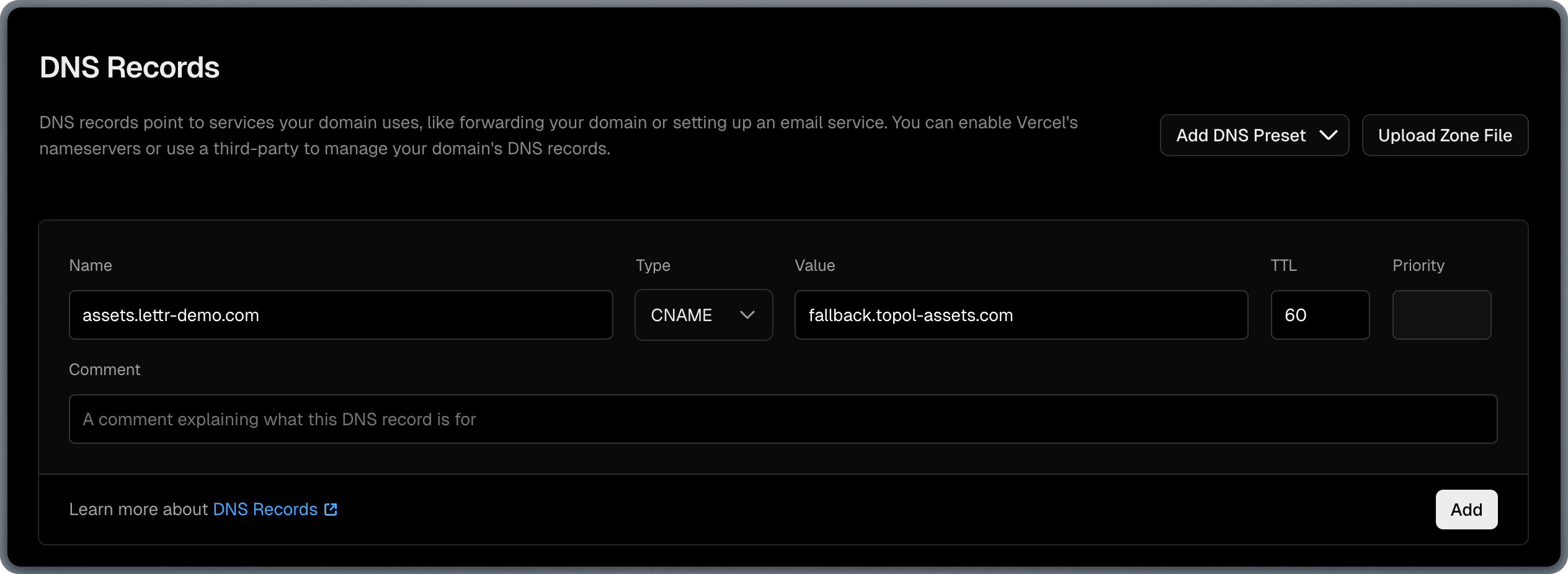
 ### Add CNAME Record (Domain Routing)
The Domain Routing CNAME record routes asset requests from your custom domain to Lettr's storage infrastructure.
Add the record in Vercel:
1. Copy the **Hostname** from Lettr and paste it into the **Name** field in Vercel.
2. Expand the **Type** dropdown in Vercel and select **CNAME**.
3. Copy the **Value** from Lettr and paste it into the **Value** field in Vercel.
4. Leave **TTL** set to 60 (Vercel default).
5. Click **Add**.
Omit your domain suffix from the Hostname when pasting into Vercel. For example, instead of `assets.lettr-demo.com`,
paste only `assets`.
### Add CNAME Record (Domain Routing)
The Domain Routing CNAME record routes asset requests from your custom domain to Lettr's storage infrastructure.
Add the record in Vercel:
1. Copy the **Hostname** from Lettr and paste it into the **Name** field in Vercel.
2. Expand the **Type** dropdown in Vercel and select **CNAME**.
3. Copy the **Value** from Lettr and paste it into the **Value** field in Vercel.
4. Leave **TTL** set to 60 (Vercel default).
5. Click **Add**.
Omit your domain suffix from the Hostname when pasting into Vercel. For example, instead of `assets.lettr-demo.com`,
paste only `assets`.
 ### Verify Your Storage Domain
After adding all three records, go back to Lettr and click **Verify DNS Records**.
***
## Troubleshooting
Vercel automatically appends your domain to the record name. If you paste the full hostname (e.g. `mailing.lettr-demo.com`), the resulting record will be `mailing.lettr-demo.com.lettr-demo.com`, which will fail verification.
Always paste only the subdomain portion (e.g. `mailing`, `scph0126._domainkey.mailing`, `_dmarc.mailing`).
If verification fails after adding records, check the following:
* **Wait at least 30 minutes** before your first verification attempt. Most records propagate within 1–2 hours.
* **Confirm the records exist** using command-line tools:
```bash theme={null}
# Check CNAME record
dig CNAME mailing.yourdomain.com +short
# Check DKIM record
dig TXT scph0126._domainkey.mailing.yourdomain.com +short
# Check DMARC record
dig TXT _dmarc.mailing.yourdomain.com +short
# Check MX records (inbound)
dig MX inbound.yourdomain.com +short
# Check tracking domain CNAME
dig CNAME track.yourdomain.com +short
# Check storage domain CNAME
dig CNAME assets.yourdomain.com +short
```
* **Use a web tool** like [dnschecker.org](https://dnschecker.org) to verify propagation across multiple DNS servers worldwide.
A common mistake is selecting the wrong type in Vercel's dropdown:
| Record | Correct Type |
| ------------------------------- | ------------ |
| Sending verification | CNAME |
| DKIM | TXT |
| DMARC | TXT |
| Inbound mail | MX |
| Tracking SSL certificate | CNAME |
| Tracking traffic | CNAME |
| Storage certificate validation | TXT |
| Storage hostname pre-validation | TXT |
| Storage domain routing | CNAME |
The DKIM TXT value is a long string. After saving the record in Vercel, re-open it to confirm the full value was stored. If it appears truncated, try pasting the value again.
If your records are saved in Vercel but not resolving, confirm that your domain registrar is pointing to Vercel's nameservers. You can check this with:
```bash theme={null}
dig NS yourdomain.com +short
```
The output should include Vercel nameservers (e.g. `ns1.vercel-dns.com`, `ns2.vercel-dns.com`). If it shows a different provider's nameservers, update them at your domain registrar. You can find the correct Vercel nameservers in your domain's configuration page under **Nameservers**.
If you do not see the option to add DNS records, make sure you clicked **Enable Vercel DNS** in the domain configuration. Without this step, Vercel only manages domain routing, not DNS records.
If your DNS records are correctly configured (confirmed with `dig` or dnschecker.org) and verification still fails after 48 hours, contact Lettr support at **[support@lettr.com](mailto:support@lettr.com)** or through the in-app chat. Include your domain name and the output of the `dig` commands above.
***
## Related Topics
Learn about sending domain setup, SPF, DKIM, and DMARC.
Configure MX records to receive emails with Lettr.
Set up a custom tracking domain for click and open tracking.
Serve email assets from your own custom domain.
Understand domain types and how they work in Lettr.
Troubleshoot common DNS configuration and propagation issues.
### Verify Your Storage Domain
After adding all three records, go back to Lettr and click **Verify DNS Records**.
***
## Troubleshooting
Vercel automatically appends your domain to the record name. If you paste the full hostname (e.g. `mailing.lettr-demo.com`), the resulting record will be `mailing.lettr-demo.com.lettr-demo.com`, which will fail verification.
Always paste only the subdomain portion (e.g. `mailing`, `scph0126._domainkey.mailing`, `_dmarc.mailing`).
If verification fails after adding records, check the following:
* **Wait at least 30 minutes** before your first verification attempt. Most records propagate within 1–2 hours.
* **Confirm the records exist** using command-line tools:
```bash theme={null}
# Check CNAME record
dig CNAME mailing.yourdomain.com +short
# Check DKIM record
dig TXT scph0126._domainkey.mailing.yourdomain.com +short
# Check DMARC record
dig TXT _dmarc.mailing.yourdomain.com +short
# Check MX records (inbound)
dig MX inbound.yourdomain.com +short
# Check tracking domain CNAME
dig CNAME track.yourdomain.com +short
# Check storage domain CNAME
dig CNAME assets.yourdomain.com +short
```
* **Use a web tool** like [dnschecker.org](https://dnschecker.org) to verify propagation across multiple DNS servers worldwide.
A common mistake is selecting the wrong type in Vercel's dropdown:
| Record | Correct Type |
| ------------------------------- | ------------ |
| Sending verification | CNAME |
| DKIM | TXT |
| DMARC | TXT |
| Inbound mail | MX |
| Tracking SSL certificate | CNAME |
| Tracking traffic | CNAME |
| Storage certificate validation | TXT |
| Storage hostname pre-validation | TXT |
| Storage domain routing | CNAME |
The DKIM TXT value is a long string. After saving the record in Vercel, re-open it to confirm the full value was stored. If it appears truncated, try pasting the value again.
If your records are saved in Vercel but not resolving, confirm that your domain registrar is pointing to Vercel's nameservers. You can check this with:
```bash theme={null}
dig NS yourdomain.com +short
```
The output should include Vercel nameservers (e.g. `ns1.vercel-dns.com`, `ns2.vercel-dns.com`). If it shows a different provider's nameservers, update them at your domain registrar. You can find the correct Vercel nameservers in your domain's configuration page under **Nameservers**.
If you do not see the option to add DNS records, make sure you clicked **Enable Vercel DNS** in the domain configuration. Without this step, Vercel only manages domain routing, not DNS records.
If your DNS records are correctly configured (confirmed with `dig` or dnschecker.org) and verification still fails after 48 hours, contact Lettr support at **[support@lettr.com](mailto:support@lettr.com)** or through the in-app chat. Include your domain name and the output of the `dig` commands above.
***
## Related Topics
Learn about sending domain setup, SPF, DKIM, and DMARC.
Configure MX records to receive emails with Lettr.
Set up a custom tracking domain for click and open tracking.
Serve email assets from your own custom domain.
Understand domain types and how they work in Lettr.
Troubleshoot common DNS configuration and propagation issues.