> ## Documentation Index
> Fetch the complete documentation index at: https://docs.lettr.com/llms.txt
> Use this file to discover all available pages before exploring further.
# Multilingual Campaigns
> Send one campaign in several languages. Each contact receives the version that matches their language, with its own subject, sender, unsubscribe footer, and web version.
A multilingual campaign is **one campaign that goes out in more than one language**. One template holds an English and a German version, one audience is selected, and every contact receives the language they asked for. There is **no second campaign, no second segment, and no second report** to reconcile.
Multilingual campaigns are automatic. **If the template a campaign links to has more than one language, the campaign is multilingual.** There is no switch to turn on.
 ## The Three Pieces
Three things work together. Each has its own page in this section.
Add languages to a template in the email editor. Do this first: a campaign can only send the languages its template has.
A property on each contact that says which language they want. Designate one, or let Lettr find it by name.
Optional per-language subject and sender, a review panel that shows who gets what, and test sends in any language.
## How a Send Works
When a multilingual campaign starts, Lettr reads each recipient's language property and matches it against the languages the template has:
1. A contact with `de` gets the German version. A contact with `de-AT` or `german` gets it too. Matching is forgiving; see [how values are matched](/learn/multilingual-campaigns/contact-language#how-values-are-matched).
2. A contact with no value, or a value that matches no template language, gets the **primary language**. Everyone receives an email.
3. Each recipient gets their language's content, subject, sender and reply-to, an unsubscribe footer in the same language as the email, and a web version in that language too.
Content is locked in every language the moment you schedule or start the campaign. Editing or deleting the template afterwards does not change what goes out.
## Quick Start
Open a marketing template in the editor and click **Create mutation** in the top bar. Add the language the template is written in first (it becomes the primary), then add each translation and translate its blocks by hand or with AI. See [Multilingual templates](/learn/multilingual-campaigns/template-languages) and [Template translation](/learn/multilingual-campaigns/template-translation).
Go to **Audience** → **Properties**, edit the property that holds the language, and tick **Use as communication language**. If your property is already named `language`, `lang` or `locale`, this step is optional. See [Contact language](/learn/multilingual-campaigns/contact-language).
Link the template in the Compose step. The languages show up immediately. Optionally set a translated subject and sender per language. See [Campaign setup](/learn/multilingual-campaigns/campaign-setup).
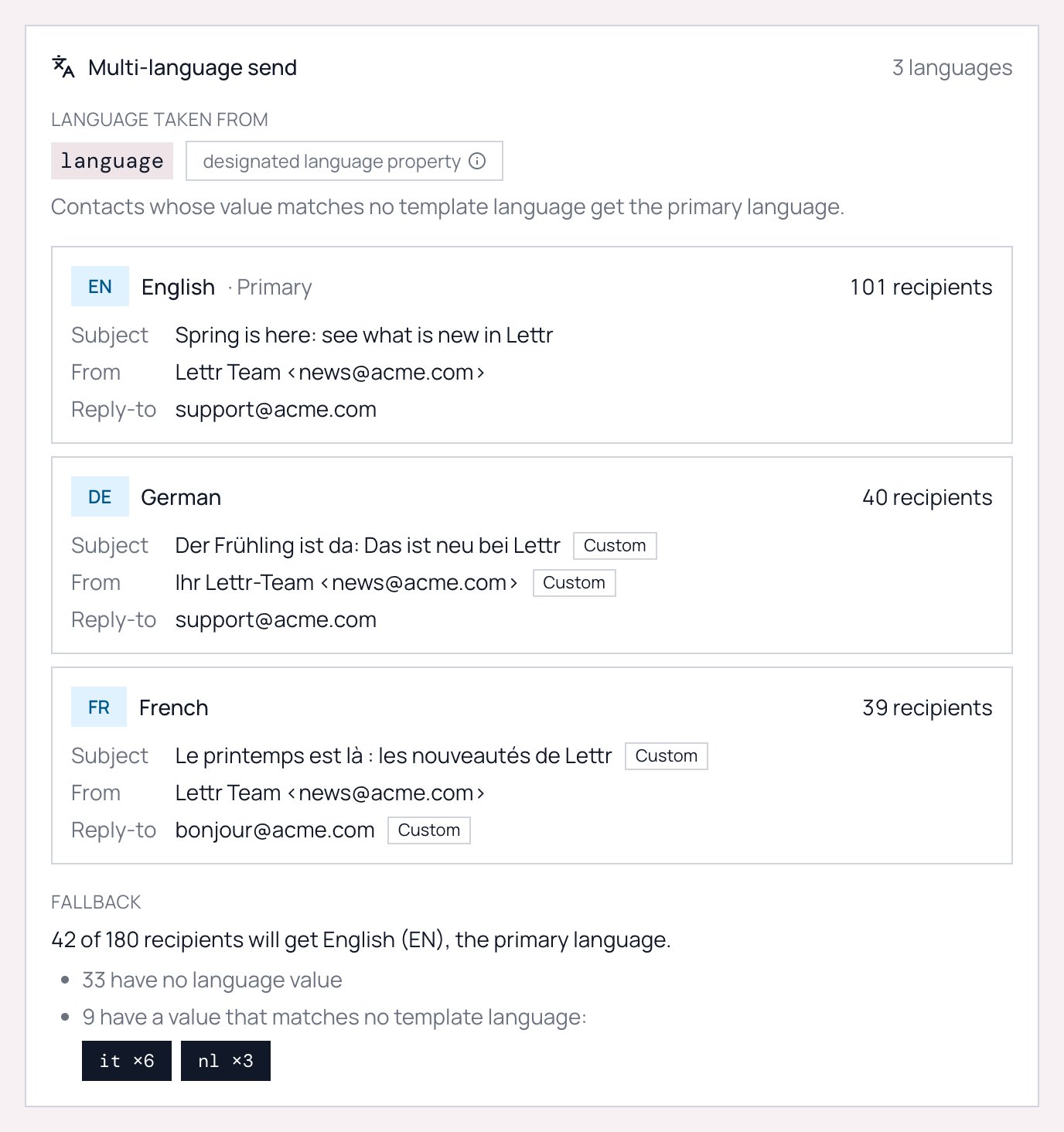
The **Multi-language send** panel shows how many recipients get each language and how many fall back to the primary language, with the values that did not match.
The test email box has a language picker. After sending, the campaign detail page shows the same panel with final counts. See [Sending and results](/learn/multilingual-campaigns/sending-and-results).
## What Recipients Get
| Part of the email | Where it comes from |
| ---------------------------------------- | ----------------------------------------------------------------------------------------------- |
| Content | The template's version in the recipient's language |
| Subject, from name, from email, reply-to | The per-language values when set, otherwise the campaign's primary values |
| Unsubscribe footer | In the language of the version the recipient receives (19 languages, English for anything else) |
| Web version link | Opens the same language the recipient received |
| Merge tags | The recipient's own contact properties, in every language |
## Where It Fits
Multilingual campaigns build on three existing features. If you are new to any of them, read those pages first.
The visual editor where languages are added
Contacts and the custom properties they carry
The four-step campaign builder
## The Three Pieces
Three things work together. Each has its own page in this section.
Add languages to a template in the email editor. Do this first: a campaign can only send the languages its template has.
A property on each contact that says which language they want. Designate one, or let Lettr find it by name.
Optional per-language subject and sender, a review panel that shows who gets what, and test sends in any language.
## How a Send Works
When a multilingual campaign starts, Lettr reads each recipient's language property and matches it against the languages the template has:
1. A contact with `de` gets the German version. A contact with `de-AT` or `german` gets it too. Matching is forgiving; see [how values are matched](/learn/multilingual-campaigns/contact-language#how-values-are-matched).
2. A contact with no value, or a value that matches no template language, gets the **primary language**. Everyone receives an email.
3. Each recipient gets their language's content, subject, sender and reply-to, an unsubscribe footer in the same language as the email, and a web version in that language too.
Content is locked in every language the moment you schedule or start the campaign. Editing or deleting the template afterwards does not change what goes out.
## Quick Start
Open a marketing template in the editor and click **Create mutation** in the top bar. Add the language the template is written in first (it becomes the primary), then add each translation and translate its blocks by hand or with AI. See [Multilingual templates](/learn/multilingual-campaigns/template-languages) and [Template translation](/learn/multilingual-campaigns/template-translation).
Go to **Audience** → **Properties**, edit the property that holds the language, and tick **Use as communication language**. If your property is already named `language`, `lang` or `locale`, this step is optional. See [Contact language](/learn/multilingual-campaigns/contact-language).
Link the template in the Compose step. The languages show up immediately. Optionally set a translated subject and sender per language. See [Campaign setup](/learn/multilingual-campaigns/campaign-setup).
The **Multi-language send** panel shows how many recipients get each language and how many fall back to the primary language, with the values that did not match.
The test email box has a language picker. After sending, the campaign detail page shows the same panel with final counts. See [Sending and results](/learn/multilingual-campaigns/sending-and-results).
## What Recipients Get
| Part of the email | Where it comes from |
| ---------------------------------------- | ----------------------------------------------------------------------------------------------- |
| Content | The template's version in the recipient's language |
| Subject, from name, from email, reply-to | The per-language values when set, otherwise the campaign's primary values |
| Unsubscribe footer | In the language of the version the recipient receives (19 languages, English for anything else) |
| Web version link | Opens the same language the recipient received |
| Merge tags | The recipient's own contact properties, in every language |
## Where It Fits
Multilingual campaigns build on three existing features. If you are new to any of them, read those pages first.
The visual editor where languages are added
Contacts and the custom properties they carry
The four-step campaign builder