> ## Documentation Index
> Fetch the complete documentation index at: https://docs.lettr.com/llms.txt
> Use this file to discover all available pages before exploring further.
# Template Translation
> Translate a multilingual template with AI in the email editor: one block, one language, or every language at once, and review the result before you send.
Translating the template is the step that decides what your contacts actually read. Once a template has [more than one language](/learn/multilingual-campaigns/template-languages), you can type each translation by hand, or let the editor's AI write it for you and then review it.
AI translation changes the words and nothing else. Styling, structure, [merge tags](/learn/templates/versions#merge-tags-template-variables) and the tone of the original text are kept, so a translated version looks like the primary one and personalizes the same way.
There are three scopes:
| Scope | Where | What it translates |
| ------------- | ------------------------------------- | ------------------------------------------------- |
| One block | The AI menu on a text or button block | That block, into the language you are editing |
| One language | The translate icon on a language row | All translatable text of that language |
| All languages | **Translate all** in the panel header | All translatable text of every secondary language |
[What is translated](#what-is-translated) lists exactly which text the last two cover.
Translation uses the same AI as the editor's other writing tools. If your editor has no AI features, the translate icons and **Translate all** are not shown, and you translate by hand.
## Before You Translate
1. **Finish the primary version.** The AI translates what is there. Text you change in the primary afterwards is not re-translated on its own.
2. **Add the languages.** Translation fills existing language versions and does not create them. Add each language first; see [Creating a multilingual template](/learn/multilingual-campaigns/template-languages#creating-a-multilingual-template).
3. **Check the primary language is right.** The primary is the default source for every translation.
## Translate One Language
Open the globe dropdown in the top bar. In the **Language settings** panel, each language row has a translate icon. Hovering it shows **Translate from primary**. Click the icon on the language you want to fill.
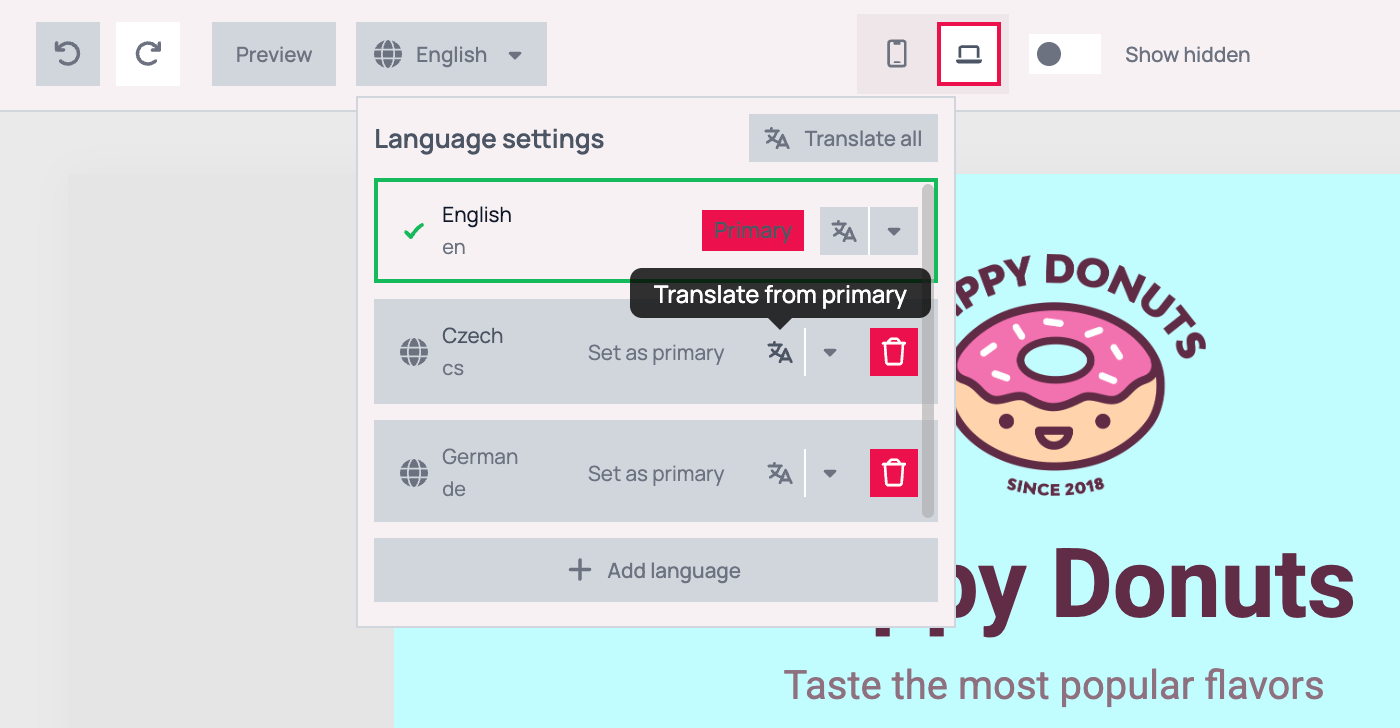 The panel closes, the editor switches to that language, and the translation starts. The editor translates all text of that language **from the primary language** and stores the result in that language version. The primary version is not changed. When it is done, a **Translation completed** notification appears.
Translating a whole language takes a moment. While it runs, **Translate all** shows a spinner and cannot be clicked. Wait for the notification before you keep editing.
Each language translation is one step in the editor's history, so one **Undo** reverts it.
The panel closes, the editor switches to that language, and the translation starts. The editor translates all text of that language **from the primary language** and stores the result in that language version. The primary version is not changed. When it is done, a **Translation completed** notification appears.
Translating a whole language takes a moment. While it runs, **Translate all** shows a spinner and cannot be clicked. Wait for the notification before you keep editing.
Each language translation is one step in the editor's history, so one **Undo** reverts it.
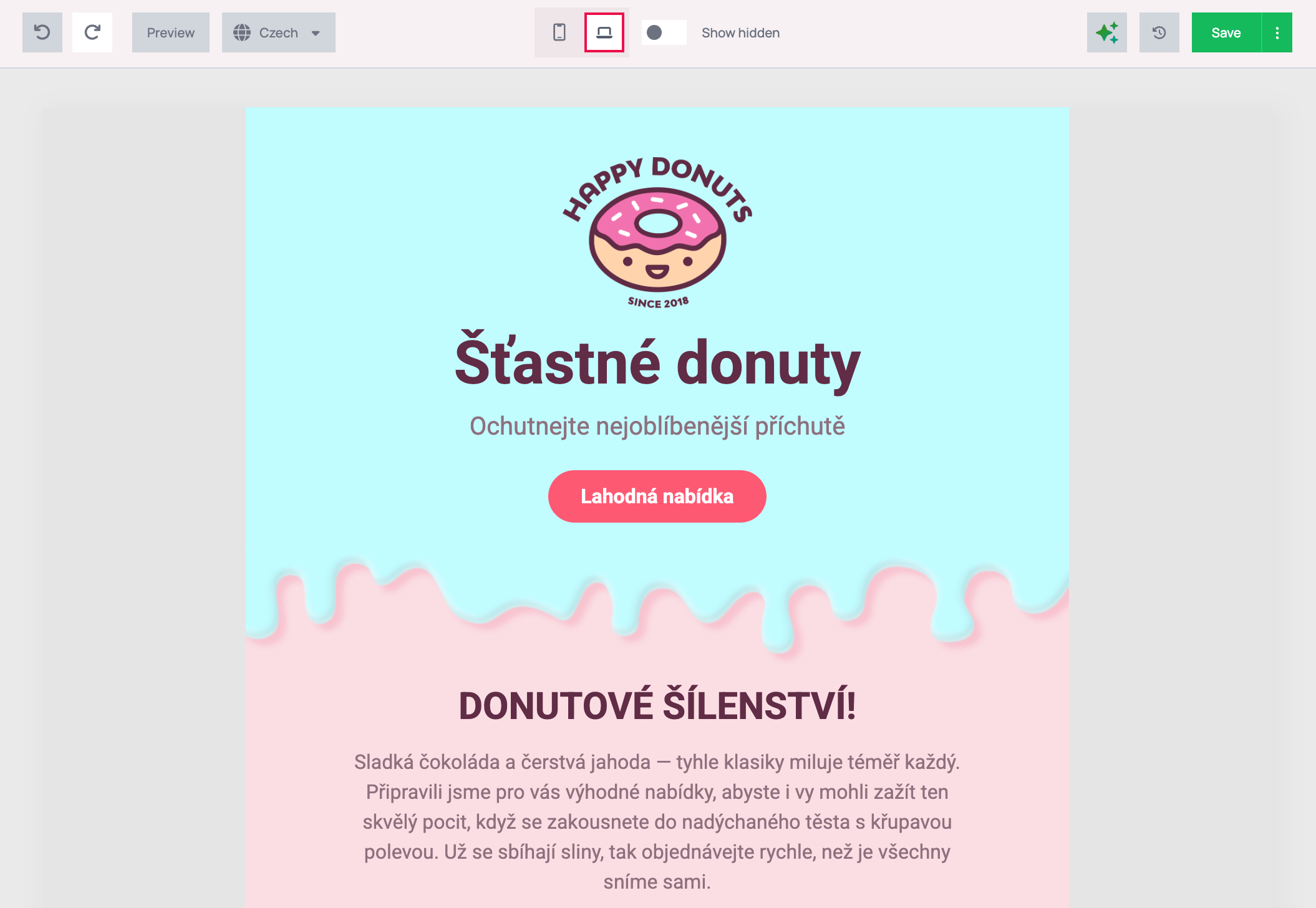 In the result, the text and the button are translated, while the logo image is still the primary one. Images are yours to replace; see [What is not translated](#what-is-not-translated).
### Choose a different source language
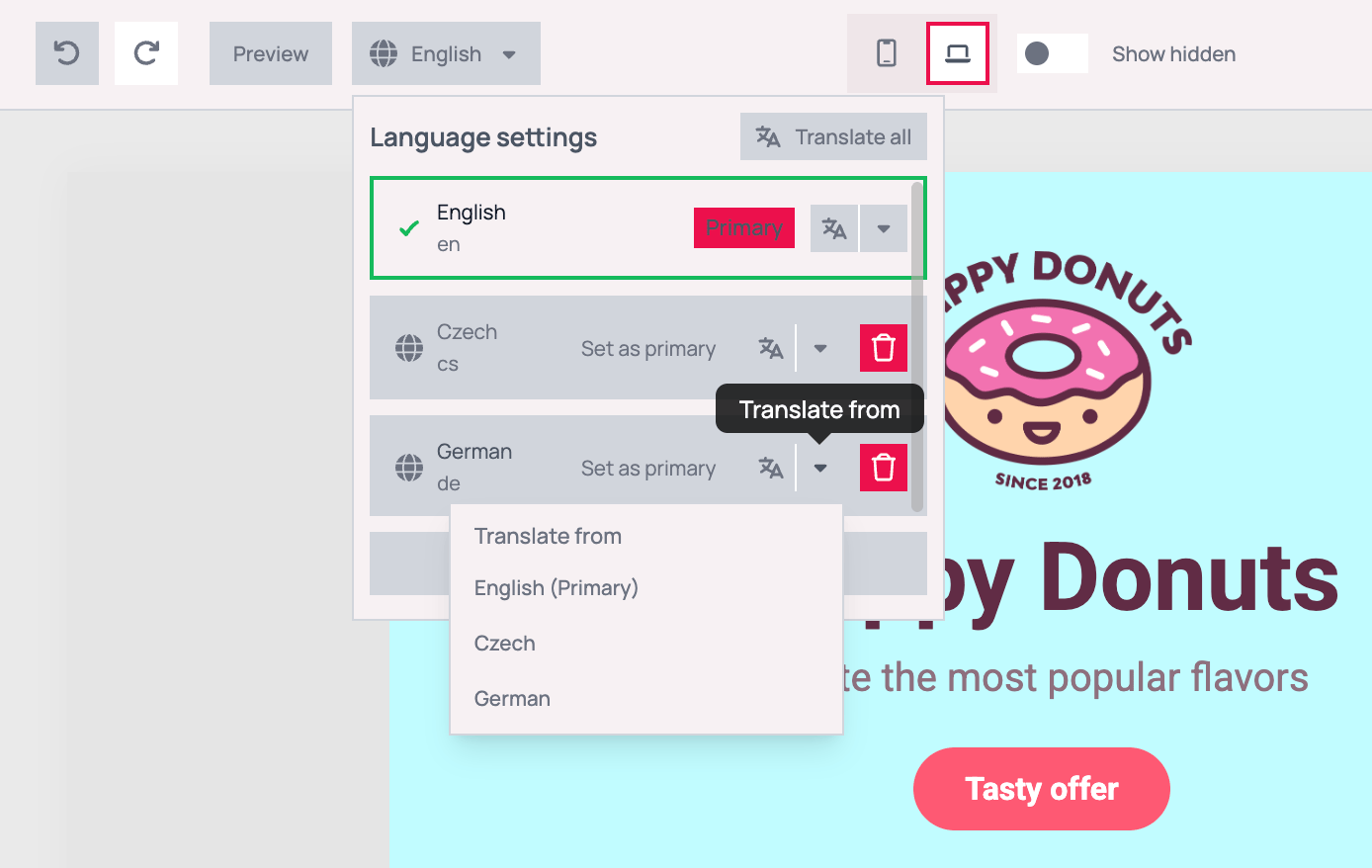
Once the template has more than one language, the translate icon is a split button. The arrow next to it opens a **Translate from** menu where you pick which language to translate from instead of the primary. The menu lists every language of the template, including the row's own language. Pick a different one.
This helps when another version is a better starting point. Translating Slovak from a finished Czech version, for example, usually gives a closer result than translating it from English.
In the result, the text and the button are translated, while the logo image is still the primary one. Images are yours to replace; see [What is not translated](#what-is-not-translated).
### Choose a different source language
Once the template has more than one language, the translate icon is a split button. The arrow next to it opens a **Translate from** menu where you pick which language to translate from instead of the primary. The menu lists every language of the template, including the row's own language. Pick a different one.
This helps when another version is a better starting point. Translating Slovak from a finished Czech version, for example, usually gives a closer result than translating it from English.
 If the source language is itself only partly translated, the missing values are taken from the primary, the same way the source version looks on the canvas.
The **Primary** row has a translate button too. It does not translate into another language. It replaces the primary content with an AI version of it, and every untranslated block in the other languages follows. There is rarely a reason to click it. If you did, click **Undo**.
## Translate All Languages
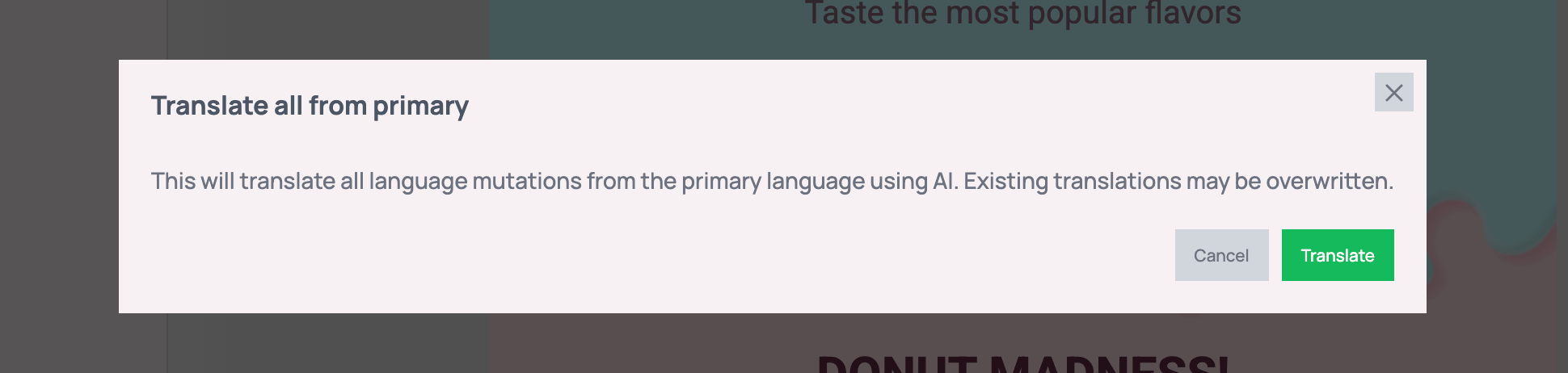
Once the template has more than one language, the panel header shows a **Translate all** button. It translates **every secondary language from the primary** in one run. A **Translate all from primary** dialog warns that existing translations may be overwritten. Click **Translate** to start.
If the source language is itself only partly translated, the missing values are taken from the primary, the same way the source version looks on the canvas.
The **Primary** row has a translate button too. It does not translate into another language. It replaces the primary content with an AI version of it, and every untranslated block in the other languages follows. There is rarely a reason to click it. If you did, click **Undo**.
## Translate All Languages
Once the template has more than one language, the panel header shows a **Translate all** button. It translates **every secondary language from the primary** in one run. A **Translate all from primary** dialog warns that existing translations may be overwritten. Click **Translate** to start.
 Use it for the first draft of a new template, when no language has been translated yet. The whole run counts as a single step in the editor's history, so one **Undo** reverts all languages together.
When the run ends, a notification reports **Translated 3 of 3 languages**. If it reports fewer, for example 2 of 3, some languages failed. The ones that succeeded are kept. Run the translate icon on each missing language's row, and see [Troubleshooting](#troubleshooting) if it fails again.
The translate icon and **Translate all** **overwrite translations that already exist** in the target language. Do not run them after someone has edited the text by hand, unless you want that work replaced. To refresh one paragraph, translate that block only.
## Translate a Single Block
Select the language you want in the dropdown, then select a text or button block and click the AI icon (the sparkles) in the block's toolbar. Below **Improve**, **Rephrase**, **Check grammar**, **Make longer** and **Make shorter** there is a **Translate to** option that names the language you are editing, such as **Translate to Czech**.
Use it for the first draft of a new template, when no language has been translated yet. The whole run counts as a single step in the editor's history, so one **Undo** reverts all languages together.
When the run ends, a notification reports **Translated 3 of 3 languages**. If it reports fewer, for example 2 of 3, some languages failed. The ones that succeeded are kept. Run the translate icon on each missing language's row, and see [Troubleshooting](#troubleshooting) if it fails again.
The translate icon and **Translate all** **overwrite translations that already exist** in the target language. Do not run them after someone has edited the text by hand, unless you want that work replaced. To refresh one paragraph, translate that block only.
## Translate a Single Block
Select the language you want in the dropdown, then select a text or button block and click the AI icon (the sparkles) in the block's toolbar. Below **Improve**, **Rephrase**, **Check grammar**, **Make longer** and **Make shorter** there is a **Translate to** option that names the language you are editing, such as **Translate to Czech**.
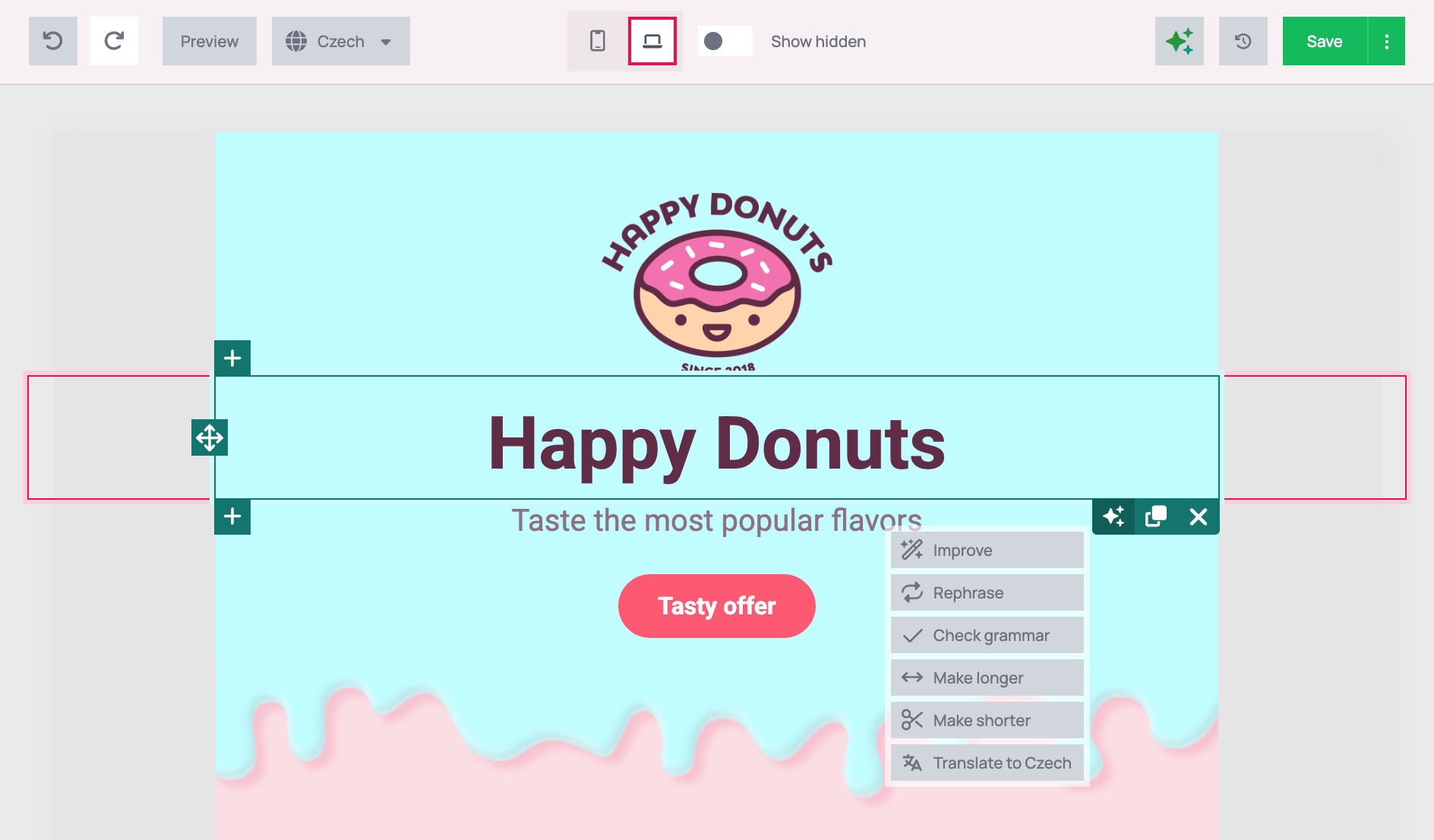 Because the template is multilingual, there is no language to choose. The block is translated **into the language shown on the dropdown**, and only that language version changes.
Block translation is the right tool when:
* You added or rewrote a block in the primary after the other languages were already translated.
* A translator has edited the rest of the version and you do not want to overwrite it.
* One block reads badly and you want a fresh attempt.
## What Is Translated
The translate icon and **Translate all** cover all the text a language version can hold:
* **Text blocks** and **button labels**.
* **Alt text** of images, GIFs and social icons, and image titles.
* **HTML blocks.** The text inside is translated and the markup is kept. Check these carefully, because custom HTML is where a translation is most likely to break something.
* **The preheader** (preview text).
* Item texts of **Products** blocks and the texts of **Rating** blocks.
## What Is Not Translated
These stay as they are, and you change them by hand in each language:
* **Image files.** An image with text in it, such as a logo with a slogan, has to be replaced per language.
* **Links and sources.** Button, image and social links and video URLs keep their value. Point them to the localized page yourself.
* **[Synced sections](/learn/templates/saved-blocks).** They are skipped, and a **Synced structures cannot be translated** notice tells you so.
* **Subject line, sender name and reply-to.** They belong to the campaign, not the template. See [Campaign setup](/learn/multilingual-campaigns/campaign-setup).
Merge tags such as `{{first_name}}` are kept exactly as written. For what a language version can hold in general, see [How template languages work](/learn/multilingual-campaigns/how-template-languages-work).
## Review the Result
A machine translation is a draft. Before the template goes into a campaign:
Switch to each language in the dropdown and read it top to bottom, or have a speaker of that language do it. Watch brand names, product names and idioms. They are the most common mistakes.
Confirm that merge tags are intact and sit in a natural place in the translated sentence, and that buttons lead to the right localized pages.
Click **Preview** and flip through the languages. Translated text is often longer than the original, so check that buttons and headings do not wrap badly.
Translations live in your editing session until you click **Save**. Until then, **Undo** reverts them like any other edit.
## Troubleshooting
**Translate all** appears only when the template has more than one language. If the row icons are missing too, AI features are not available in your editor, and translations have to be typed by hand.
The AI service was busy, the request timed out, or it did not recognise the language. Nothing is lost: languages that were translated keep their result, and the failed ones keep what they had. Wait a minute and run the translate icon on the failed language's row. Very long templates are more likely to time out. Translate those block by block.
The row icon and **Translate all** overwrite existing translations. Click **Undo** if you are still in the same session. Once saved, the earlier text cannot be restored from the panel. Use block translation for small updates.
Text inside image files and everything in synced sections is not translated. Replace those images per language, and see [What is not translated](#what-is-not-translated). If ordinary text blocks were left out, the run probably failed part-way. Translate that language again.
You clicked the translate button on the **Primary** row, which rewrites the primary content. Click **Undo**.
Block translation targets the language shown on the dropdown. Undo, select the right language, and translate the block again.
Translations are not linked to the primary after they are made. Translate the changed block again in each language, or run the row's translate icon if nothing in that version was edited by hand.
## Next Steps
Add, switch, reorder and delete language versions
What is stored per language and how fallback works
Translate the subject and sender per language
Quality checks for translated campaigns
Because the template is multilingual, there is no language to choose. The block is translated **into the language shown on the dropdown**, and only that language version changes.
Block translation is the right tool when:
* You added or rewrote a block in the primary after the other languages were already translated.
* A translator has edited the rest of the version and you do not want to overwrite it.
* One block reads badly and you want a fresh attempt.
## What Is Translated
The translate icon and **Translate all** cover all the text a language version can hold:
* **Text blocks** and **button labels**.
* **Alt text** of images, GIFs and social icons, and image titles.
* **HTML blocks.** The text inside is translated and the markup is kept. Check these carefully, because custom HTML is where a translation is most likely to break something.
* **The preheader** (preview text).
* Item texts of **Products** blocks and the texts of **Rating** blocks.
## What Is Not Translated
These stay as they are, and you change them by hand in each language:
* **Image files.** An image with text in it, such as a logo with a slogan, has to be replaced per language.
* **Links and sources.** Button, image and social links and video URLs keep their value. Point them to the localized page yourself.
* **[Synced sections](/learn/templates/saved-blocks).** They are skipped, and a **Synced structures cannot be translated** notice tells you so.
* **Subject line, sender name and reply-to.** They belong to the campaign, not the template. See [Campaign setup](/learn/multilingual-campaigns/campaign-setup).
Merge tags such as `{{first_name}}` are kept exactly as written. For what a language version can hold in general, see [How template languages work](/learn/multilingual-campaigns/how-template-languages-work).
## Review the Result
A machine translation is a draft. Before the template goes into a campaign:
Switch to each language in the dropdown and read it top to bottom, or have a speaker of that language do it. Watch brand names, product names and idioms. They are the most common mistakes.
Confirm that merge tags are intact and sit in a natural place in the translated sentence, and that buttons lead to the right localized pages.
Click **Preview** and flip through the languages. Translated text is often longer than the original, so check that buttons and headings do not wrap badly.
Translations live in your editing session until you click **Save**. Until then, **Undo** reverts them like any other edit.
## Troubleshooting
**Translate all** appears only when the template has more than one language. If the row icons are missing too, AI features are not available in your editor, and translations have to be typed by hand.
The AI service was busy, the request timed out, or it did not recognise the language. Nothing is lost: languages that were translated keep their result, and the failed ones keep what they had. Wait a minute and run the translate icon on the failed language's row. Very long templates are more likely to time out. Translate those block by block.
The row icon and **Translate all** overwrite existing translations. Click **Undo** if you are still in the same session. Once saved, the earlier text cannot be restored from the panel. Use block translation for small updates.
Text inside image files and everything in synced sections is not translated. Replace those images per language, and see [What is not translated](#what-is-not-translated). If ordinary text blocks were left out, the run probably failed part-way. Translate that language again.
You clicked the translate button on the **Primary** row, which rewrites the primary content. Click **Undo**.
Block translation targets the language shown on the dropdown. Undo, select the right language, and translate the block again.
Translations are not linked to the primary after they are made. Translate the changed block again in each language, or run the row's translate icon if nothing in that version was edited by hand.
## Next Steps
Add, switch, reorder and delete language versions
What is stored per language and how fallback works
Translate the subject and sender per language
Quality checks for translated campaigns