

How comments are organized
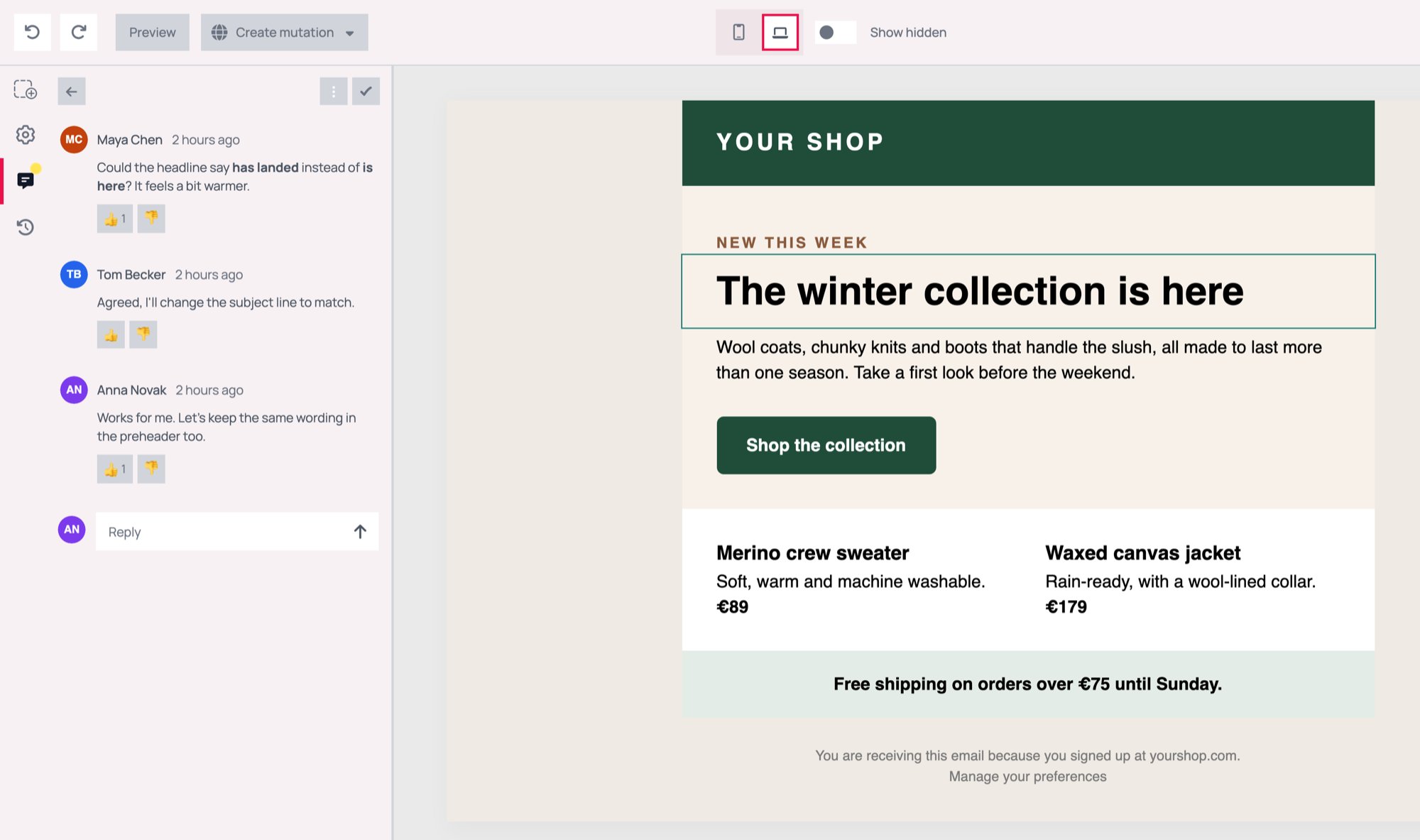
Every comment belongs to a conversation, and a block or section has at most one. The first comment on a block starts its conversation, and every later comment on that block is a reply in it. Comments are stored separately from the template’s design, so they never appear in a sent email or a test email. Saving or publishing a new version of the template leaves them in place.Comments are part of the visual editor. Templates written in custom HTML don’t have them.
Start a conversation
1
Pick the block or section
Hover over the block or section the comment is about. Its controls show a speech-bubble icon with the tooltip Comment.
2
Write the first comment
Click the icon. The comments panel opens on that block with a Start conversation box. Type the comment and send it with the arrow button.
Reply, react, and resolve
Open a conversation to see all of its comments, and add one with the Reply box at the bottom. New comments, replies, reactions, and resolved conversations appear for everyone who has the template open, with no reload needed.- Reactions: each comment has a thumbs-up and a thumbs-down button. Each person has one reaction per comment, which they can switch or take back.
- Editing and deleting: hovering over your own comment shows a menu with Edit comment and Delete comment, as long as it’s still the latest comment in the conversation. Nobody can edit or delete someone else’s comment. Deleting the only comment in a conversation deletes the conversation too.
- Resolving: the check button at the top of a conversation marks it resolved once the change is made. Resolved conversations drop out of the list but aren’t deleted. Turn on Show resolved to see them again and reopen one.
- Deleting a conversation: Delete conversation in the conversation’s menu removes it with all of its comments. Any teammate can do this.
Mention a teammate
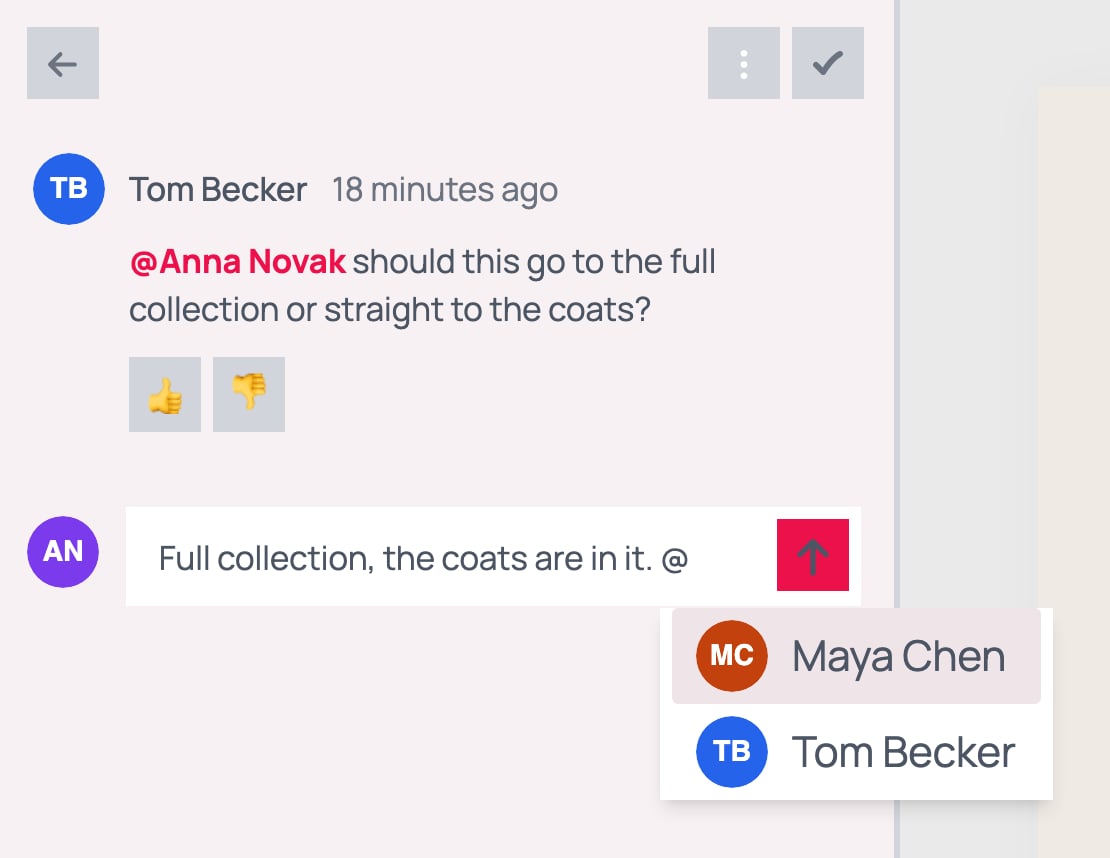
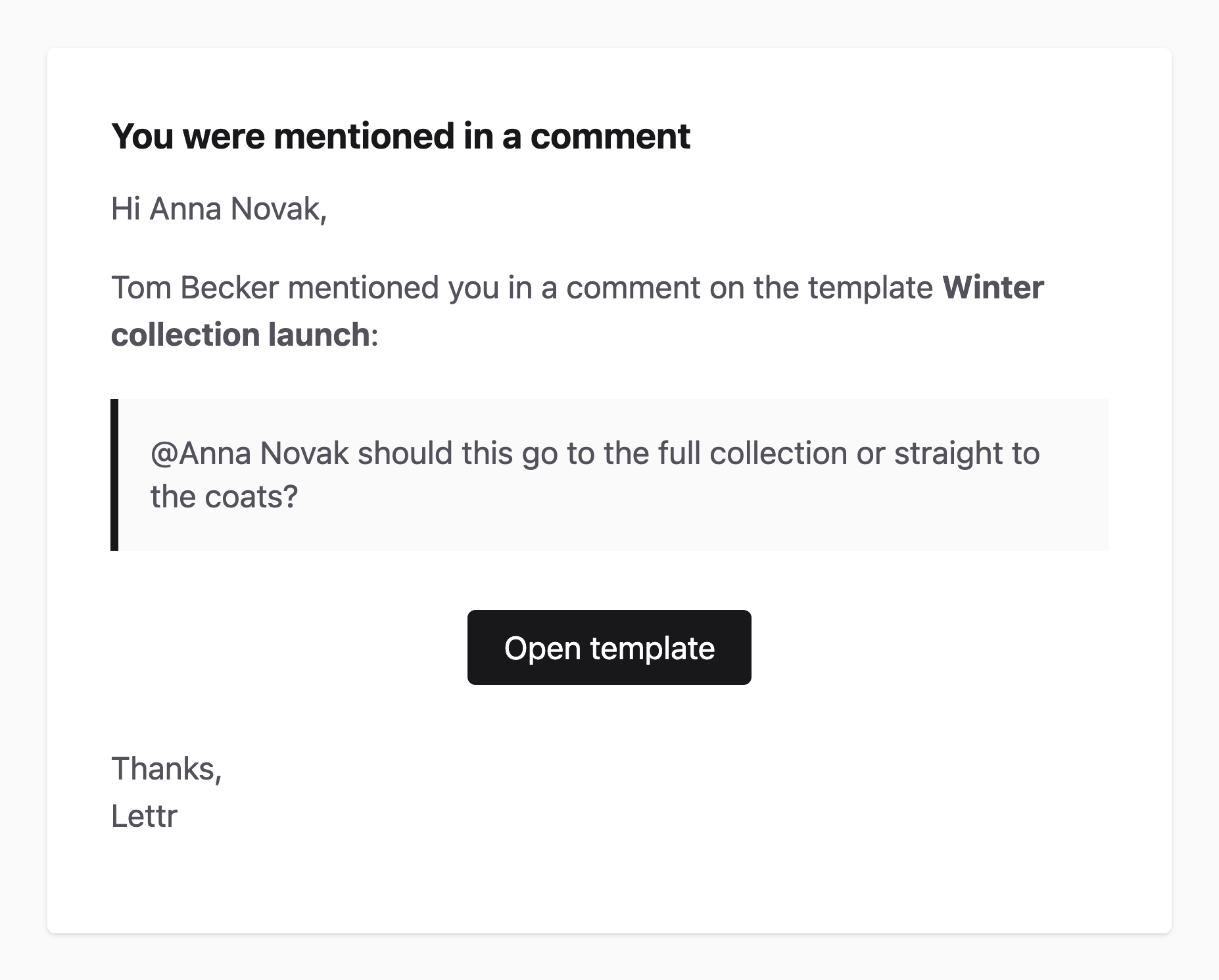
Type@ in a comment to open the list of teammates, and pick the person who should look at it. The list holds everyone on your team except you.
Find open feedback
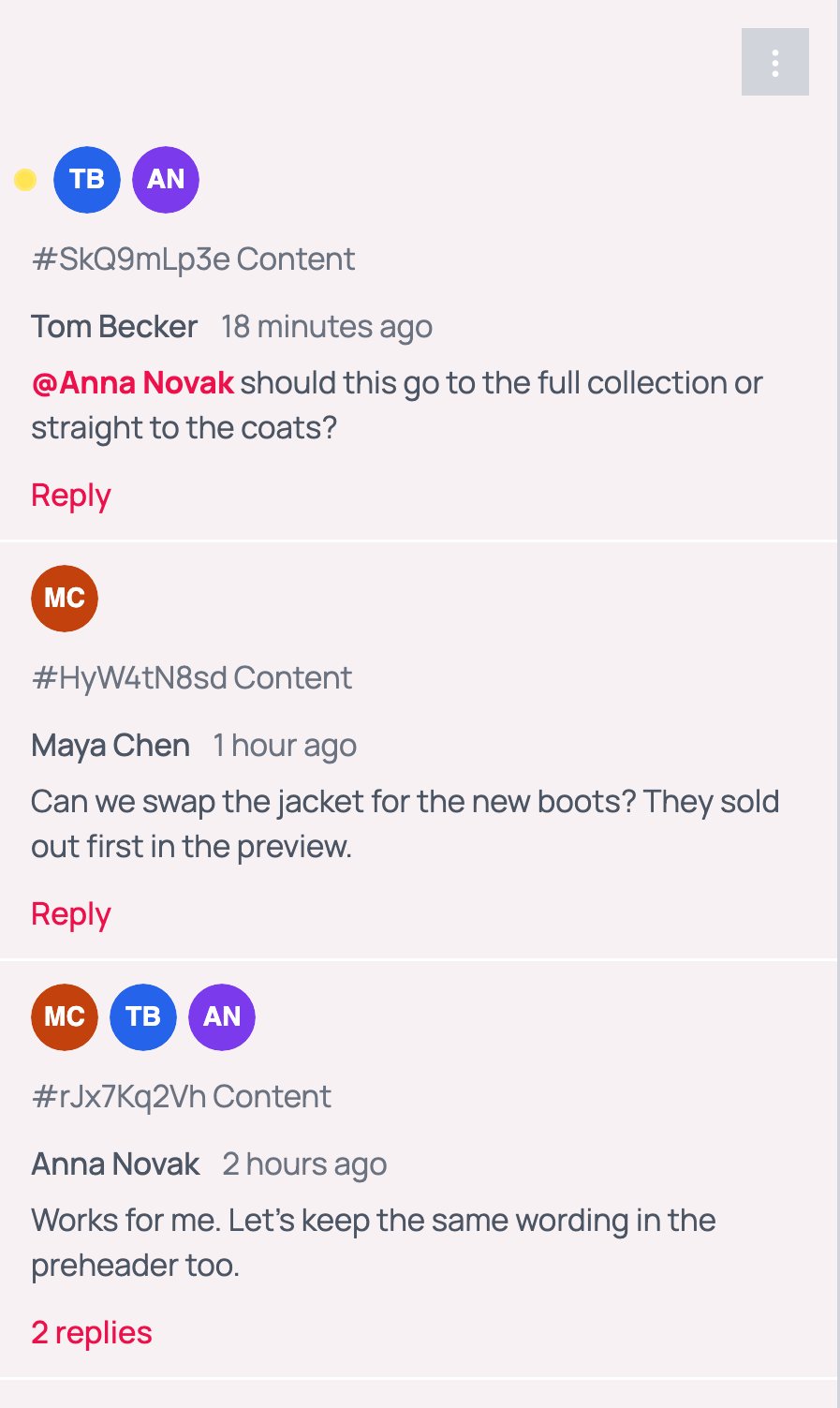
The Comments icon in the editor’s left sidebar opens the list of conversations in the template. Each entry shows the people involved, the block or section it belongs to (named by its ID, such as#SkQ9mLp3e), the latest comment, and how many replies it has. A dot marks conversations with comments you haven’t read.
Who can comment
Every member of the team can read and write comments, whatever their role. Comments are part of every plan, and there is no limit on how many people take part. To bring a reviewer in, invite them to your team.Related topics
Topol Email Editor
The editor’s layout model, blocks, and toolbar
Template Versions
Save, publish, and roll back template versions
Team Management
Invite teammates and manage roles
Saved Blocks
Reuse sections across templates