

Compose
Link the template
Choose Use template and pick a template that carries a language badge. The campaign reads the template’s languages immediately, so there is no need to save the draft first. The linked-template header confirms the choice. The template name is followed by the language badge, such asEN · DE. Hover the badge to see every language with the primary one marked: English (EN) · primary, then German (DE).
Subject and sender
The Subject, From email, From name and Reply-to fields at the top of the step belong to the primary language. They are also the values every other language inherits unless you override them.Per-language subject and sender
Below the sender fields, a Per-language subject and sender section appears with one collapsible row per secondary language. Each row shows the language code, the language name, and, once you have filled something in, a count such as2 custom fields. Click Edit to expand a row and Hide to collapse it.
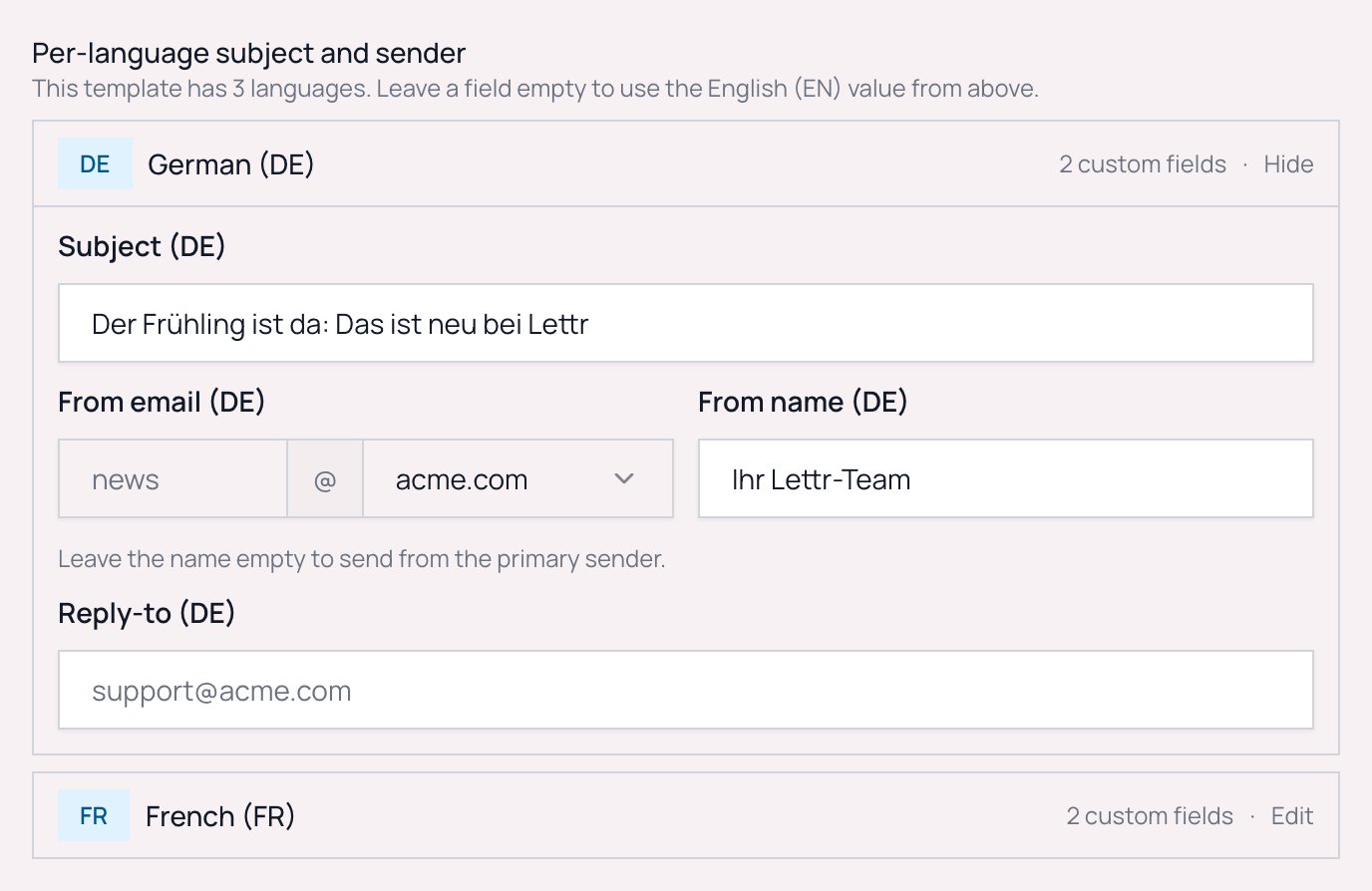
The most common setup is a translated subject and nothing else. Fill in the subject, leave the rest empty, and the language sends from the same address as the primary.
The From email field works like the primary one: a local part plus a domain chosen from your verified sending domains. To change only the domain, leave the local part empty and pick another domain: the language sends from the primary local part at that domain, so
news@example.com becomes news@example.de. A language version can never go out from a domain your team does not own. Lettr checks this when the campaign is saved and shows a problem on the field itself. It checks again when you click Send or Schedule: if a per-language domain is no longer verified, the campaign is not started and a message tells you why. Fix or clear that row’s From email and try again.
Per-language values are stored by language code and belong to the draft, not the template:
- If a language is removed from the template, its row disappears from the campaign. Its values are kept and come back if the language is added again.
- If the template’s primary language changes, the main fields at the top now belong to the new primary. The old primary becomes an ordinary row with no values of its own, and anything you had entered for the new primary is no longer used. Rewrite the main subject in the new primary language and give the old primary its own subject.
Merge tags in every language
Merge tags such as{{first_name}} work in every language version, filled from the recipient’s own contact properties. In the template editor, the merge-tag menu for marketing templates has an Audience group listing the recipient’s email and every property your team has defined, so translators can insert the right tag without knowing its exact name.
Audience
Choose recipients the way you always do. Two things help specifically with languages:- An early warning. If no contact property holds a language, an amber notice appears under the audience selector as soon as an audience is selected and the recipient estimate loads. It says that every recipient will get the primary language, and its Set a language property button opens Audience → Properties so you can fix it before reaching the review step. See Contact language.
- Segments with
is emptyandis not empty. Build a segment on your language property to find contacts with no value before sending, or to exclude them. See Finding contacts without a language.
Schedule
Nothing changes in this step. The moment you schedule or send, Lettr saves a copy of the template in every language and uses that copy for the send. See Content is locked when you schedule.Review & Send
The review panel
The Multi-language send panel is the place to confirm who gets what before anything goes out.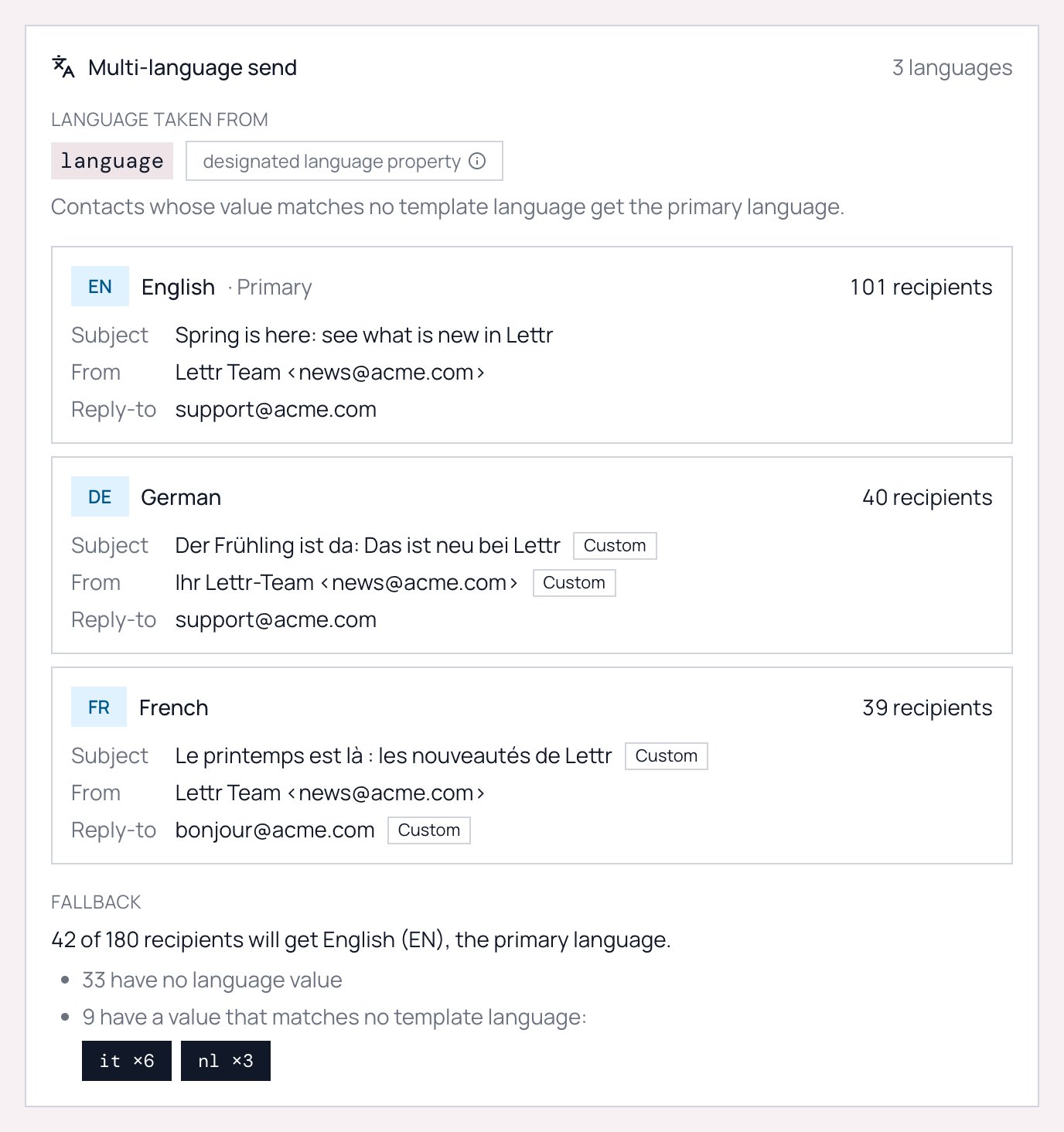
- designated language property: you ticked Use as communication language on this property.
- matched by property name: no property is designated, so Lettr took the first defined property named
communication_language,communication_lang,language,langorlocale.
- how many recipients will get this language,
- the Subject, From and Reply-to that language will actually use. Values you overrode in the Compose step carry a Custom tag. Values without the tag are inherited from the primary language. From is tagged when either the from name or the from email is overridden.
85 of 97 recipients will get English (EN), the primary language, broken down into:
- how many contacts have no language value at all,
- how many have a value that matches no template language, listed as chips with counts such as
it ×6ornl ×3. The five most frequent values are listed. The count in front of them covers all of them.
Recipient counts in the panel are computed from your current audience selection and current contact values. They are recalculated when the campaign starts, so a contact whose language changes between review and send gets the language they have at send time.
Sending a test email
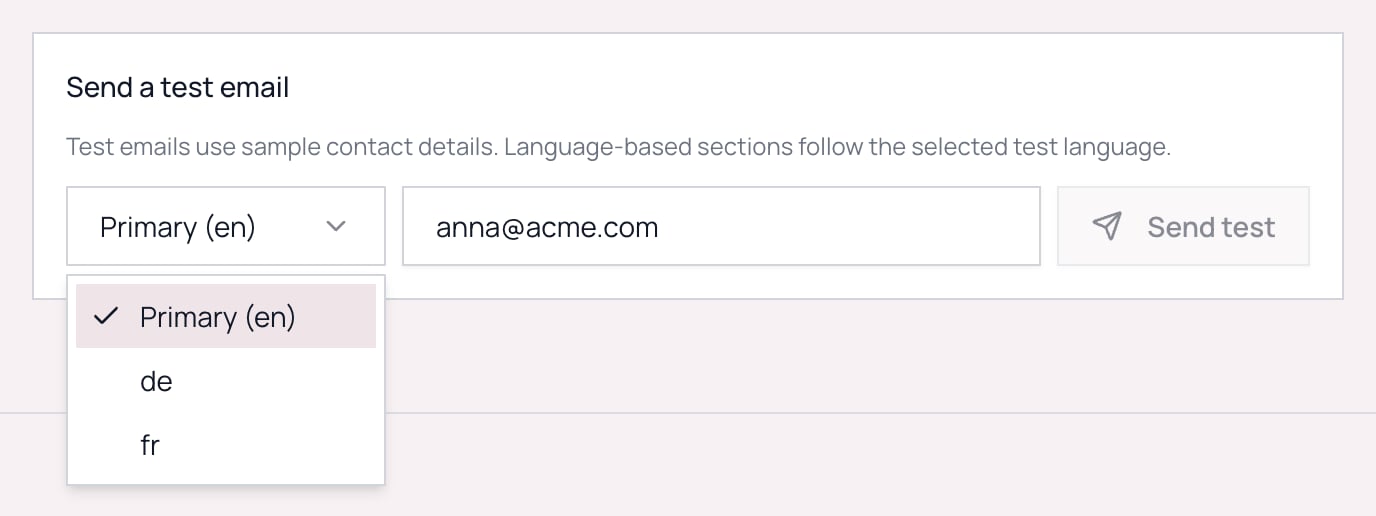
The Send a test email box gains a language picker when the template is multilingual. Choose Primary or any secondary language, enter an address, and send. Secondary languages are listed by their code, such asde. The test uses that language’s content, subject, from address and from name, as a matching recipient would receive them. Test emails are sent without a reply-to, so check each language’s reply-to in the review panel instead. You can send one test every 10 seconds.
Abuse screening
Lettr screens campaign content before release. When a multilingual campaign is screened, every language version that has at least one recipient is checked, not only the primary. If any version is flagged, the campaign goes into review and the report shows the version with the highest risk score. See The “In Review” state.Next Steps
Sending and results
What each recipient gets, content locking, and per-language results after the send
Sending and scheduling
The campaign lifecycle from Draft to Sent