

What Each Recipient Gets
Every recipient is matched to one language during preparation, using the rules on Contact language. Recipients are then grouped by language and each group is sent as its own batch with its own content and sender. From the recipient’s point of view, everything in the email is in their language:The unsubscribe footer
If your template includes its own{{unsubscribe_link}}, the footer is whatever you wrote in each language version, and Lettr adds nothing. If the template has no unsubscribe tag, Lettr appends its automatic fallback footer, and for a multilingual campaign that footer matches the language version the recipient receives. A contact with it who falls back to an English primary gets the English footer, so the footer never disagrees with the email above it. Translations exist for 19 languages, the same 19 listed under Accepted spellings. Any other language gets the English footer.
Test emails get the same treatment. A test sent in German carries the German footer.
The unsubscribe and preferences page
The translation continues after the click. The unsubscribe link in a campaign opens the hosted Manage email preferences page, and Lettr shows that page in the recipient’s language: the status, the topic choices, the pause options, the unsubscribe dialog with its reasons, and the confirmation that follows. A German contact who clicks Abmelden in a German email manages their preferences and unsubscribes in German. You don’t build or translate anything for this. The page ships in 19 languages, the same 19 listed under Accepted spellings, and picks one in this order:- The contact’s language value, when it is one of the 19 languages.
- Your team’s Default communication language, set under Settings → Team.
- English.
The page follows the contact’s language value, not the language version of the email. Most of the time these are the same. They differ when a contact’s language is one the page supports but your template does not have: a contact with
it who falls back to an English email still gets the unsubscribe page in Italian. See The language of hosted pages.The web version
The{{webversion_link}} tag resolves to a page that shows the exact language the recipient was sent, with their own merge values. The language is recorded on the recipient at send time, so the page stays in that language even if the contact’s property changes later.
Content Is Locked When You Schedule
The moment a campaign leaves Draft, whether you press Send now or schedule it for later, Lettr stores a snapshot of the template’s definition in every language. From then on the campaign renders from that snapshot:- Editing the template afterwards does not change what the campaign sends.
- Deleting the template does not break the campaign.
- Adding a language to the template afterwards does not add it to the campaign.
Single-language campaigns have always frozen their HTML when leaving Draft (see Linking a Template). Multilingual campaigns extend the same guarantee to every language version.
After the Send
The campaign detail page
The campaign’s detail page shows the same Multi-language send panel you saw on Review & Send, now in the past tense: how many recipients got each language, and which subject and sender each language used. The counts come from the language recorded on each recipient when the email was sent. The breakdown of why contacts fell back, with the missing-value count and the unmatched values, exists only before the send. Afterwards the Fallback line shows everyone who received the primary language, whether they matched it or fell back to it. If you want to clean up unmatched values, note them from the Review & Send panel before you send.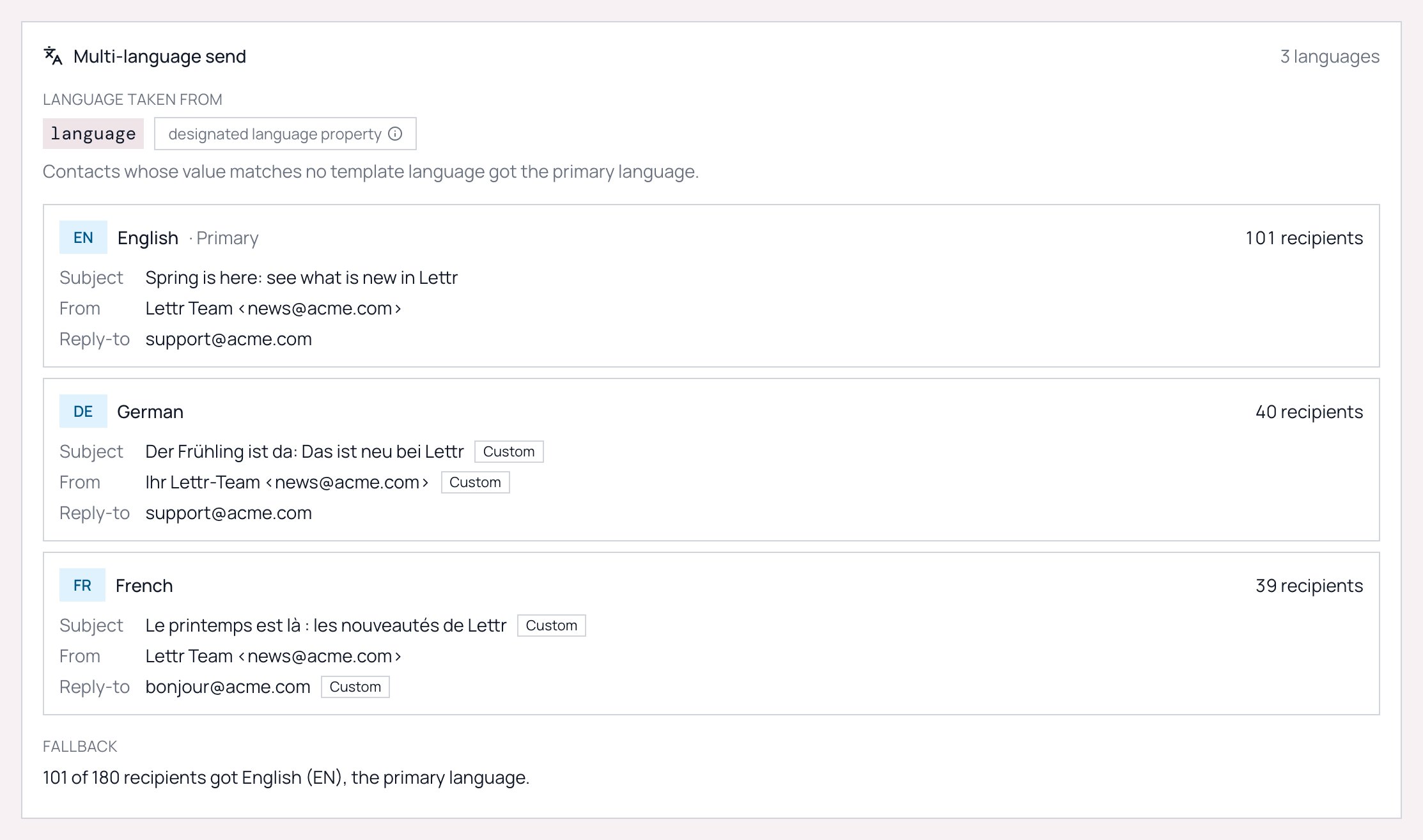
Language badges in the activity feed
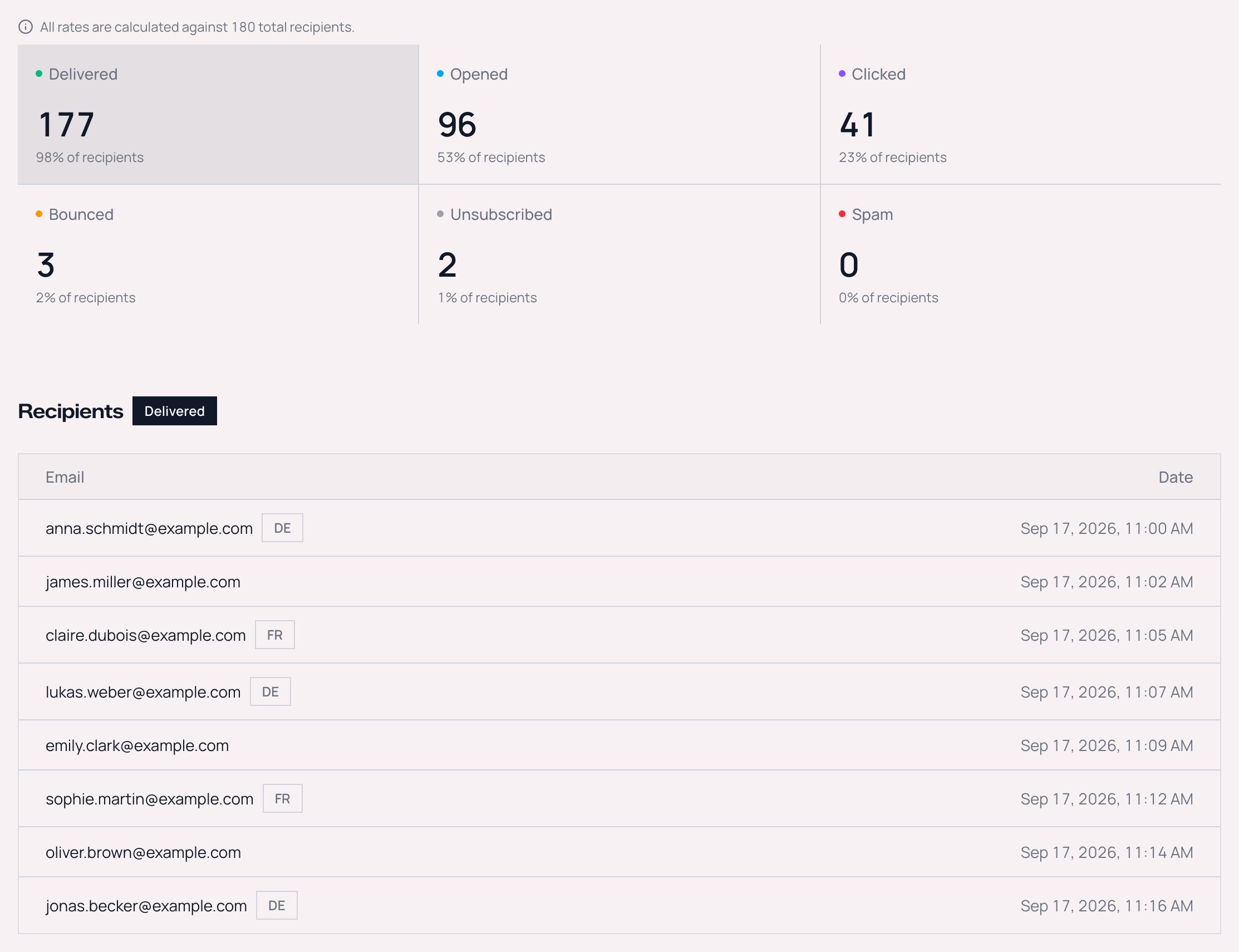
In the activity feed, recipients who received a secondary language have a small badge with the language code next to their email address, for exampleanna@example.com DE. Hover it to see “Sent in de”. Recipients of the primary language have no badge, so the badges point straight at the smaller groups.
Previewing what a specific contact received
Click the email thumbnail on the detail page to open the preview dialog. Choose Audience contact, search by email, and Lettr renders the email in the language recorded for that contact, with their current merge values. For campaigns still in Draft or Scheduled, the same dialog shows what a contact would receive based on their current properties. Sample data mode previews any of the template’s languages, chosen from the Language picker. Languages are listed by code, with the primary marked, for exampleen (primary), de, fr.
Multilingual Campaigns and the API
Per-language subject and sender values are visible on the campaign object returned by the Campaigns API aslanguage_overrides, keyed by language code. You can also set them when you create a campaign through the API. Every override sender must use a verified sending domain, and Lettr checks this when the draft is created.
Language routing exists only in campaigns. An email sent through the Emails API with a multilingual template always uses the primary version, and there is no language parameter. To send transactional email in several languages, keep one template per language and choose the template in your own code.
Next Steps
Analytics and reporting
Metrics, the activity feed, and the engagement events API
Best practices
Collecting languages, cleaning values, and choosing a fallback deliberately