

Sending Domain Setup
A sending domain authenticates your outgoing emails with DKIM and DMARC, ensuring they are delivered reliably and not marked as spam. This requires a CNAME record for domain verification, a TXT record for DKIM signing, and a TXT record for DMARC policy. To create a sending domain in Lettr:- Select Domains in the navigation panel
- Select Sending Domains
- Click Create Sending Domain
- Enter your desired sending subdomain (e.g.
mailing.company.com) - Click Create Domain
Configure Route 53 DNS
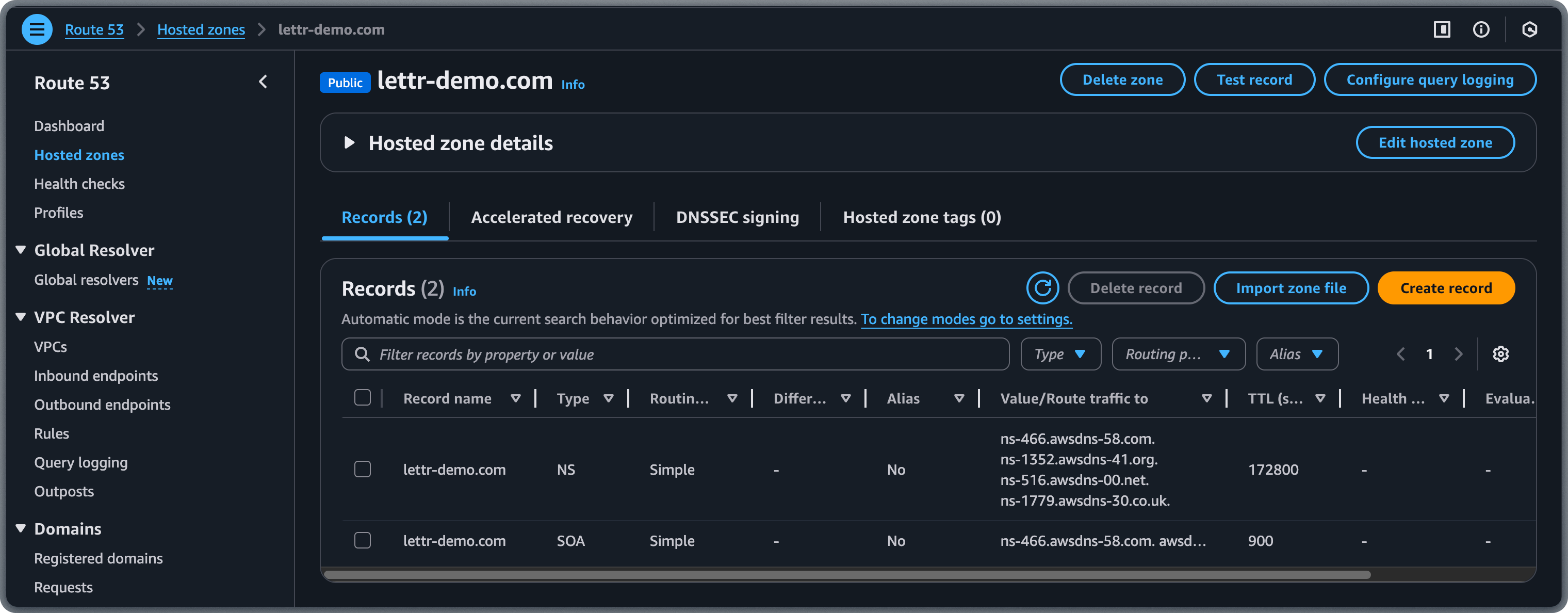
Log in to the AWS Route 53 Dashboard. In the left sidebar, click Hosted zones and select the Hosted zone (domain) you want to configure, or create a new one.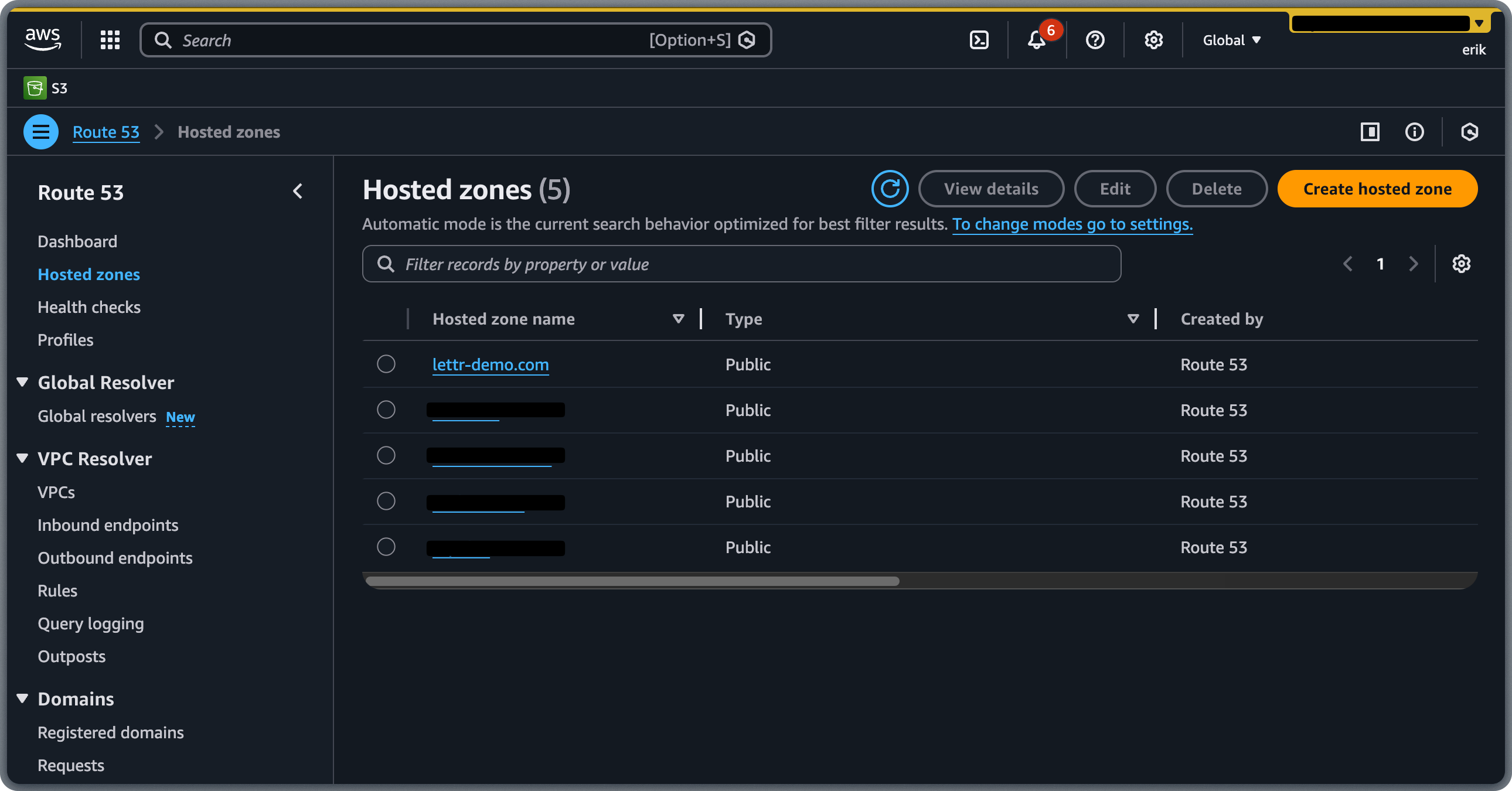
Domain registered with a different registrar?
Domain registered with a different registrar?
If you registered your domain elsewhere but want to manage DNS on AWS Route 53, you must first update the nameservers
at your registrar to AWS Route 53’s nameservers shown in the domain configuration.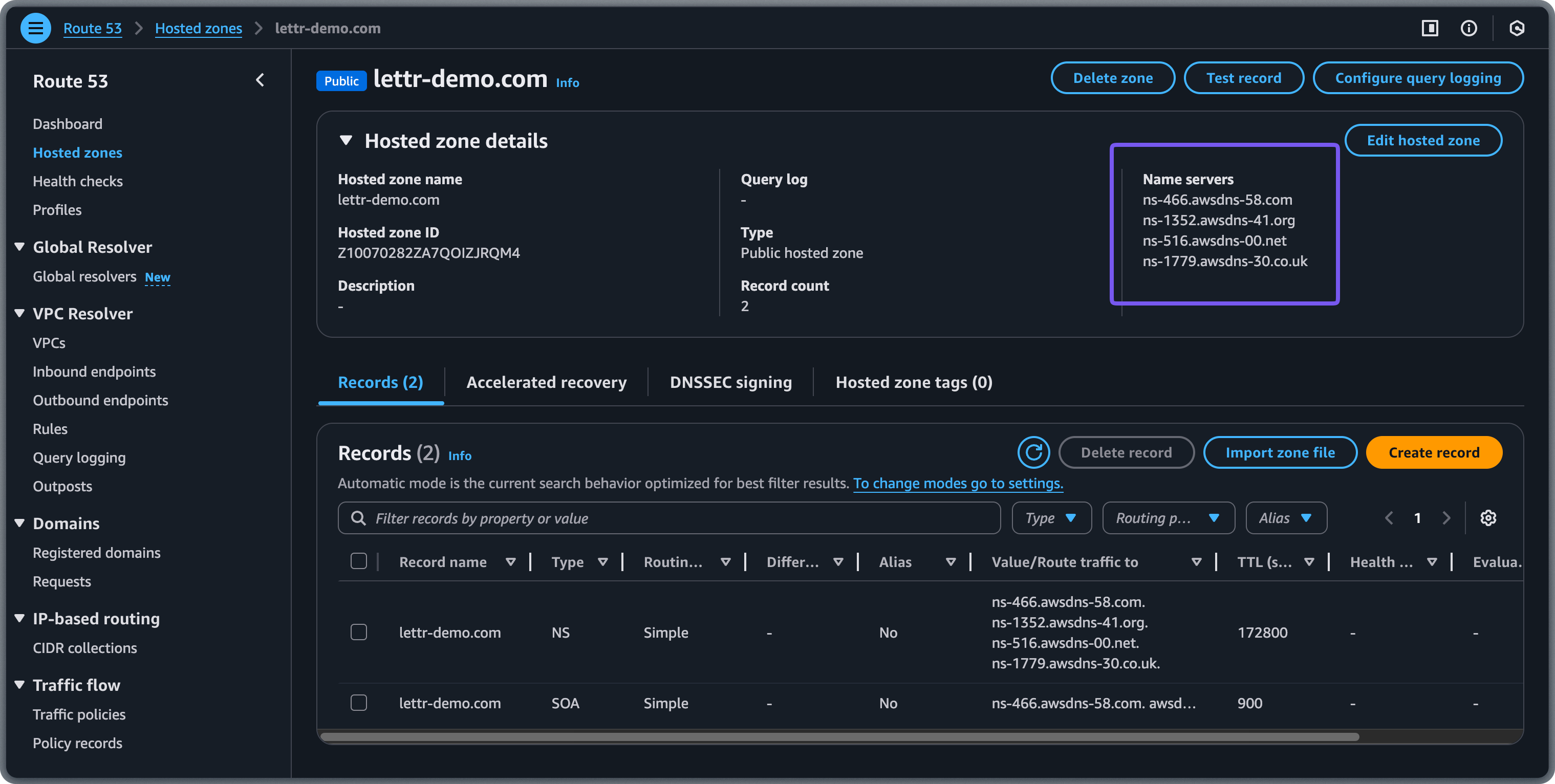
Add CNAME Record
The CNAME record verifies domain ownership with Lettr’s email infrastructure. Copy the CNAME values from Lettr to Route 53:- Click Create record in your Hosted zone.
- Copy the Hostname from Lettr and paste it into the Record name field in Route 53.
- Select CNAME from the Record type dropdown.
- Copy the Value from Lettr and paste it into the Value field in Route 53.
- Leave TTL set to 300 (Route 53 default).
- Ensure Routing policy is set to Simple routing.
- Click Create records.
Omit your domain suffix from the Hostname when pasting into Route 53. For example, instead of
mailing.lettr-demo.com, paste only mailing. Route 53 displays the hosted zone domain as a greyed-out suffix next to the Record name field.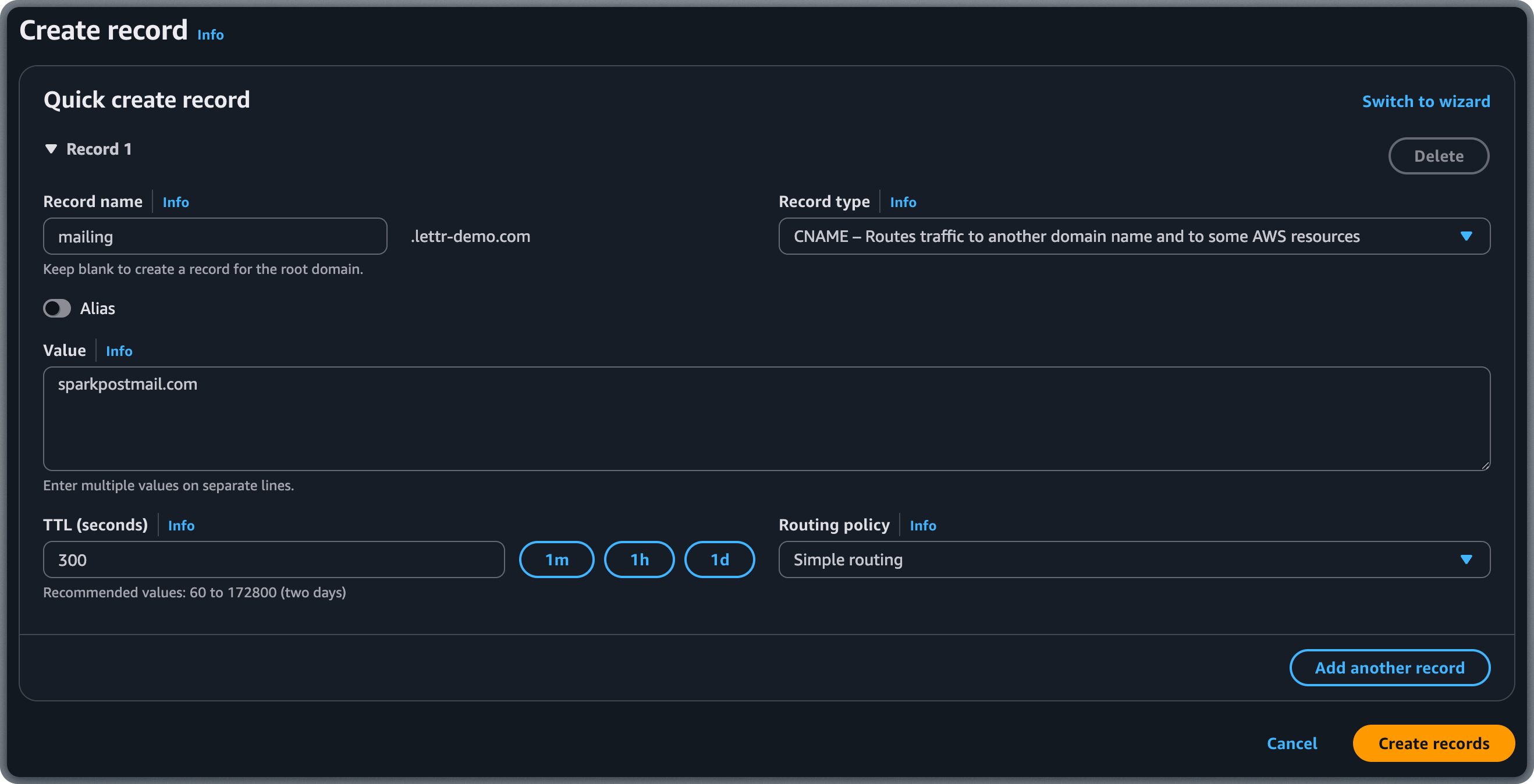
Add TXT Record (DKIM)
The DKIM record adds a cryptographic signature to your outgoing emails, allowing recipients to verify they were sent by an authorized sender. Copy the TXT values from Lettr to Route 53:- Click Create record in your hosted zone.
- Copy the Hostname from Lettr and paste it into the Record name field in Route 53.
- Select TXT from the Record type dropdown.
- Copy the Value from Lettr and paste it into the Value field in Route 53. Enclose the value in double quotes (e.g.
"v=DKIM1; ..."). - Leave TTL set to 300 or adjust as needed.
- Ensure Routing policy is set to Simple routing.
- Click Create records.
Omit your domain suffix from the Hostname when pasting into Route 53. For example, instead of
scph0126._domainkey.mailing.lettr-demo.com, paste only scph0126._domainkey.mailing.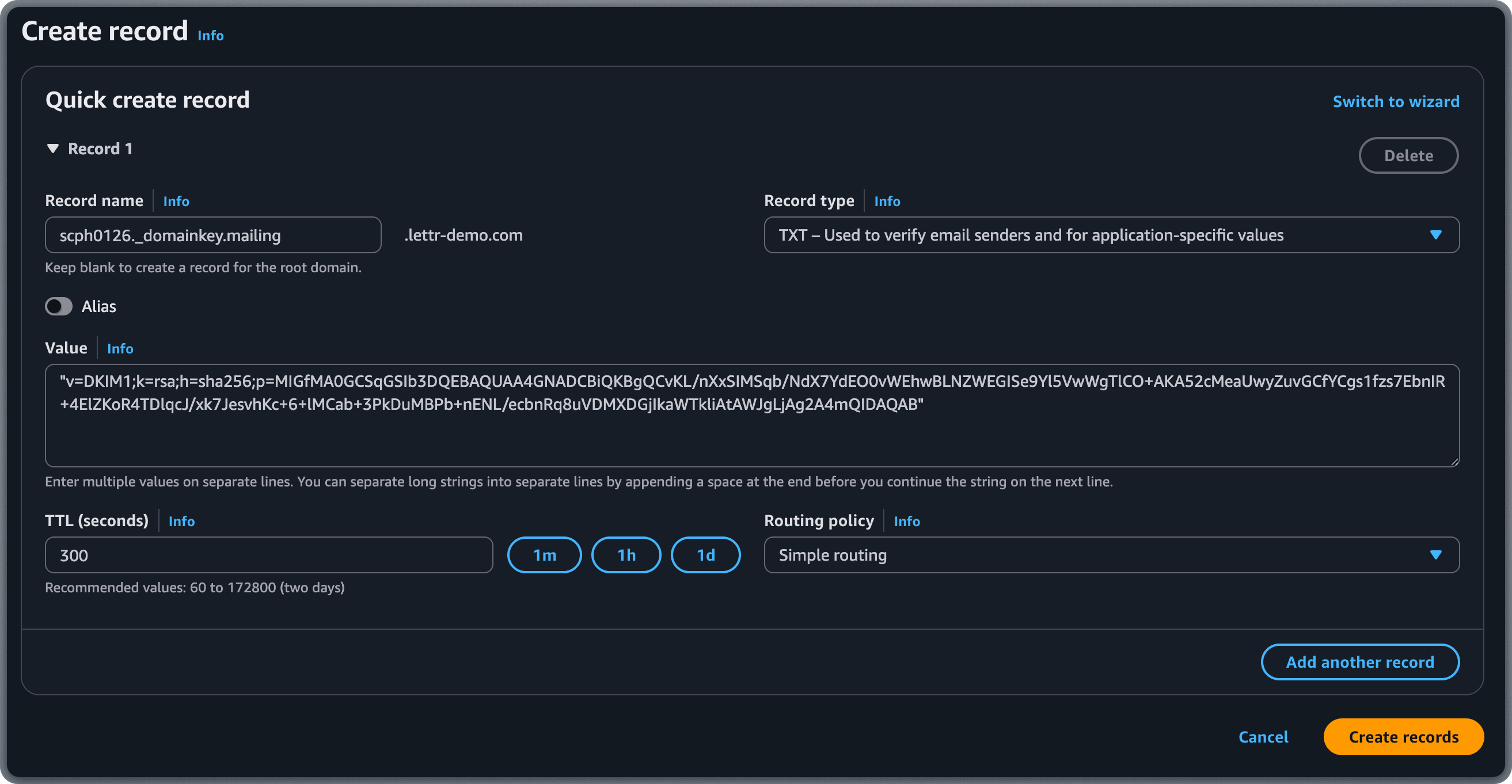
Add TXT Record (DMARC)
The DMARC record tells receiving mail servers how to handle emails that fail authentication checks, protecting your domain from spoofing. Copy the TXT values from Lettr to Route 53:- Click Create record in your hosted zone.
- Copy the Hostname from Lettr and paste it into the Record name field in Route 53.
- Select TXT from the Record type dropdown.
- Copy the Value from Lettr and paste it into the Value field in Route 53. Enclose the value in double quotes.
- Leave TTL set to 300 or adjust as needed.
- Ensure Routing policy is set to Simple routing.
- Click Create records.
Omit your domain suffix from the Hostname when pasting into Route 53. For example, instead of
_dmarc.mailing.lettr-demo.com, paste only _dmarc.mailing.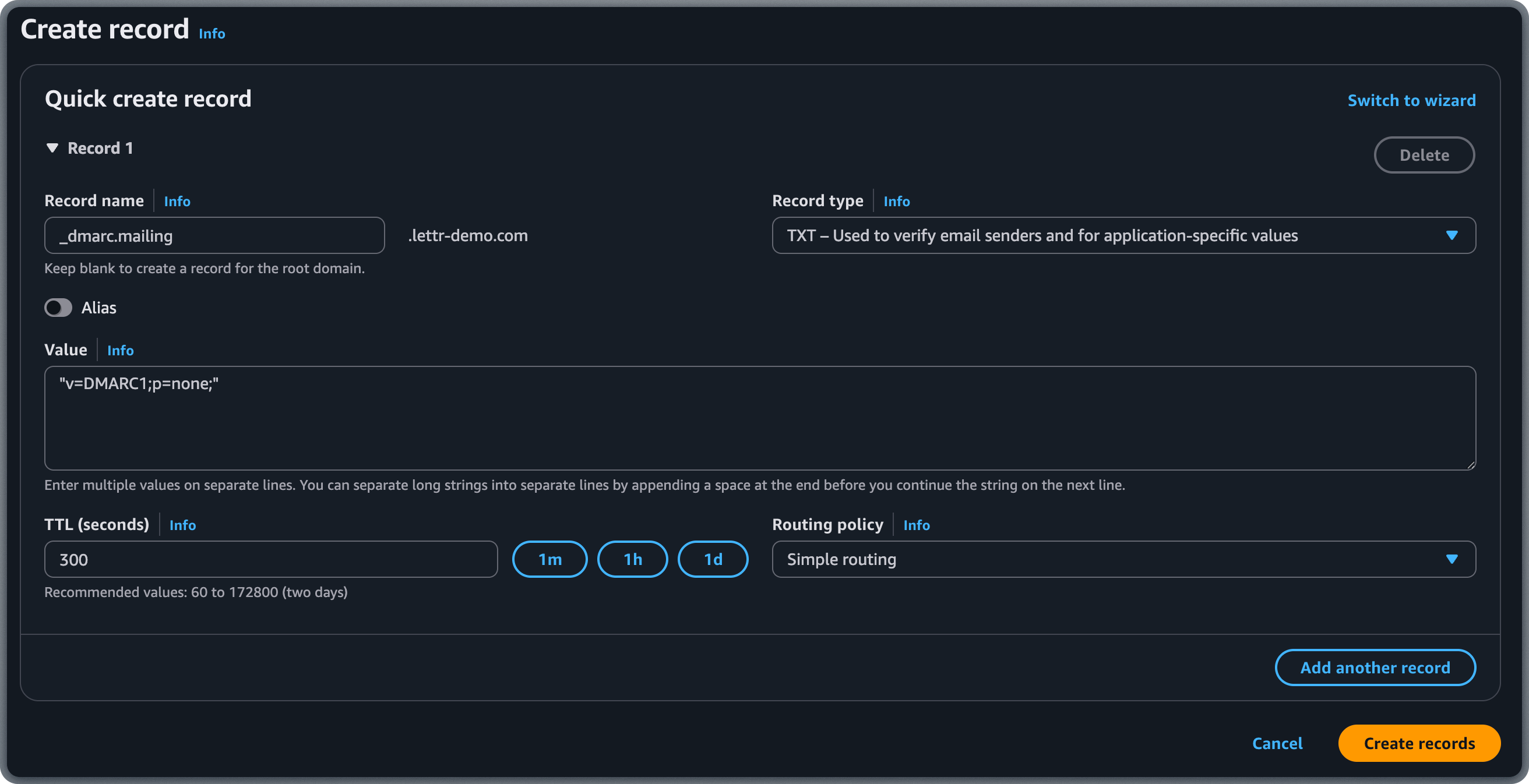
Verify Your Sending Domain
After adding all three DNS records, go back to Lettr and click Verify DNS Records. DNS propagation can take up to 24–48 hours, though it typically completes within a few minutes.Inbound Domain Setup
An inbound domain allows Lettr to receive emails on your behalf. This requires three MX records that direct incoming mail to Lettr’s mail servers.Add Inbound Domain to Lettr
To create an Inbound domain in Lettr:- Select Domains in the navigation panel
- Select Inbound Domains
- Click Create Inbound Domain (New Inbound Domain if you already have one)
- Enter your desired inbound subdomain (e.g.
inbound.company.com) - Enter the Forwarding URL where Lettr should deliver mail sent to this domain (e.g.
https://yourapp.com/webhooks/inbound) - Optionally enter an Auth token. Lettr sends it in the
X-MessageSystems-Webhook-Tokenheader so your endpoint can verify each request. - Click Create Inbound Domain
The forwarding URL is required and is tested before the domain is created. Your endpoint must answer the test
POST request with a 2xx status. If it doesn’t, the domain is not created and Lettr shows the status your endpoint returned. See Inbound Email Setup if a firewall blocks the test.Add MX Records
MX records tell other mail servers where to deliver emails addressed to your domain. Copy the MX values from Lettr to Route 53:- Click Create record in your hosted zone.
- Copy the Hostname from Lettr and paste it into the Record name field in Route 53.
- Select MX from the Record type dropdown.
- In the Value field, enter all three MX records, each on a separate line, in the format
priority mailserver. For example: - Leave TTL set to 300 or adjust as needed.
- Ensure Routing policy is set to Simple routing.
- Click Create records.
Route 53 combines all MX records for the same name into a single record set. Enter each MX record on a separate line within the same Value field, with the priority number before the mail server address.
Omit your domain suffix from the Hostname when pasting into Route 53. For example, instead of
inbound.lettr-demo.com, paste only inbound.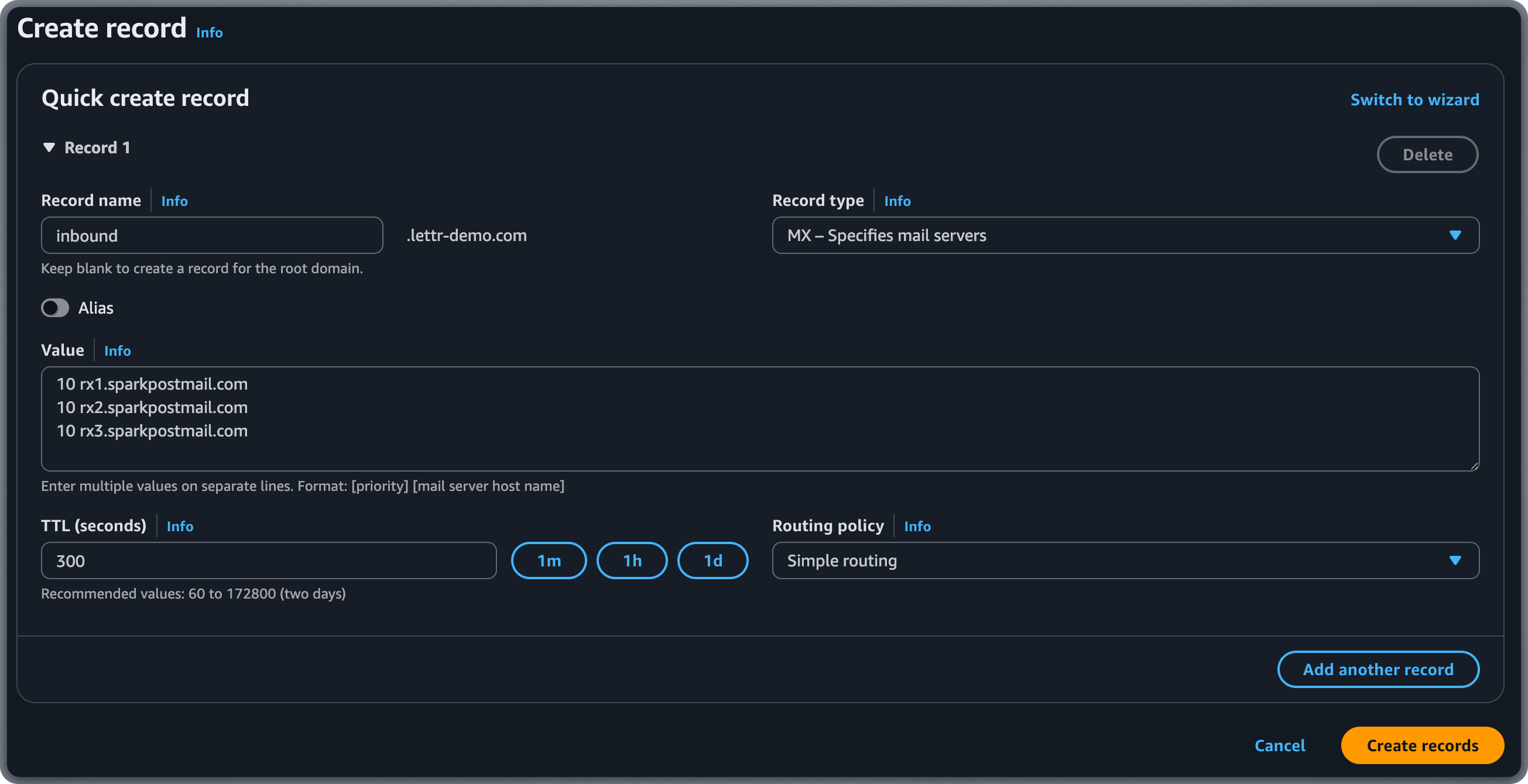
Verify Your Inbound Domain
After adding the MX records, go back to Lettr and click Verify MX Records. DNS propagation can take up to 24–48 hours, though it typically completes within a few minutes. Once the MX records verify and a forwarding URL is set, the domain shows Receiving mail in the Inbound Domains list. If the domain has no MX records, the failed check shows where mail sent to it is actually going instead.Tracking Domain Setup
A tracking domain allows Lettr to track email opens and link clicks using your own custom domain instead of the default Lettr tracking domain. This requires two CNAME records: one for the SSL certificate and one for routing tracking traffic to Lettr’s infrastructure.Add Tracking Domain to Lettr
In the Lettr dashboard, select Domains in the navigation panel, then select Tracking Domains and click Create Tracking Domain. Enter your desired tracking subdomain (e.g.track.company.com) and click Create Tracking Domain.
Click on the name of your new tracking domain in the Tracking Domains list. This will display the CNAME records that need to be configured. Keep this page open — you will need these values in the next steps.
Add SSL Certificate CNAME Record
The SSL Certificate CNAME record provisions an SSL certificate for your custom tracking domain, enabling secure HTTPS connections for tracked links. Add the record in Route 53:- Click Create record in your hosted zone.
- Copy the Hostname from Lettr and paste it into the Record name field in Route 53.
- Select CNAME from the Record type dropdown.
- Copy the Value from Lettr and paste it into the Value field in Route 53.
- Leave TTL set to 300 or adjust as needed.
- Ensure Routing policy is set to Simple routing.
- Click Create records.
Omit your domain suffix from the Hostname when pasting into Route 53. For example, instead of
track.lettr-demo.com, paste only track.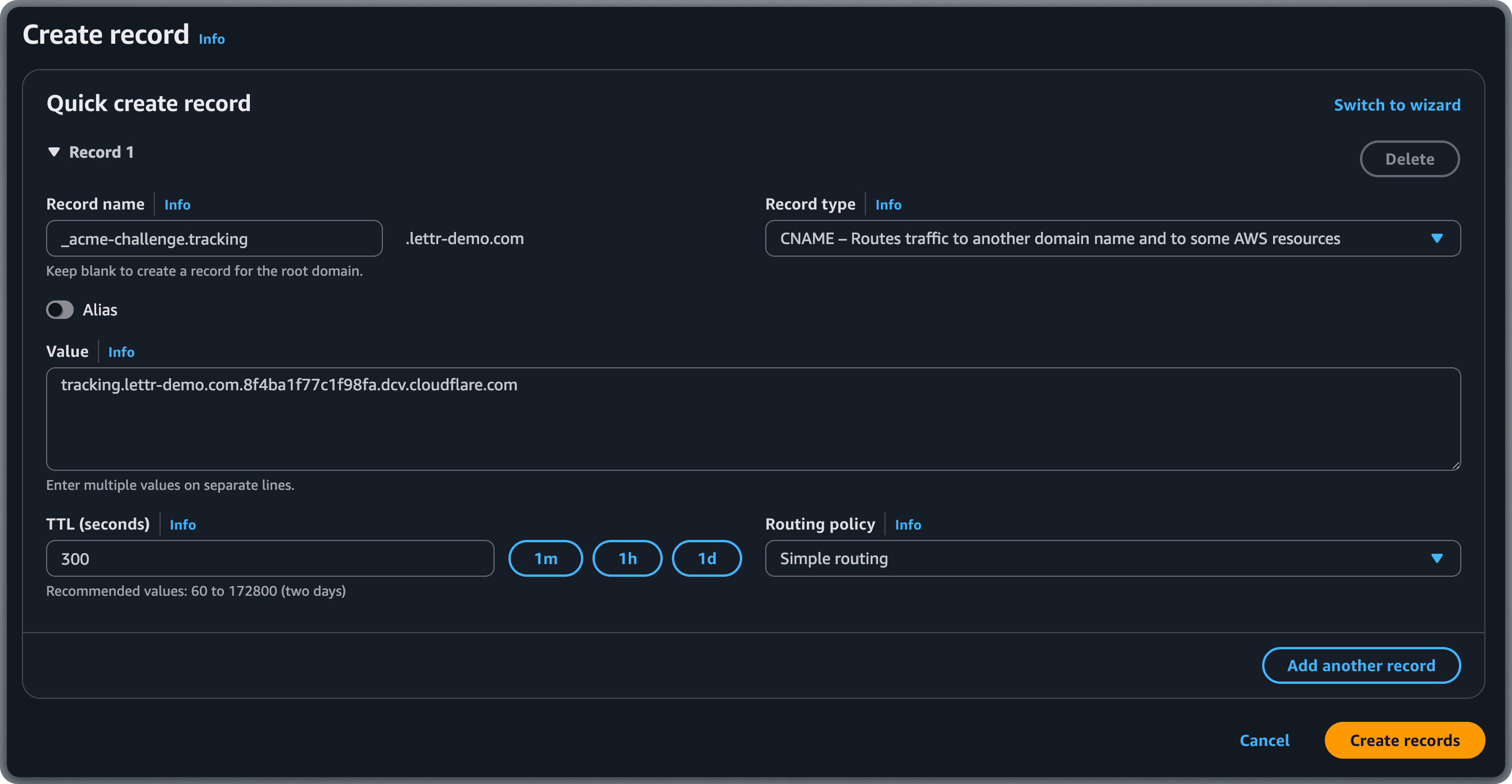
Add Traffic CNAME Record
The Traffic CNAME record routes click and open tracking requests from your custom domain to Lettr’s tracking servers. Add the record in Route 53:- Click Create record in your hosted zone.
- Copy the Hostname from Lettr and paste it into the Record name field in Route 53.
- Select CNAME from the Record type dropdown.
- Copy the Value from Lettr and paste it into the Value field in Route 53.
- Leave TTL set to 300 or adjust as needed.
- Ensure Routing policy is set to Simple routing.
- Click Create records.
Omit your domain suffix from the Hostname when pasting into Route 53. For example, instead of
track.lettr-demo.com, paste only track.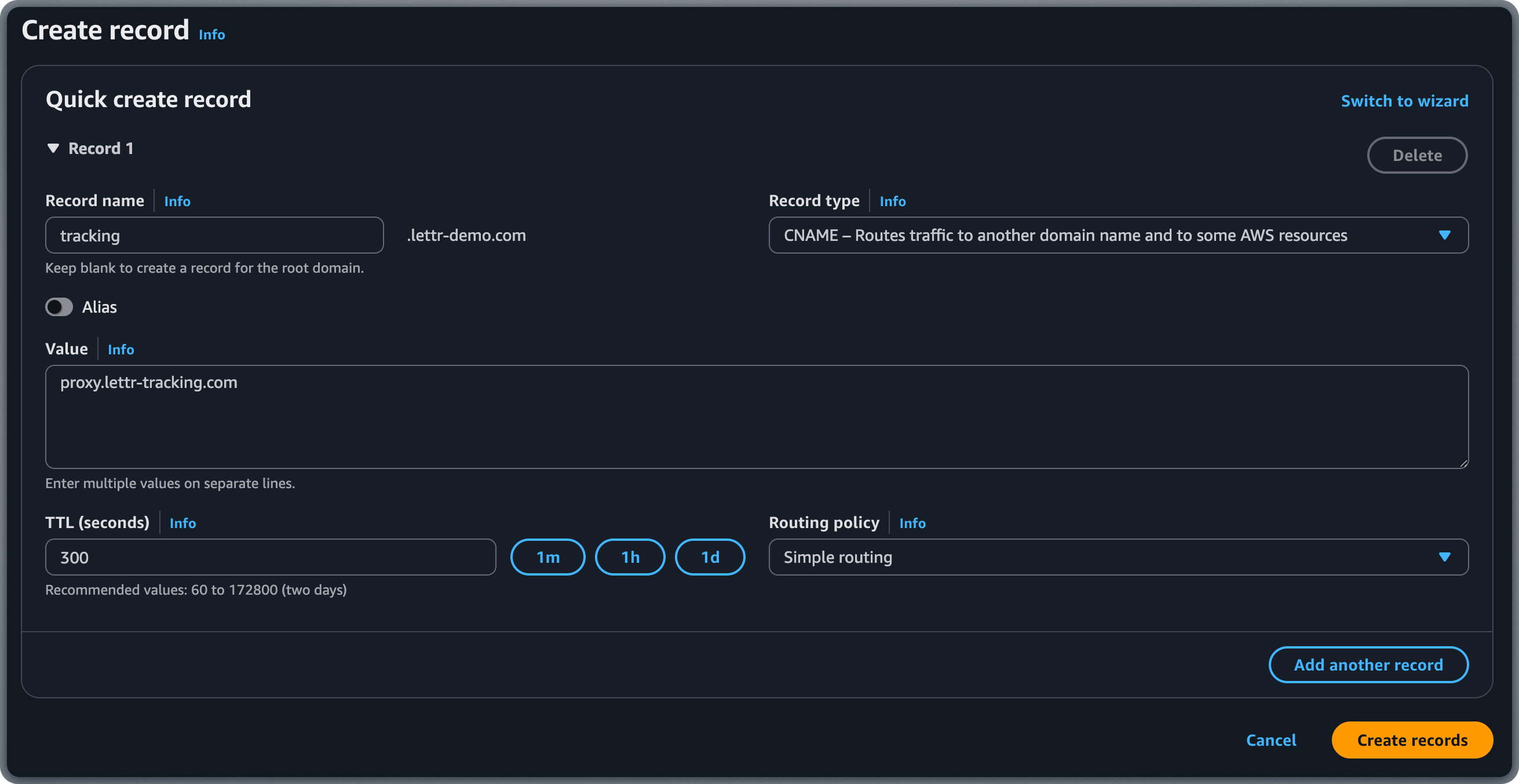
Verify Your Tracking Domain
After adding both CNAME records, go back to Lettr and click Verify DNS Records.Storage Domain Setup
A storage domain lets you serve email assets (images, attachments) from your own custom domain instead of the default Lettr storage URL. This requires two TXT records for certificate validation and ownership verification, and a CNAME record for routing asset requests to Lettr’s storage infrastructure.Add Storage Domain to Lettr
In the Lettr dashboard, select Domains in the navigation panel, then select Storage Domains and click Create Storage Domain. Enter your desired storage subdomain (e.g.assets.company.com) and click Create Storage Domain.
Click on your new domain in the Storage Domains list. This will display the TXT and CNAME records that need to be configured. Keep this page open — you will need these values in the next steps.
Add TXT Record (Certificate Validation)
The Certificate Validation TXT record provisions an SSL certificate for your custom storage domain, enabling secure HTTPS delivery of email assets. Add the record in Route 53:- Click Create record in your hosted zone.
- Copy the Hostname from Lettr and paste it into the Record name field in Route 53.
- Select TXT from the Record type dropdown.
- Copy the Value from Lettr and paste it into the Value field in Route 53. Enclose the value in double quotes.
- Leave TTL set to 300 or adjust as needed.
- Ensure Routing policy is set to Simple routing.
- Click Create records.
Omit your domain suffix from the Hostname when pasting into Route 53. For example, instead of
assets.lettr-demo.com, paste only assets.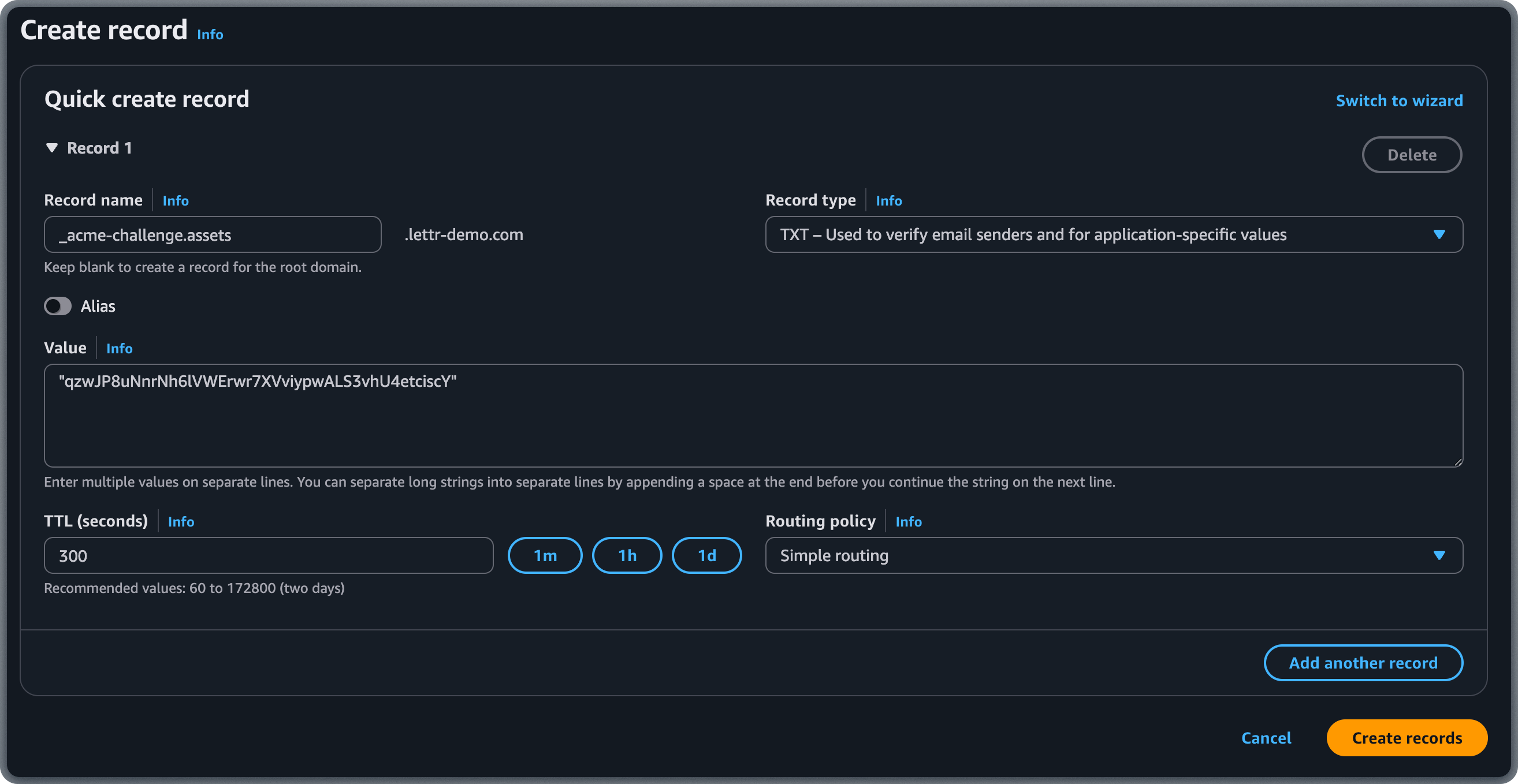
Add TXT Record (Hostname Pre-validation)
The Hostname Pre-validation TXT record verifies ownership of the storage domain before Lettr provisions a custom hostname for it. Add the record in Route 53:- Click Create record in your hosted zone.
- Copy the Hostname from Lettr and paste it into the Record name field in Route 53.
- Select TXT from the Record type dropdown.
- Copy the Value from Lettr and paste it into the Value field in Route 53. Enclose the value in double quotes.
- Leave TTL set to 300 or adjust as needed.
- Ensure Routing policy is set to Simple routing.
- Click Create records.
Omit your domain suffix from the Hostname when pasting into Route 53. For example, instead of
assets.lettr-demo.com, paste only assets.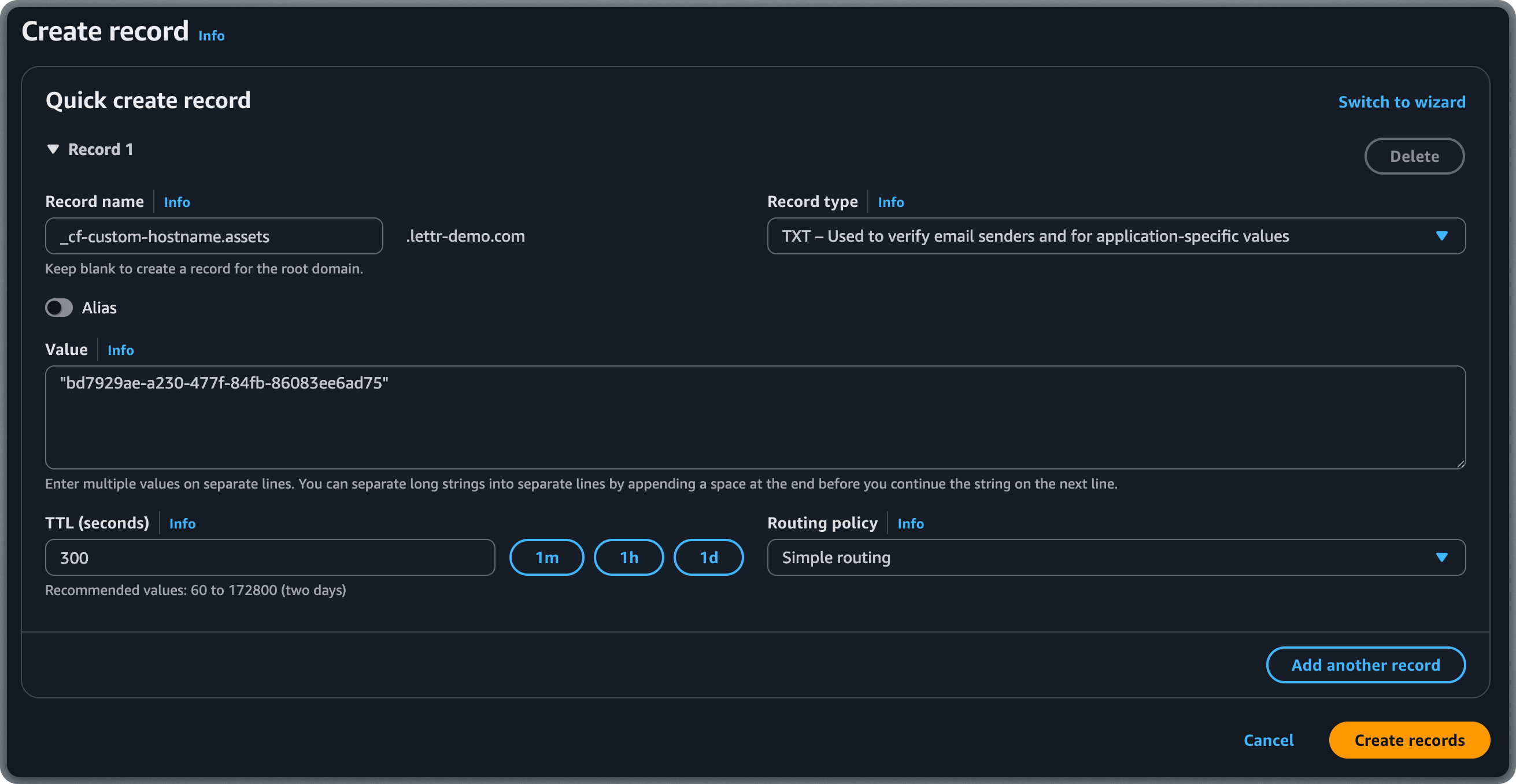
Add CNAME Record (Domain Routing)
The Domain Routing CNAME record routes asset requests from your custom domain to Lettr’s storage infrastructure. Add the record in Route 53:- Click Create record in your hosted zone.
- Copy the Hostname from Lettr and paste it into the Record name field in Route 53.
- Select CNAME from the Record type dropdown.
- Copy the Value from Lettr and paste it into the Value field in Route 53.
- Leave TTL set to 300 or adjust as needed.
- Ensure Routing policy is set to Simple routing.
- Click Create records.
Omit your domain suffix from the Hostname when pasting into Route 53. For example, instead of
assets.lettr-demo.com, paste only assets.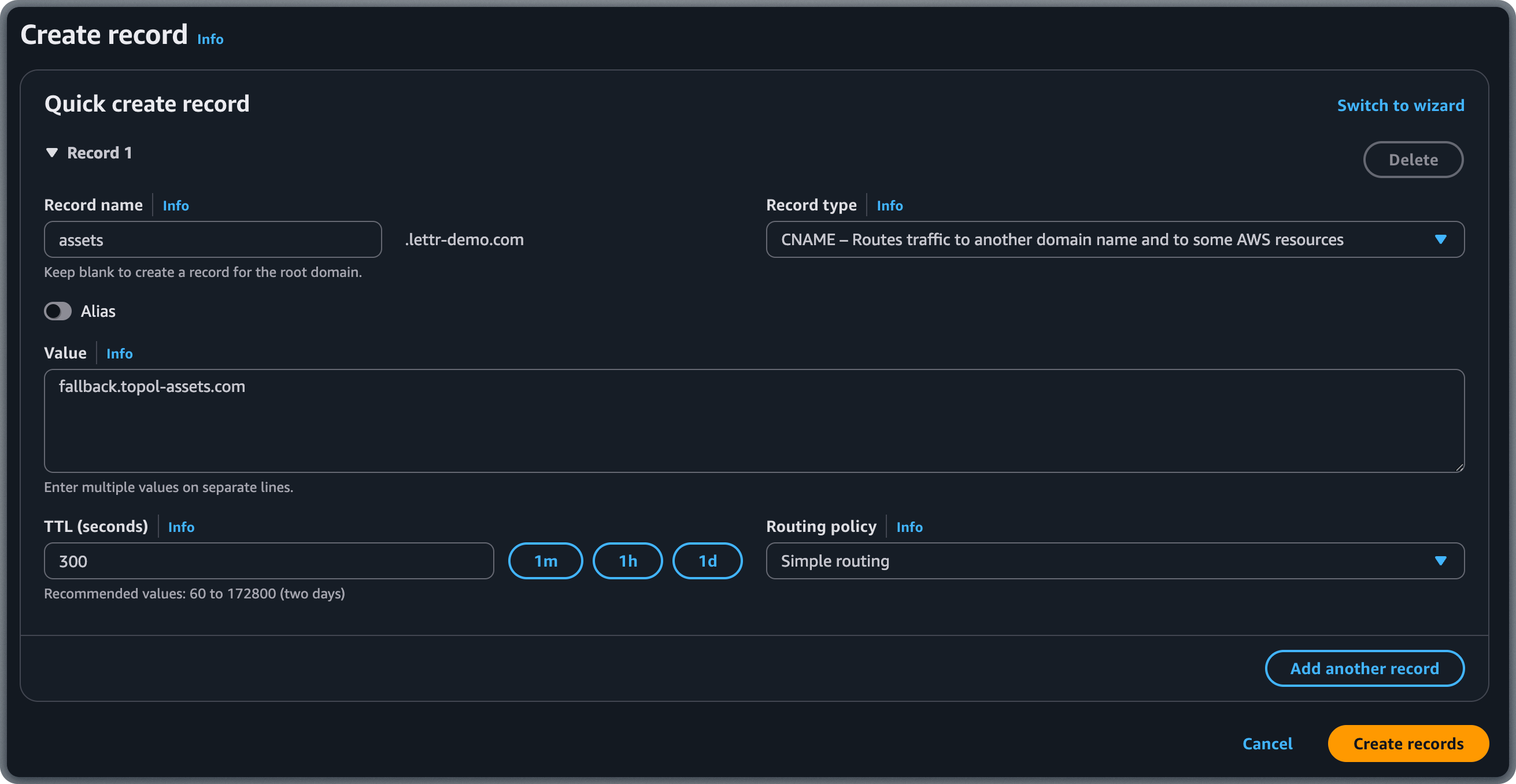
Verify Your Storage Domain
After adding all three records, go back to Lettr and click Verify DNS Records.Troubleshooting
TXT Values Missing Quotes
TXT Values Missing Quotes
Route 53 requires all TXT record values to be enclosed in double quotes. If you paste a value without quotes, the record may fail to save or resolve incorrectly. Edit the record and ensure the value is wrapped like
"v=DKIM1; ...".Multiple TXT Records With the Same Name
Multiple TXT Records With the Same Name
Route 53 does not allow two separate record sets of the same type with the same name. If you need to add multiple TXT values for the same hostname (e.g. both storage TXT records share a name), add them as separate lines within a single TXT record set, each enclosed in its own double quotes:
Domain Suffix Not Omitted
Domain Suffix Not Omitted
Route 53 displays the hosted zone domain as a greyed-out suffix next to the Record name field. If you paste the full hostname (e.g.
mailing.lettr-demo.com), the resulting record will be mailing.lettr-demo.com.lettr-demo.com, which will fail verification.Always paste only the subdomain portion (e.g. mailing, scph0126._domainkey.mailing, _dmarc.mailing).Records Not Propagating
Records Not Propagating
If verification fails after adding records, check the following:
- Wait at least 30 minutes before your first verification attempt. Most records propagate within 1–2 hours.
- Confirm the records exist using command-line tools:
- Use a web tool like dnschecker.org to verify propagation across multiple DNS servers worldwide.
Wrong Record Type
Wrong Record Type
A common mistake is selecting the wrong type in Route 53’s Record type dropdown:
DKIM Value Truncated
DKIM Value Truncated
The DKIM TXT value is a long string. After saving the record in Route 53, click the record to confirm the full value was stored. If it appears truncated, edit the record and try pasting the value again. Remember to enclose the entire value in double quotes.
CNAME at Zone Apex Not Supported
CNAME at Zone Apex Not Supported
Route 53 does not support CNAME records at the zone apex (root domain). For example, you cannot create a CNAME record for
company.com itself — only for subdomains like mailing.company.com. Use a subdomain for your sending domain to avoid this limitation.Nameservers Not Updated
Nameservers Not Updated
If your records are saved in Route 53 but not resolving, confirm that your domain registrar is pointing to Route 53’s nameservers. You can check this with:The output should include the four nameservers listed in your Route 53 hosted zone (e.g.
ns-123.awsdns-45.com, ns-456.awsdns-67.net). If it shows a different provider’s nameservers, update them at your domain registrar.When to Contact Support
When to Contact Support
If your DNS records are correctly configured (confirmed with
dig or dnschecker.org) and verification still fails after 48 hours, contact Lettr support at support@lettr.com or through the in-app chat. Include your domain name and the output of the dig commands above.Related Topics
Sending Domains
Learn about sending domain setup, SPF, DKIM, and DMARC.
Inbound Domains
Configure MX records to receive emails with Lettr.
Tracking Domains
Set up a custom tracking domain for click and open tracking.
Storage Domains
Serve email assets from your own custom domain.
Domains Overview
Understand domain types and how they work in Lettr.
Domain Verification Failures
Troubleshoot common DNS configuration and propagation issues.