This guide helps new Topol Email editor users understand how the editor works—what the main features do, how they connect, and what pitfalls to avoid. Whether you’re building your first template or looking to sharpen your workflow, this article covers the core concepts, practical tips, and common mistakes so you can create polished, responsive emails with confidence. For a more technical, developer-oriented introduction to the editor, see the Topol Email Editor technical guide.
This article focuses on best practices and hands-on guidance. It complements—rather than duplicates—the technical guide, so both are worth reading. For in-depth walkthroughs of individual features, the Topol support center provides detailed articles with step-by-step instructions.

Basic Building Blocks: Structures and Content Blocks

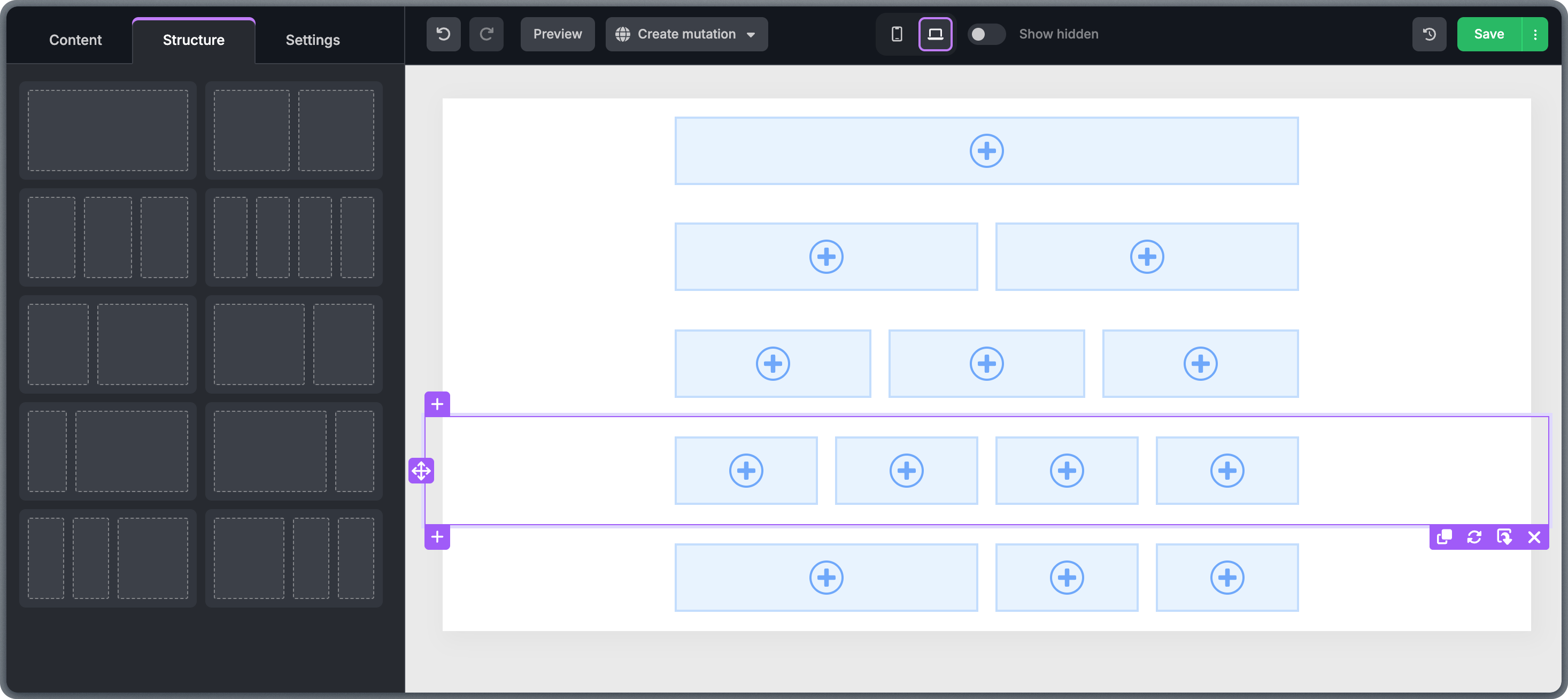
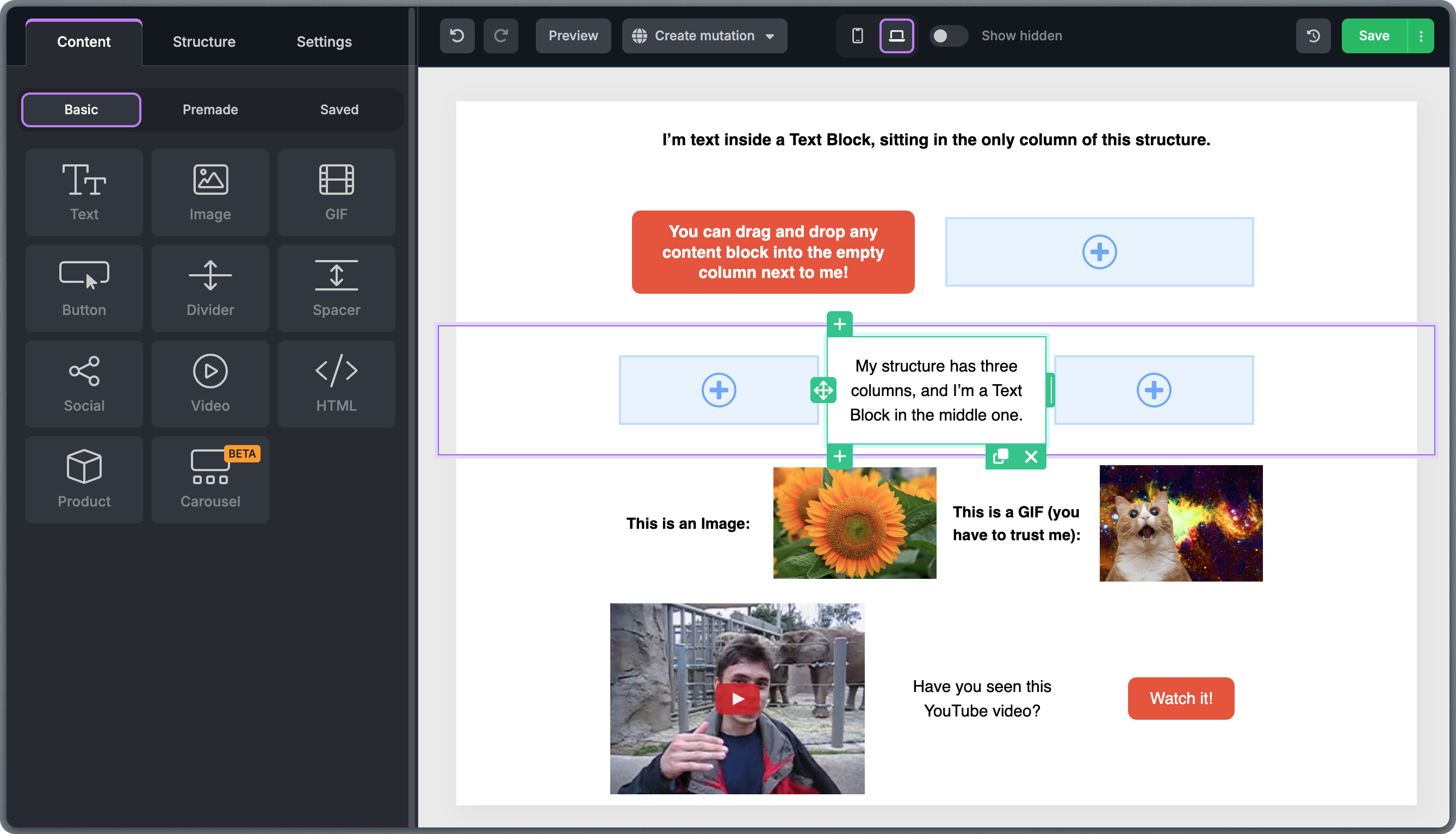
Email templates consist of structures and content blocks. Understanding the relationship between these two concepts is the single most important thing to learn as a new user—it makes every other feature easier to use. A structure defines the layout. It controls how many columns appear in a row and how content behaves on desktop and mobile devices. Structures can have one, two, three, or four columns. To add a structure, open the Structure tab and drag it into the template. Structure tab showing layout options with one, two, three, and four column configurations Content blocks live inside structures. They include text, images, buttons, dividers, spacers, social icons, videos, GIFs, product blocks, and custom code. To add content, open the Content tab and drag a block into a column inside a structure. For a detailed overview of all available block types, see the Content Blocks guide. Content tab displaying available block types including text, image, button, and other content elements Build templates from multiple structures rather than placing everything into one or two large ones. This approach divides content clearly and prevents layout issues, especially in mobile responsive view.
Structures behave similarly to tables. If you want content to stack neatly on smaller screens, dividing it into separate structures is often the cleanest solution.
A common beginner mistake is to confuse structures with content blocks. Remember: structures define where content goes (the layout grid), while content blocks define what goes there (text, images, buttons, etc.). You cannot drag a content block onto the canvas without first placing a structure to hold it.

Working with Structures

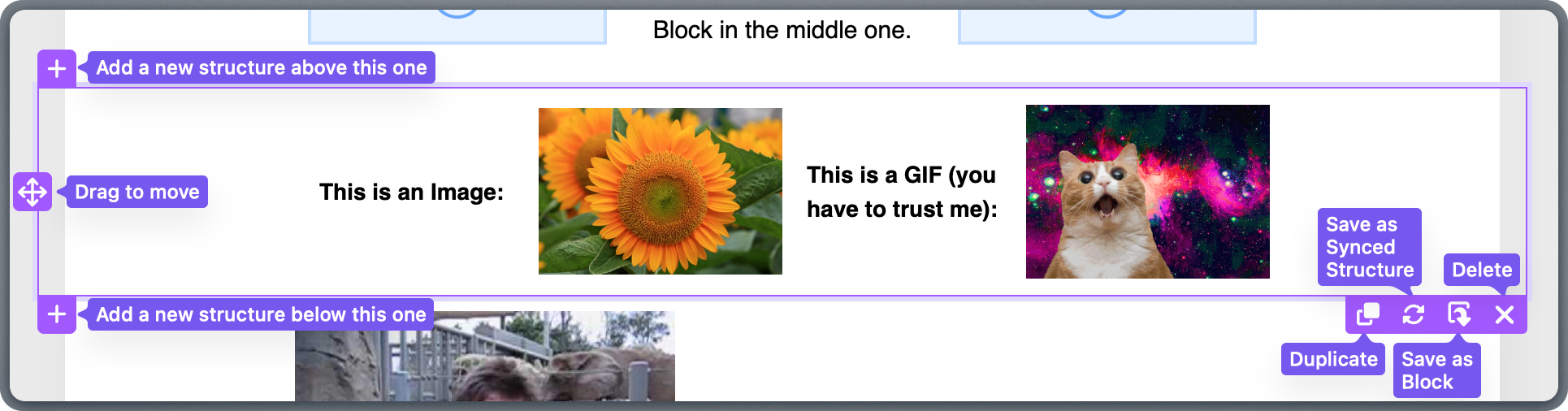
When you click inside any structure, a border appears with multiple action icons. Use these to move, duplicate, save, or perform other actions on the structure. For a deeper dive into structure options, see the Structures article. Selected structure showing action icons for move, duplicate, save, and delete operations The left-side panel provides structure-level settings. Here you can control the number of columns, background color or image, structure width, border style, layout (narrow or stretched), top and bottom margins, and column properties. Structure properties panel showing options for columns, background, width, borders, and margins
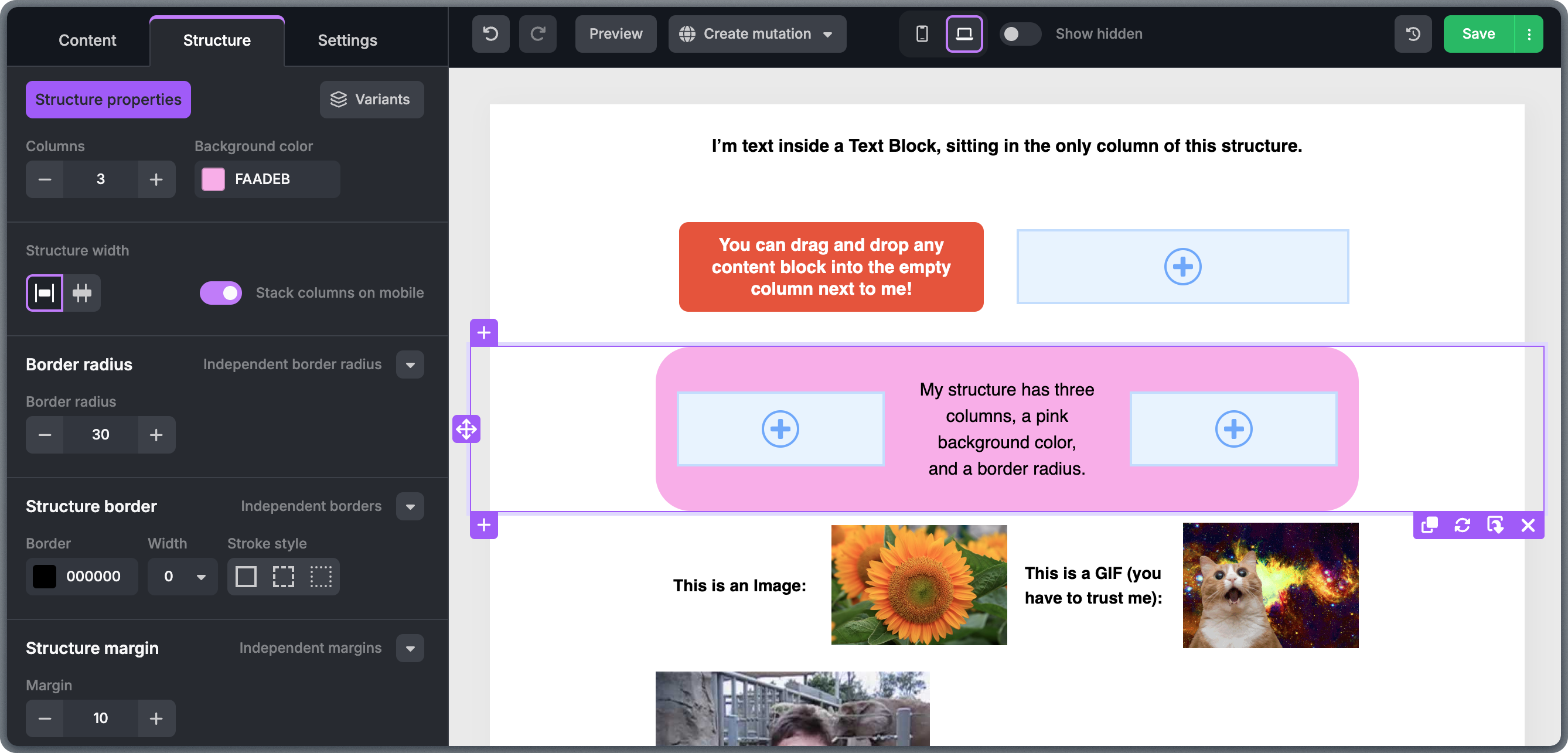
Be consistent about what represents a “section.” If your hero area is one structure, keep it that way. Avoid spreading a single conceptual section across multiple structures unless you need different background or spacing rules. This makes templates easier to edit later, especially for teammates.
Use the Save action on a structure to store it as a reusable Saved Block. This is especially useful for headers, footers, and branded sections that appear across multiple templates.

Working with Columns

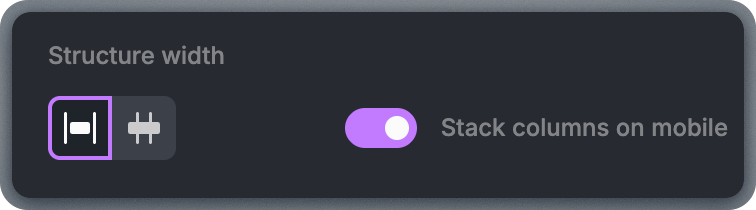
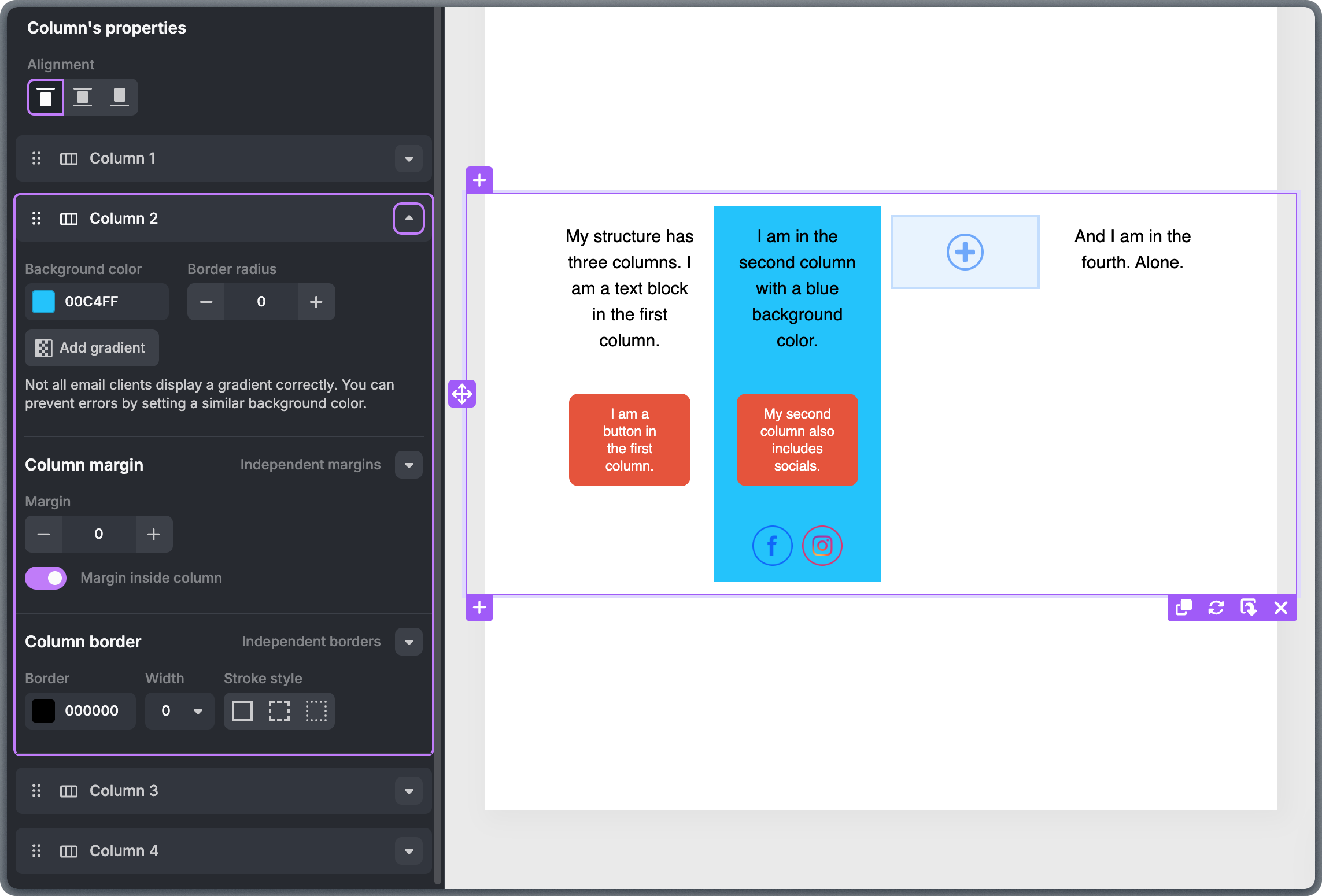
Each structure can hold up to 8 columns, and each column can hold as many content blocks as needed. To change the number of columns, select the structure and adjust the column count in the left-side panel. Structure with multiple columns showing column count adjustment controls Columns have their own properties. You can adjust the background color, border, margin, padding, and more for each column independently. To access these options, select the structure and scroll to the bottom of the left-side panel to find the Columns properties section. Column properties panel showing background, border, margin, and padding settings By default, columns stack vertically on mobile devices. If you want columns to remain side by side on mobile, disable the “Stack columns on mobile” option. Stack columns on mobile toggle switch in the structure settings
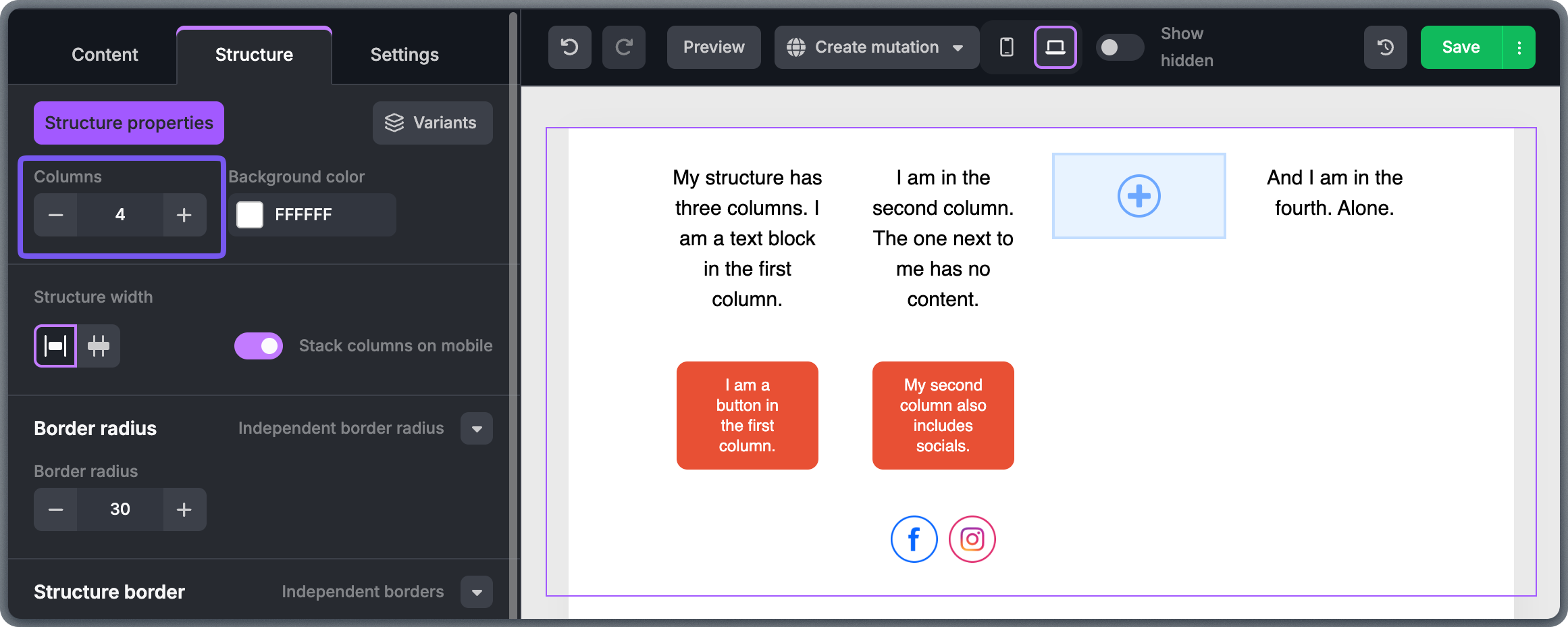
Think carefully before disabling column stacking on mobile. Side-by-side columns on a narrow screen often result in cramped, hard-to-read content. Only keep columns unstacked when the content is very short (such as two small icons or very brief labels) and reads well at narrow widths.
When using multi-column structures, keep related content together in the same column. For example, place an image, its caption, and a CTA button in the same column so they stack as a coherent unit on mobile.

Working with Content Blocks

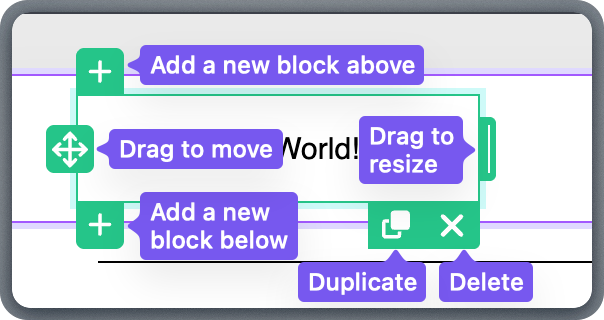
There are 10 types of basic content blocks, each designed for displaying a specific type of content. Similar to structures, you can perform actions directly through the buttons on the border of each block. For detailed guidance on working with individual block types, see the Text, Image, and Button block guide. Content block with action buttons for move, duplicate, save, and delete Here’s how to work with each type.
Text Blocks

Edit text directly in the template using the formatting toolbar that appears above an active text block. These settings initially inherit global styles defined in the Settings tab but can be adjusted individually. Text block with formatting toolbar showing font, size, color, and alignment options
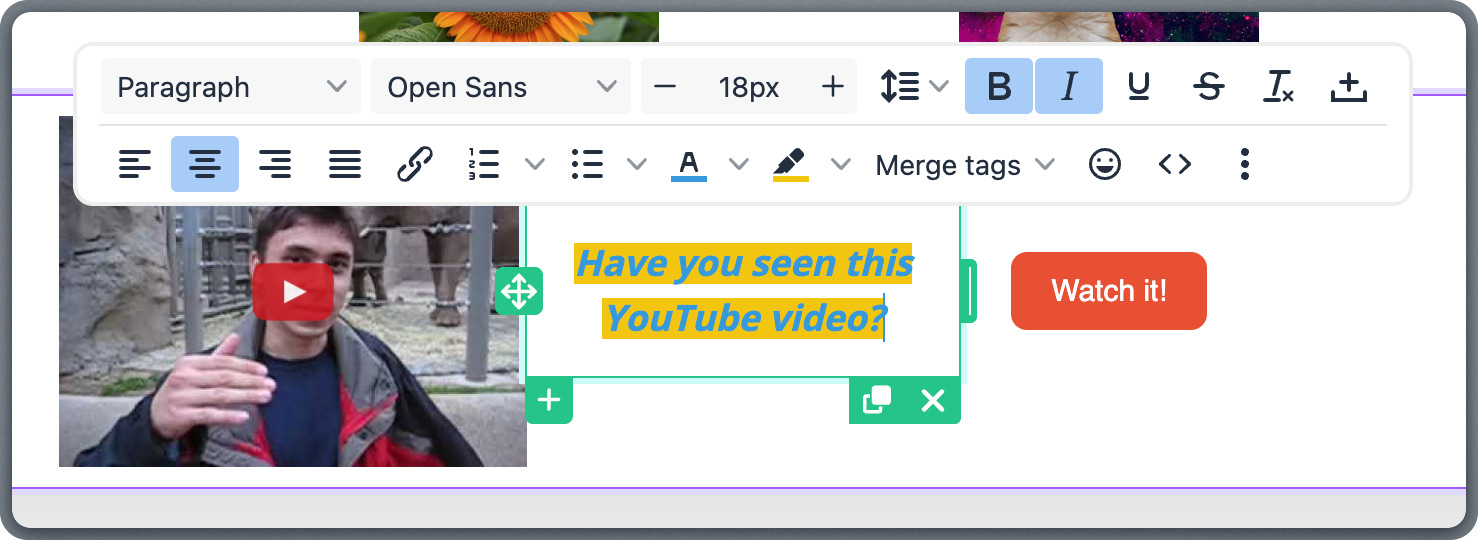
Keep text blocks clear, easy to scan, and consistent throughout the template. Use short paragraphs and simple sentences so readers can quickly understand the message, especially on mobile devices.
Resist the urge to override global font styles on every text block. If you find yourself changing the font or size frequently, consider updating the global defaults in the Settings panel instead. This keeps the template consistent and makes future edits simpler.
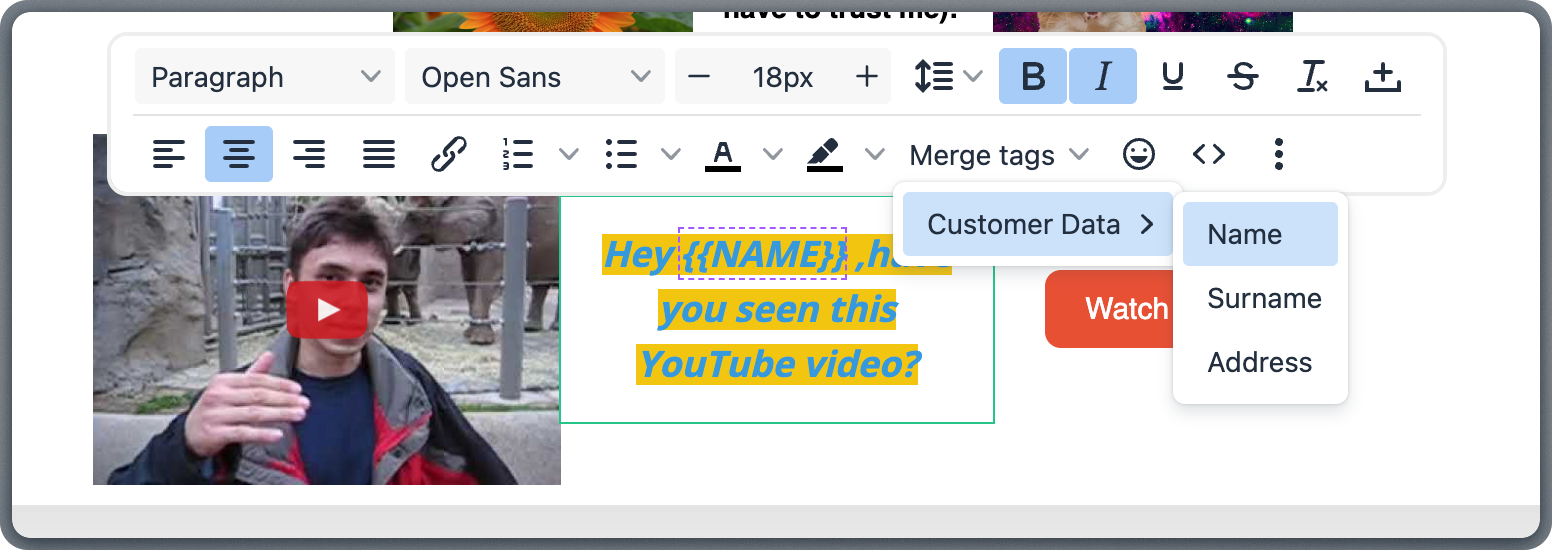
The toolbar also provides access to all defined merge tags. Select a tag from the dropdown to insert it at the cursor position. Inserted tags inherit the formatting already applied in the template. Merge tag dropdown menu in the text formatting toolbar
Always check how merge tags appear in Preview Mode to ensure they read naturally and do not break formatting.

Images

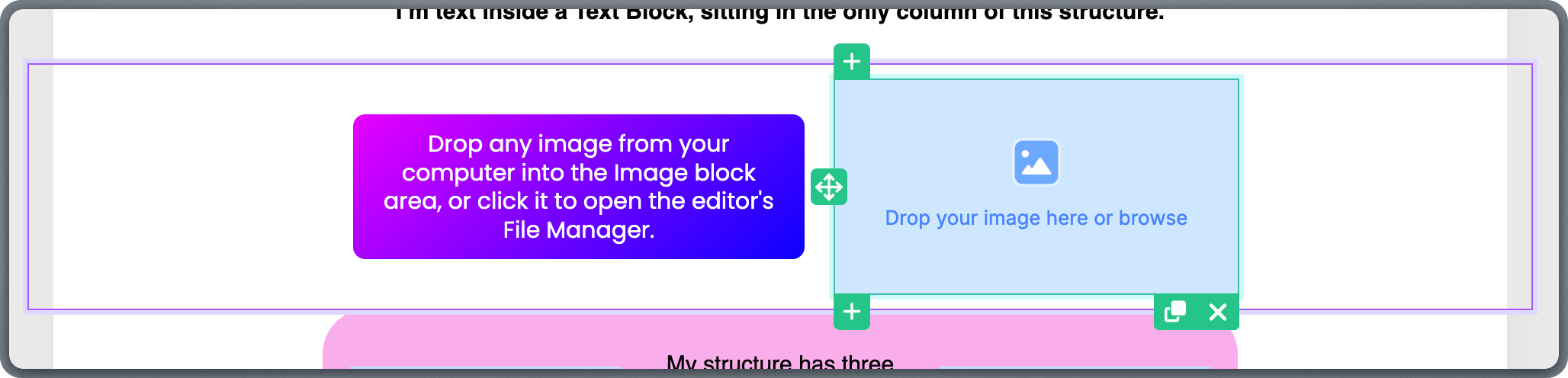
Images should support the message of the email, not overwhelm it. Use images intentionally and avoid decorative visuals that add no value. To insert an image, drag the Image block into a structure. This reserves space for an image, but nothing displays yet. Empty image block placeholder within a template structure Upload images directly from your computer by dragging them into the Image block area, or click the block to open the File Manager. From there, select a previously uploaded image or upload a new one. The File Manager also lets you create folders to organize your library and search for images by name. File Manager interface showing uploaded images, folder navigation, and upload options
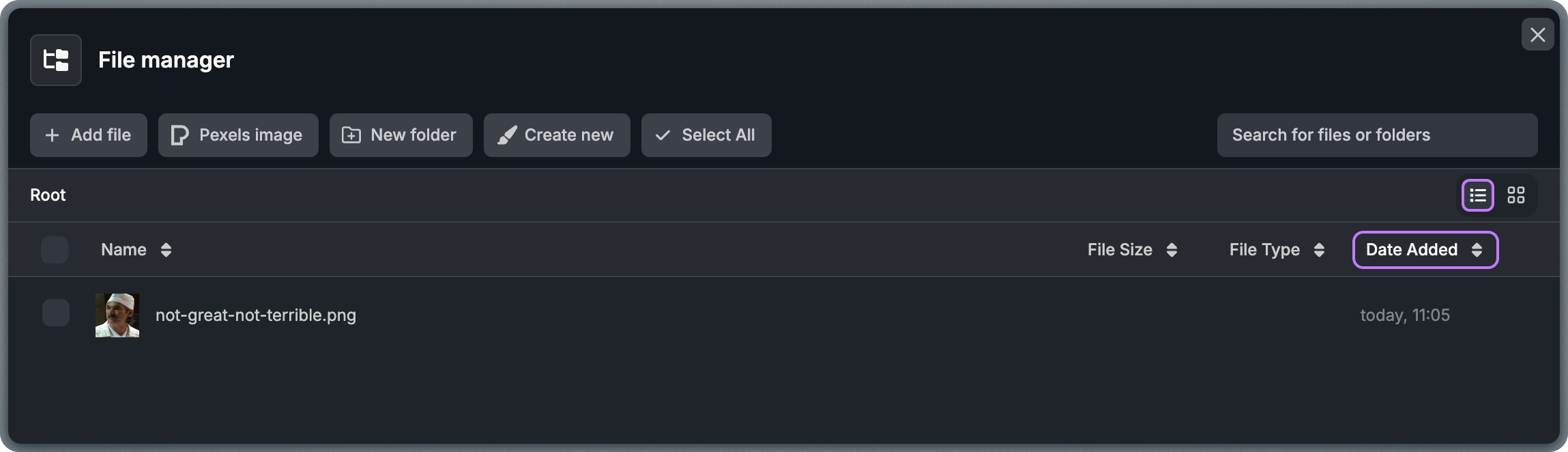
If you don’t have a suitable image, search the Pexels image library directly from the File Manager.
Images uploaded to File Manager are available team-wide and can be reused across templates. They are stored in your team’s Storage Domain and served from your custom domain.
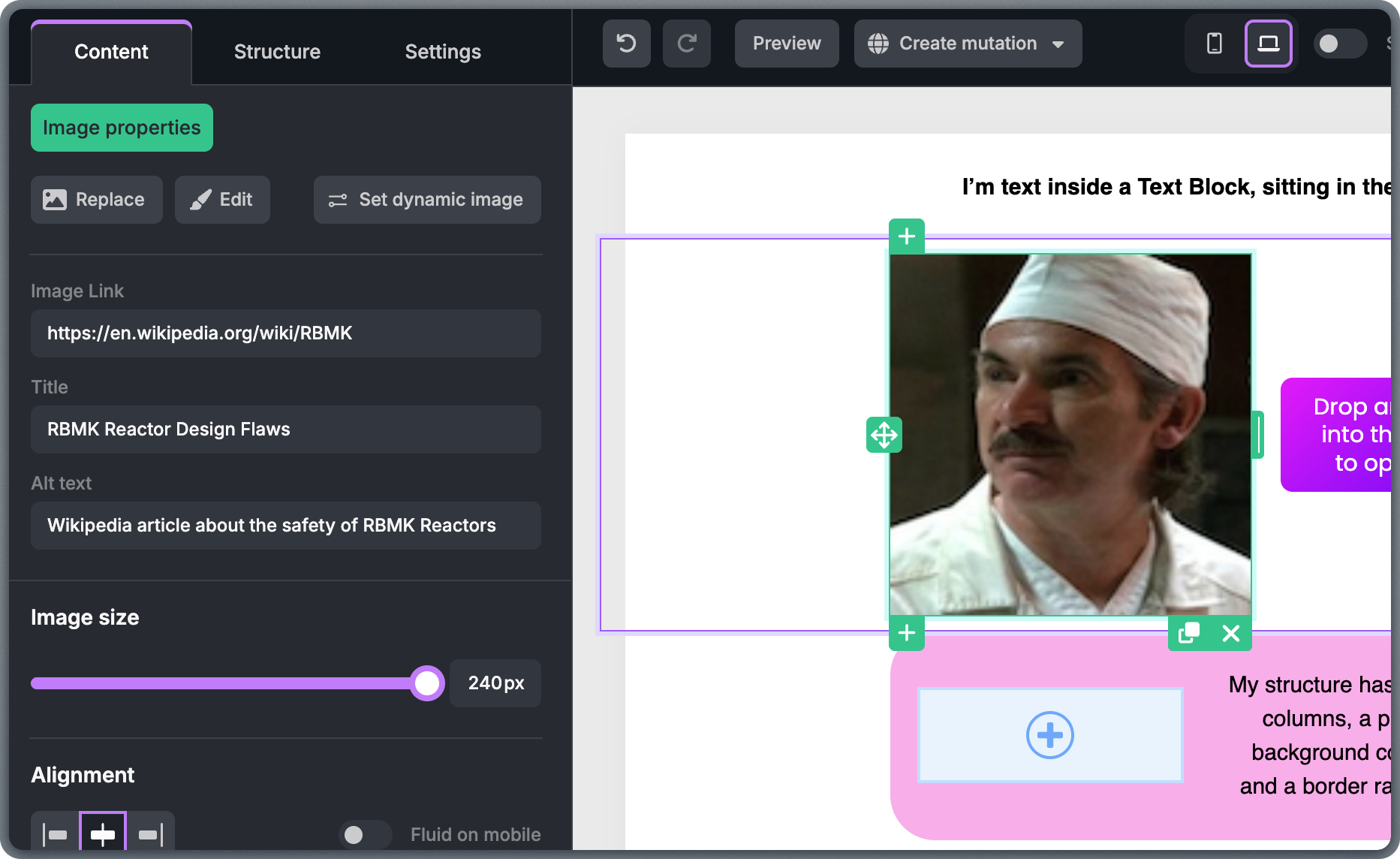
When you select an Image block, the left-side panel lets you adjust alignment, size, and margins. You can also add a link so users are redirected when they click the image. Image properties panel showing alignment, size, margins, and link settings
Always include alternative text for images. Many email clients block images by default, and alt text ensures the message remains understandable when images don’t display. Alt text should describe the purpose of the image rather than its visual details.
Keep image files optimized for email. Use JPEG or PNG formats, keep file sizes under 2 MB, and avoid widths greater than 600 pixels to ensure proper rendering across email clients. Large or unoptimized images increase loading time and negatively affect user experience and data usage.
Avoid using images for critical information like event dates, promo codes, or calls to action. When images are blocked by email clients (which is common), that information becomes invisible to the reader. Always include the essential message in text as well.
To adjust an image, click the Edit button to open the integrated image editor. From there, you can crop, resize, mask, and adjust other properties without leaving the editor.

GIFs

GIFs can add motion and draw attention, but use them sparingly and with purpose. Short, subtle animations work best and help avoid distractions. Working with GIFs is similar to working with images, but instead of uploading to the File Manager, you link a GIF directly from an external source. You can adjust most of the same properties as images in the left-side panel. GIF block properties panel showing URL input, alignment, size, and margin settings
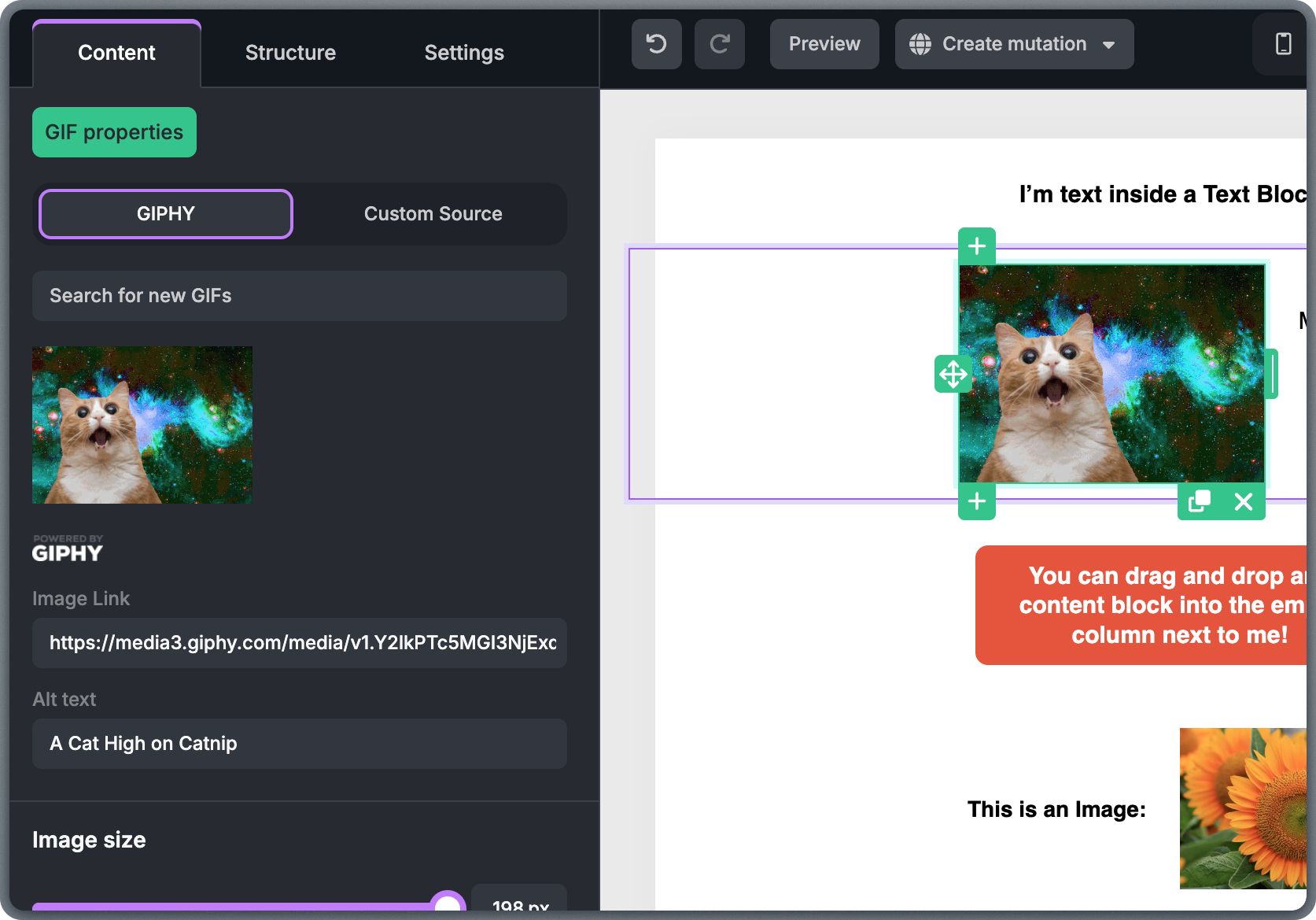
Search for GIFs on Giphy directly from the editor to speed up your workflow.
GIFs can significantly increase email size. Keep GIF file sizes as small as possible—ideally under 1 MB. Large GIFs slow down rendering, increase data usage on mobile, and may cause some email clients to clip the message entirely. Use GIFs only when they add clear value to the message.

Buttons

Buttons should have a clear purpose and guide readers toward one specific action. Use short, direct text that describes what happens after the click, such as “Shop now” or “Read more.” One to three words is usually enough. To make buttons functional, add a link by selecting the button and entering the URL in the left-side panel. Button block properties panel showing link URL, text, colors, and padding settings

Avoid vague labels like “Click here!” that don’t clearly communicate value or intent.
Ensure buttons are easy to tap on mobile devices by using adequate padding and spacing. Buttons should stand out visually from surrounding content, using colors that contrast well with both the background and the button text.
For consistency and efficiency, define your main button style in the Settings tab instead of styling each button individually.
Don’t forget to add a link URL to every button. It’s easy to focus on styling and overlook the most important part: where the button actually leads. A button without a link does nothing when clicked.

Spacers

Spacer blocks control vertical spacing between elements in a template. They create visual breathing room and improve readability without affecting the content itself. Spacer block with height adjustment handle between two content sections
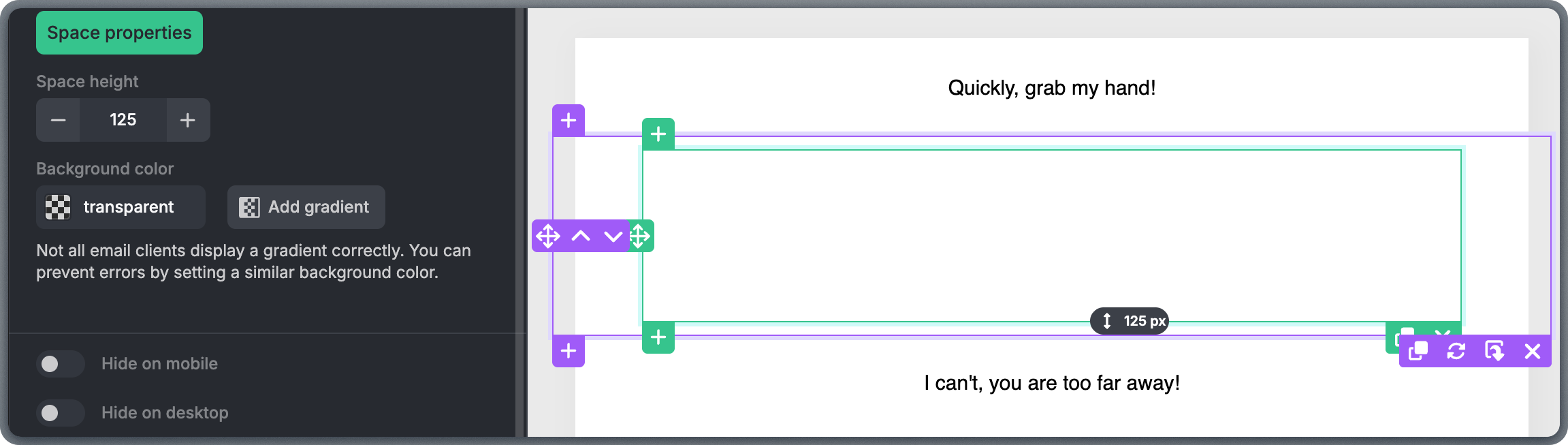
To quickly adjust spacing, click inside the spacer block and drag up or down to change the height.
Use spacer blocks for clean, predictable vertical spacing. They are the preferred method for adding space between text, images, buttons, or entire sections—use them instead of empty text blocks or repeated line breaks.
Avoid excessively large spacers. Too much empty space can push important content too far down, especially on mobile devices.

Dividers

Divider blocks visually separate sections and help structure email content. They provide a clear visual break between different parts of a template without adding extra text. When selected, the left-side panel lets you adjust the divider’s color, thickness, style, margin, and height. Divider block properties panel showing color, thickness, style, and margin options Keep divider styles simple. Thin lines with subtle colors look more professional and work better across different email clients.

Preview the template on both desktop and mobile to ensure dividers don’t appear too dominant or too subtle on smaller screens.

Social

Social blocks link recipients to your brand’s social media profiles on networks such as Facebook, Instagram, X (Twitter), LinkedIn, or custom URLs. Each icon can be enabled or disabled individually, reordered, and linked to the correct destination. For more details, see the Social Network Icons guide. Social block showing icon selection, ordering, and URL configuration options Keep social icons visually consistent across templates. Use the same icon style, size, and alignment so they feel like a natural part of the design rather than an afterthought.
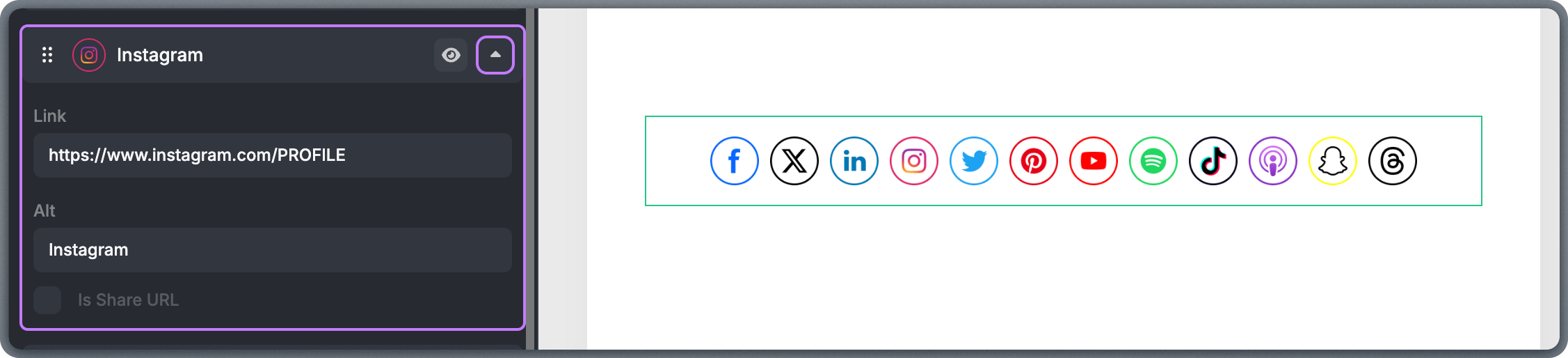
Social blocks are most commonly placed in the footer but can also work well near the end of a message when aligned with the content flow.
Double-check that every social icon links to the correct profile URL. Broken or mismatched social links are a common oversight and can confuse recipients or damage trust.

Video

The Video block lets you include video content in an email-friendly way. Because most email clients don’t support embedded video playback, the Video block displays a clickable thumbnail image that links to the video. Video block with thumbnail preview and play button overlay Paste a video URL (for example, from YouTube or Vimeo), and the editor automatically generates a preview image. You can then adjust alignment, size, margins, and the link destination. When clicked, the video opens in the recipient’s browser or video platform app.
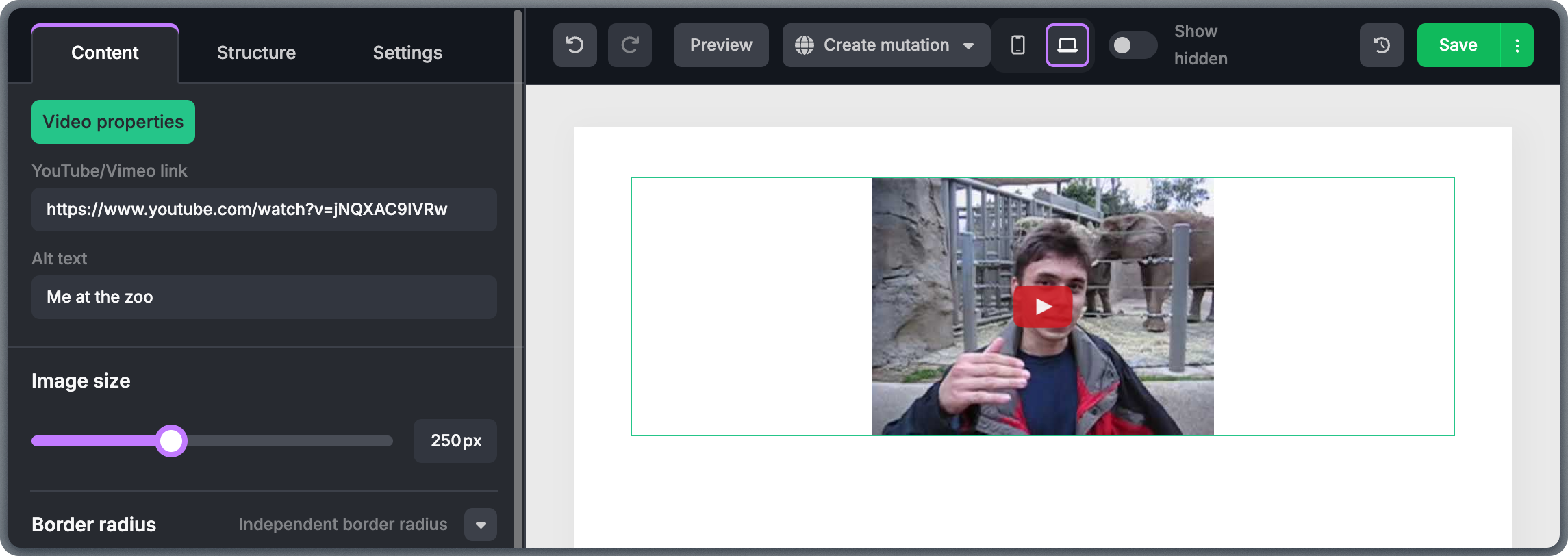
Place videos intentionally and close to related text so recipients understand what they’ll see after clicking.

HTML

HTML blocks let you insert custom HTML code directly into your template. This is useful for advanced layouts, custom tracking elements, or integrations that standard content blocks can’t achieve. For guidance on what works well, see the HTML in Topol guide. HTML block code editor with syntax highlighting and validation
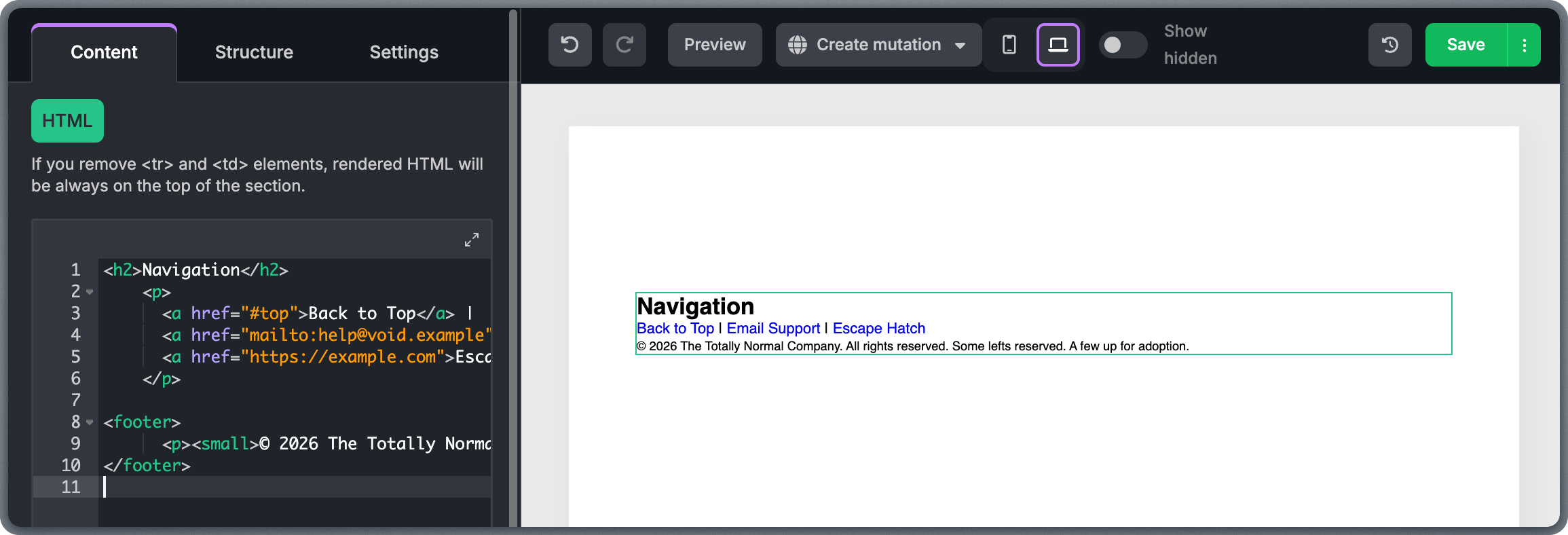
Use HTML blocks carefully. Scripts and complex interactive elements aren’t supported by most email clients and may break rendering or affect deliverability. Always test custom HTML across multiple email clients before sending.
The integrated HTML editor includes a spell checker that helps you write valid HTML. Use HTML blocks only when you fully understand the code being added. When in doubt, rely on native content blocks instead of custom HTML.
If you’re not confident writing email-compatible HTML, stick to the built-in content blocks. They are tested to render correctly across major email clients, which custom HTML may not.

Product

Product blocks are designed for e-commerce emails and work with Product Feeds. A Product block represents a complete product unit, including image, name, description, price, and button. For setup instructions, see the E-commerce Products guide. To use a Product block, drag it into a structure and select a product feed and product in the left-side panel. Product block properties showing product feed dropdown and product selection Once connected, the block automatically pulls product data from the XML feed. Product block displaying product image, name, description, price, and call-to-action button Product blocks behave as single units. You can reorder or hide elements within the block using layout options, but you cannot add additional content blocks inside a Product block.
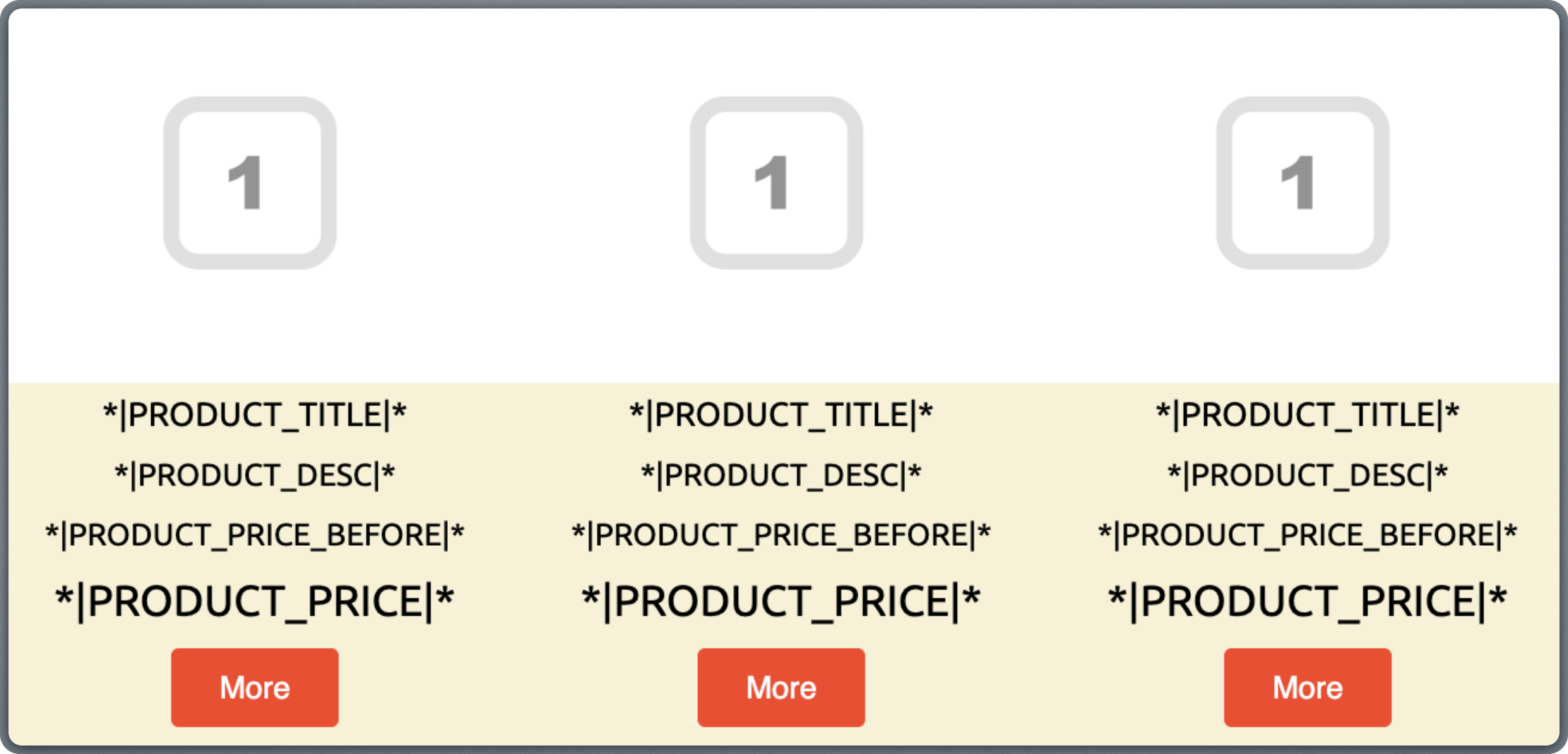
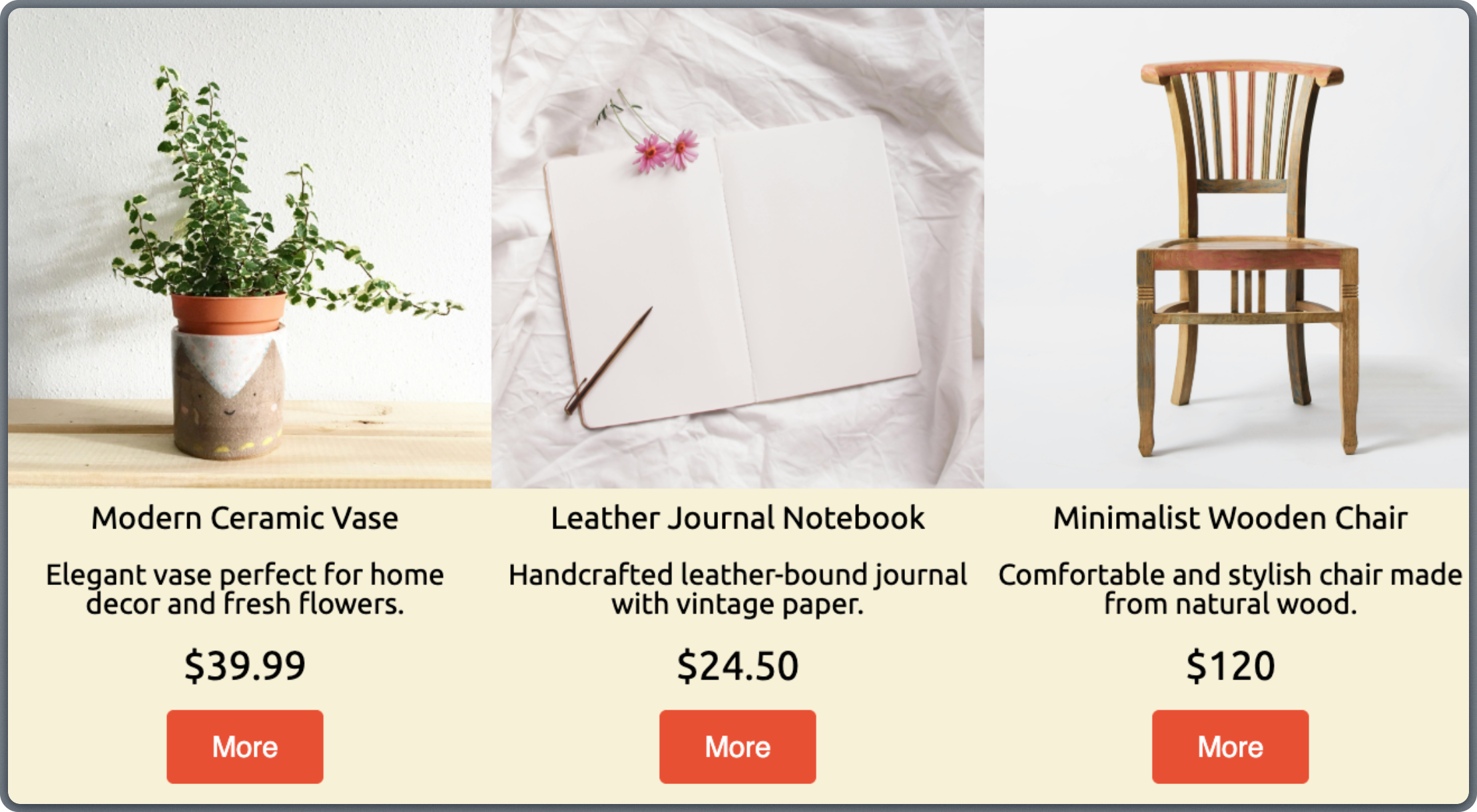
If you need extra text or visuals near products, place them in a separate structure above or below the Product block.

Working with Top Bar

The Top Bar gives you quick access to the tools you’ll use most while building and reviewing templates. These buttons help you stay in control as you edit, experiment, preview, and prepare templates for use. Editor top bar with undo/redo, multilingual, view toggles, autosave, save, and fullscreen buttons Knowing what each option does and when it’s best to use it can make your work faster, safer, and much less stressful, especially when templates become longer or more complex.

Undo and Redo

Undo and Redo are your safety net while editing. They let you quickly step backward or forward through recent changes, whether you’ve edited text, moved blocks, adjusted layouts, or changed settings. Just keep in mind that Undo and Redo only work within your current editing session, so they don’t replace saving or autosaves.
It’s usually faster and safer to use Undo than to manually fix mistakes. Get comfortable reaching for Undo early and often—it’s one of the most useful habits you can build.

Multilingual options

The Multilingual option is used when you’re working with templates that need to exist in more than one language. It lets you switch between language versions of the same template while keeping the layout consistent. For a full walkthrough, see the Multilingual Templates guide. Multilingual dropdown in the top bar showing available language versions of the template Each language version shares the same structure but has its own text content. This makes it much easier to manage translations without duplicating templates or worrying about layout differences.
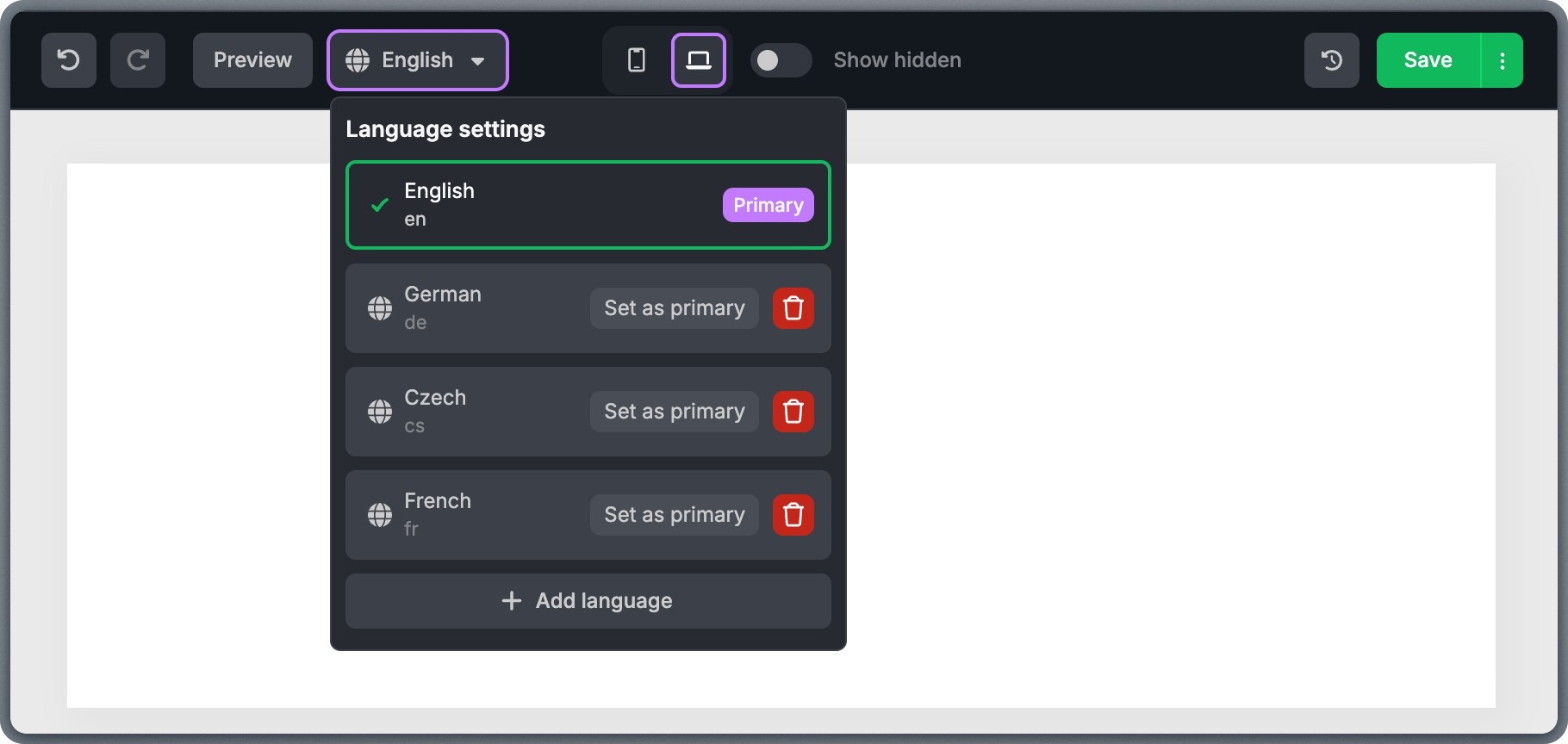
A good approach is to finalize your structure first and then add additional languages. Making major layout changes later can mean more work across all language versions.
Structural changes made in one language version affect all languages. If you add, remove, or rearrange structures after translations are in place, you may need to re-check text content in every language version.

Desktop and Mobile view

One of the greatest advantages of our editor is that all your templates are built mobile-first and are responsive by default. The Desktop/Mobile view toggle lets you quickly see how your email will look on larger screens versus smaller mobile devices. For more on responsive design, see the Desktop and Mobile optimization guide and the Mobile-first email template design article. Desktop and Mobile view toggle buttons in the editor top bar Mobile view shows how content stacks, how text wraps, and whether buttons and images are still easy to read and tap on smaller screens.
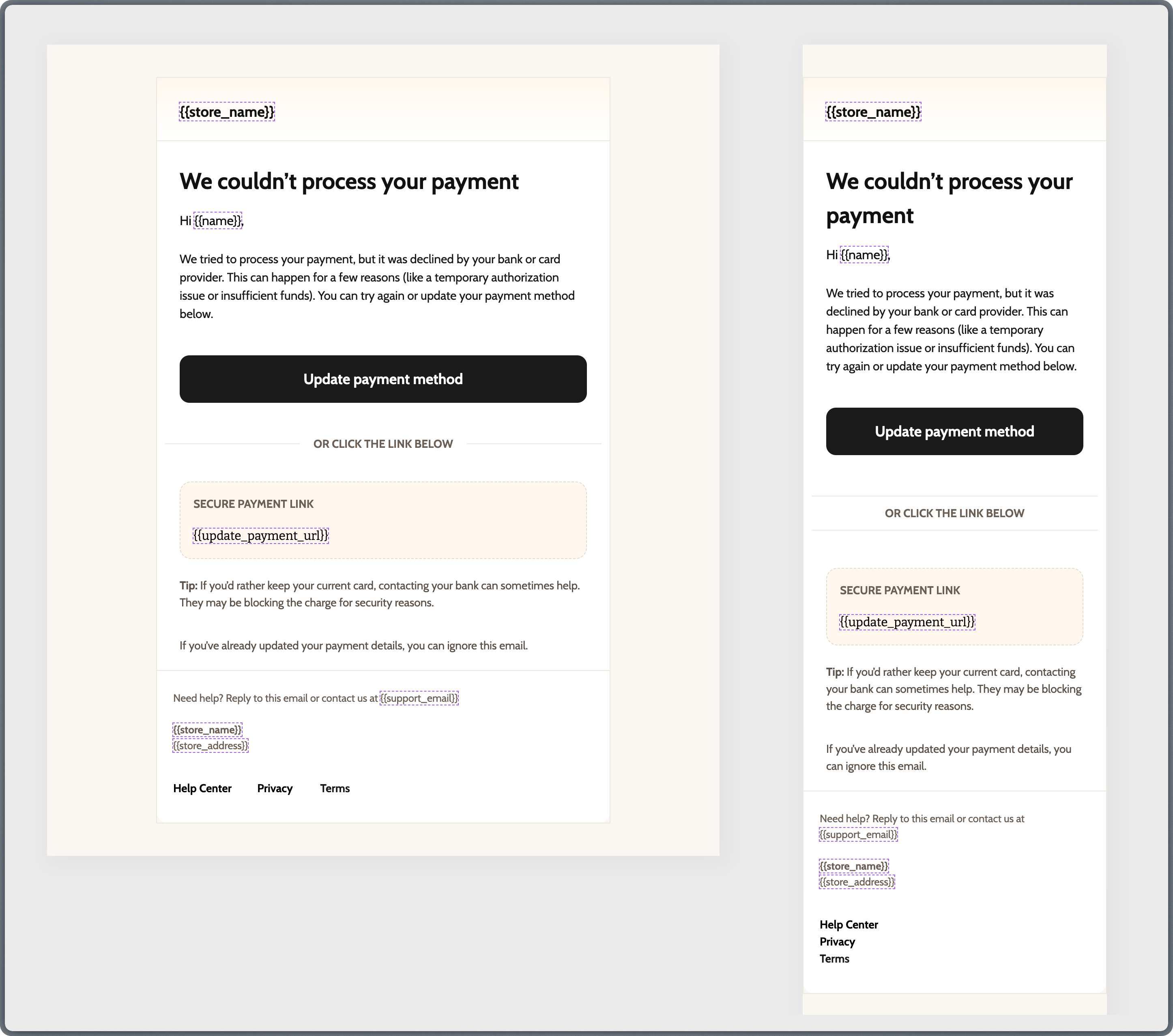
Instead of waiting until the end, it’s best to switch between desktop and mobile views regularly while building a template. Catching layout issues early is much easier than fixing them after the template is fully built.

Show hidden

The Show hidden button reveals content that is set to be hidden on the currently active view (desktop or mobile). This is essential when you want to create a different layout for mobile that doesn’t include all the same content as the desktop version. To achieve this, first duplicate the section or block that should appear differently on desktop and mobile. Then, while switching between Mobile and Desktop views, create the desired layout for each version. Then, enable “Hide on desktop” for the version that should be visible only on mobile and “Hide on mobile” for the version that should be visible only on desktop. Hide on desktop and Hide on mobile toggle options in the structure settings panel As a result, the structures set as “Hide on desktop” will disappear from your editor. That is where this “Show hidden” button comes in handy—it temporarily shows all hidden content so you can still edit it.
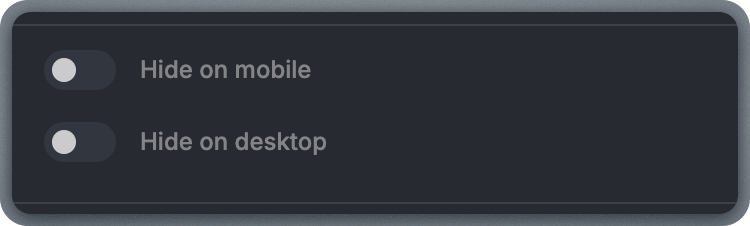
When using the hide/show approach for different mobile and desktop layouts, clearly name or visually distinguish the two versions (for example, by adding a temporary colored background) so you don’t accidentally edit the wrong one.
Hidden content is still included in the email’s HTML—it’s just visually hidden using CSS. This means it still contributes to the overall email size. Avoid hiding large amounts of content, as it can increase load times and may trigger email clipping in clients like Gmail.

Autosave history

Autosave history lets you view and restore earlier versions of your template that were saved automatically in the background. Autosaves happen at regular intervals and help protect your work if something goes wrong. For more details, see the Autosave with version history article. Autosave history panel showing timestamped versions of the template with restore options This feature is especially helpful during long editing sessions or when you’re making big changes. If you ever need to go back to a previous version, autosave history gives you that option.
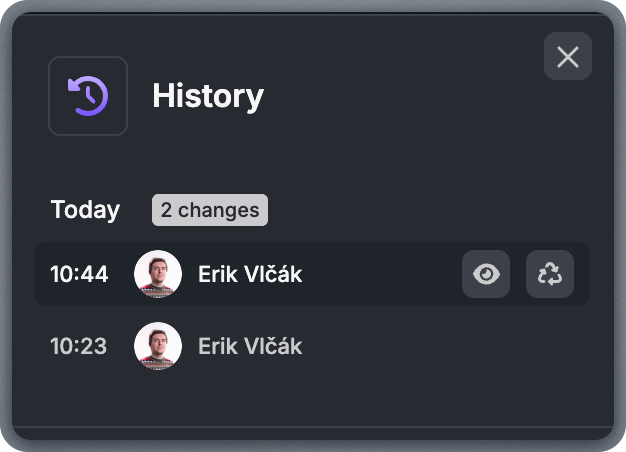
Think of autosaves as a safety net. They’re there to protect you, but they don’t replace intentionally saving your work. After completing a major section or before making significant structural changes, save manually.

Save

The Save button stores the current state of your template. Saving makes sure your latest changes are preserved and available the next time you open the template. Even though autosaves run in the background, it’s still a good habit to save manually after finishing meaningful changes, such as finalizing content, adjusting layouts, or preparing a template for review.
The Save button also contains the “Save and Close” option that is accessible through the three vertical dots on the right. When clicked, this saves and then closes the editor in one step—useful when you’ve finished editing and want to return to the template list.

Fullscreen

The Fullscreen option expands the editor to fill your entire screen, removing surrounding distractions. Fullscreen mode is useful when working on long templates, reviewing the overall flow, or focusing on fine visual details like spacing and alignment. Having more space makes it easier to spot inconsistencies or areas that need adjustment.
Use Fullscreen mode when doing your final review pass. The extra screen space makes it easier to spot alignment issues, inconsistent spacing, and other visual problems you might miss in the normal view.

Ideal Workflow

A reliable workflow that works for most templates follows these steps: 1. Place structures for your layout. Don’t worry about content yet. Focus on creating the main skeleton: header area, hero section, main content sections, product areas, and footer.
To move faster, start with a pre-made structure and customize it to match your design.
2. Define your global styles. Open the Settings tab and configure background color, block color, button color, link color, text styles, spacing, and more. For a full overview of available settings, see the Settings panel guide.
Defining these values early reduces the amount of manual styling later.
3. Add content blocks. Drag text, images, buttons, dividers, spacers, social icons, videos, GIFs, or product blocks into the structures you prepared. 4. Review on desktop and mobile. Switch between views regularly as you build, and do a thorough review once all content is in place. Check stacking order, spacing, button tap targets, and text readability on both views. 5. Preview and test. Use the Preview and Testing tools to see how the email renders. Send a test email to yourself and check it in at least one desktop and one mobile email client before finalizing.
This workflow reduces rework. When global styles are defined first, individual blocks require fewer adjustments and the final template looks more consistent.

Common Issues and Troubleshooting

Even experienced users run into issues from time to time. This section covers the most common problems and how to solve them.
You’re likely trying to drag a content block directly onto the canvas without a structure in place. Content blocks must be placed inside a column within a structure. First drag a structure onto the canvas, then drag the content block into one of its columns.
Multi-column structures stack vertically on mobile by default, but if you’ve disabled “Stack columns on mobile,” columns will try to remain side-by-side on narrow screens. Re-enable stacking unless the content is very short. Also check that column padding isn’t set to zero—some spacing helps readability on smaller screens.
Email client rendering varies significantly. The editor preview is a good approximation, but some clients (particularly Outlook on Windows) handle spacing, fonts, and backgrounds differently. Always send a test email and check it in multiple clients. Stick to standard content blocks and avoid custom HTML when possible, as built-in blocks are tested for cross-client compatibility.
Check that images were uploaded through the File Manager (not just linked from a temporary source). Externally hosted images may be blocked by email clients or firewalls. Also verify that the image URL is HTTPS—some email clients block HTTP images. If images still don’t appear, the file may have been deleted from the File Manager or the Storage Domain may not be configured correctly.
Large image files (over 2 MB) may fail to upload. Resize and compress images before uploading. Use JPEG for photos and PNG for graphics with transparency. Also check your internet connection—slow or unstable connections can cause upload timeouts.
This usually happens when content is too wide for mobile screens. Check image widths (keep them under 600px), ensure text blocks aren’t using fixed widths, and verify that column stacking is enabled. Also check for structures with “Do not stack on mobile” enabled—these are the most common source of mobile layout issues.
Merge tags only get replaced with real values when the email is actually sent with substitution data. In the editor and in previews, they appear as placeholders. To verify they work correctly, send a test email with sample data. If tags still appear raw after sending, check that the tag names match exactly what you’re passing in substitution_data.
Hidden content uses CSS to hide elements, which works in most email clients. However, some older or less common clients may not respect the CSS rules. Also check that you’ve set the visibility correctly—“Hide on mobile” and “Hide on desktop” are separate options. Make sure you’ve toggled the right one for each version of the content.
In multilingual templates, all language versions share the same structure. Adding, removing, or rearranging structures in one language affects all of them. Only text content is independent per language. If you need a different layout for a specific language, consider using separate templates instead of the multilingual feature.

Further Reading